Product Manual — Doc. 9349B Crestron Zūm® Wired Solutions • 239
4. A confirmation dialog opens. Click Yes to add the room(s) the Room Category or No to
cancel.
Control a Room
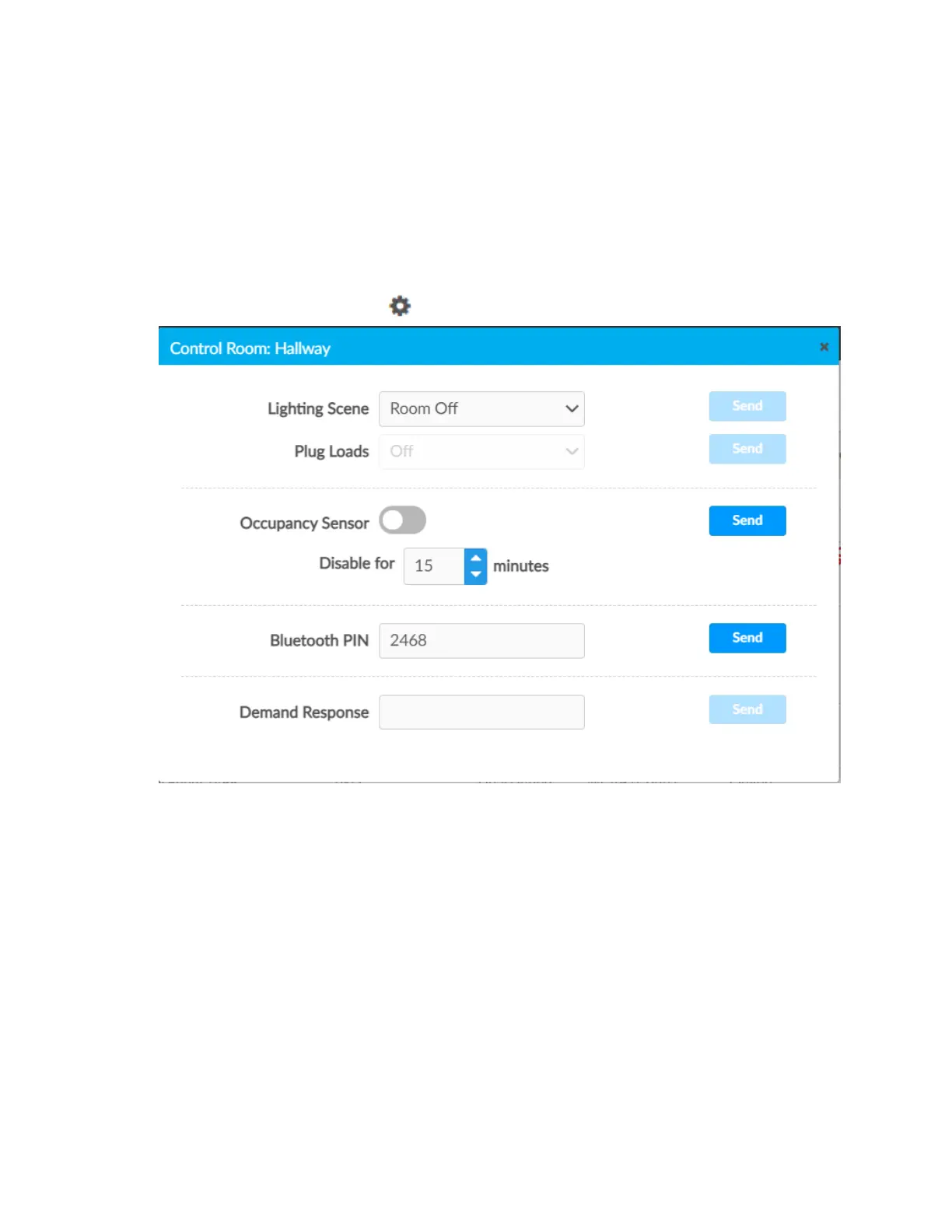
Open the Control Room window to select a Lighting Scene, change the state of Plug Loads,
enable or disable the occupancy sensor, set the Bluetooth PIN, or set the Demand Response level
for a specific room.
1. Click on the ZUM-HUB4 or on a Room Category.
2.
For the desired room, click the to open the Control Room options.
Lighting Scene
To select the Lighting Scene set in the Room:
1. Select a Lighting Scene from the drop down menu.
2. Click Send to send changes to the room, or close the Control Room to discard unsaved
changes.
Plug Loads
This setting is only active for rooms with a Plug Load Controller.
1. Select On or Off from menu to turn the load on or off.
2. Click Send to send changes to the room, or close the Control Room to discard unsaved
changes.


 To Next Page