244 • Crestron Zūm® Wired Solutions Product Manual — Doc. 9349B
To add a Room State to a Room Category:
1.
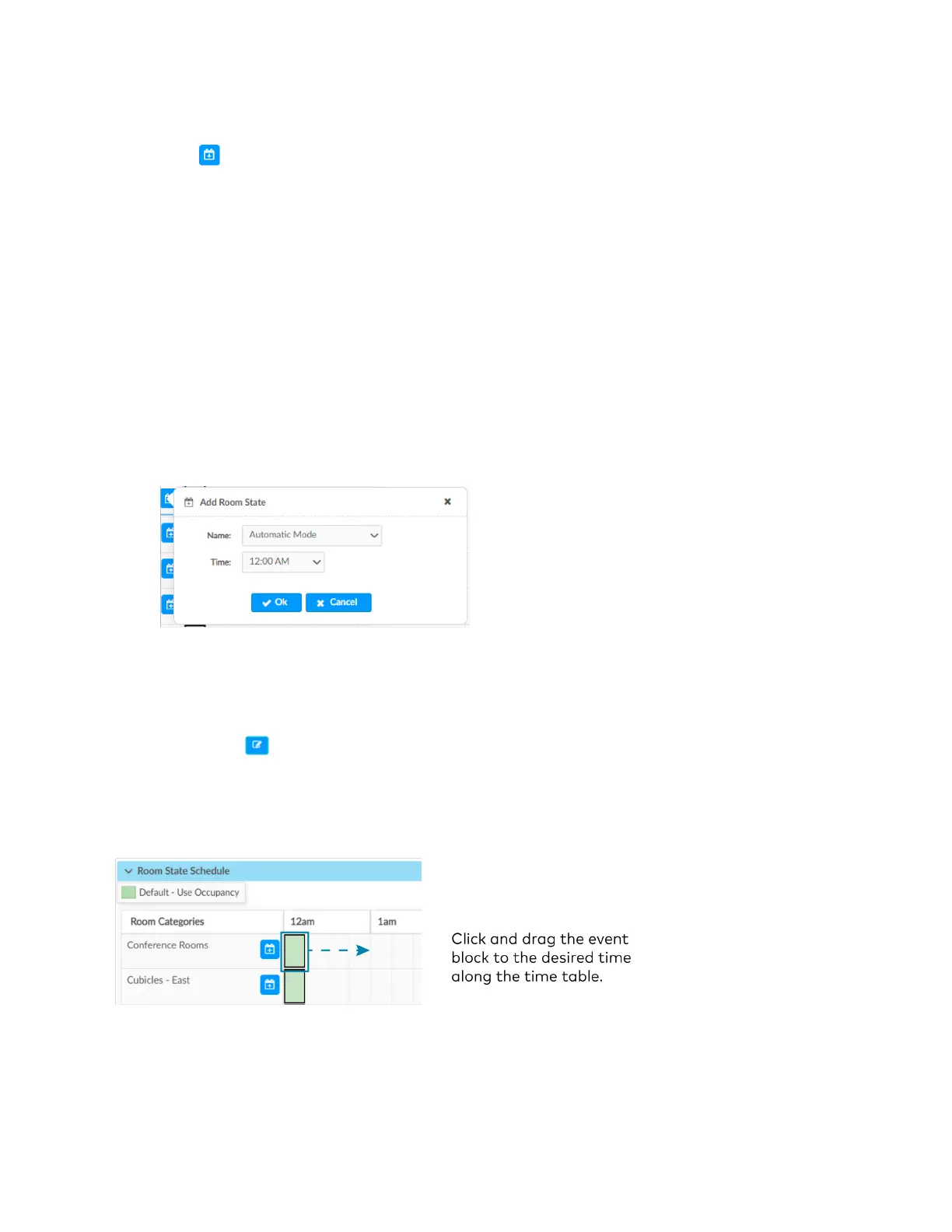
Click to add a Room State. The Add Room State window opens.
2. Select the desired Room State from the Name drop-down menu. The default Room State
selections are examples of possible Room State applications and can be edited as needed.
l
Automatic Mode
l
Default - Use Occupancy
l
Energy Saving
l
Manual Control
l
Morning Turn Off
l
Morning Turn On
l
Sweep Off
3. Select the desired Room State start time from the Time drop-down menu: 12 AM- 11:45
PM.
4. Click Ok to save the room state or Cancel to close the window without saving.
To edit a default or custom event block:
l
Change the assigned Room State:
1. Click an event block, and a dialog opens.
2.
Click and choose a new Room State from the drop-down menu.
3. Click Ok to save the changes or Cancel to close the window without saving.
l
Change the assigned time:
Click and drag the event block to the desired time within the time table.


 To Next Page