Product Manual — Doc. 9349B Crestron Zūm® Wired Solutions • 265
6. Click Save to save the new name or Cancel to close the window without saving a new
name.
Delete Existing Template
To delete an existing template:
1. Open Settings View.
2. Click the Commissioning tab and expand the Template Management menu.
3. If necessary, use the Search bar to find a room template.
4.
Click . A confirmation window opens.
5. Click Yes to delete the template or Cancel to close the window.
Extract Template
To extract a room template from another room:
1. Open Settings View.
2. Click the Commissioning tab and expand the Template Management menu.
3. If necessary, use the Search bar to find a room template.
4. Click Extract. The Extract Template window opens.
5. Select a room.
6. Click Extract to extract the template or Cancel to close the window.
Mapping and Template Deployment
Use Mapping and Template Deployment to apply and deploy templates to rooms and to import
mapping files.
Apply and Deploy Templates.
To apply and deploy a template:
1. Open Settings View.
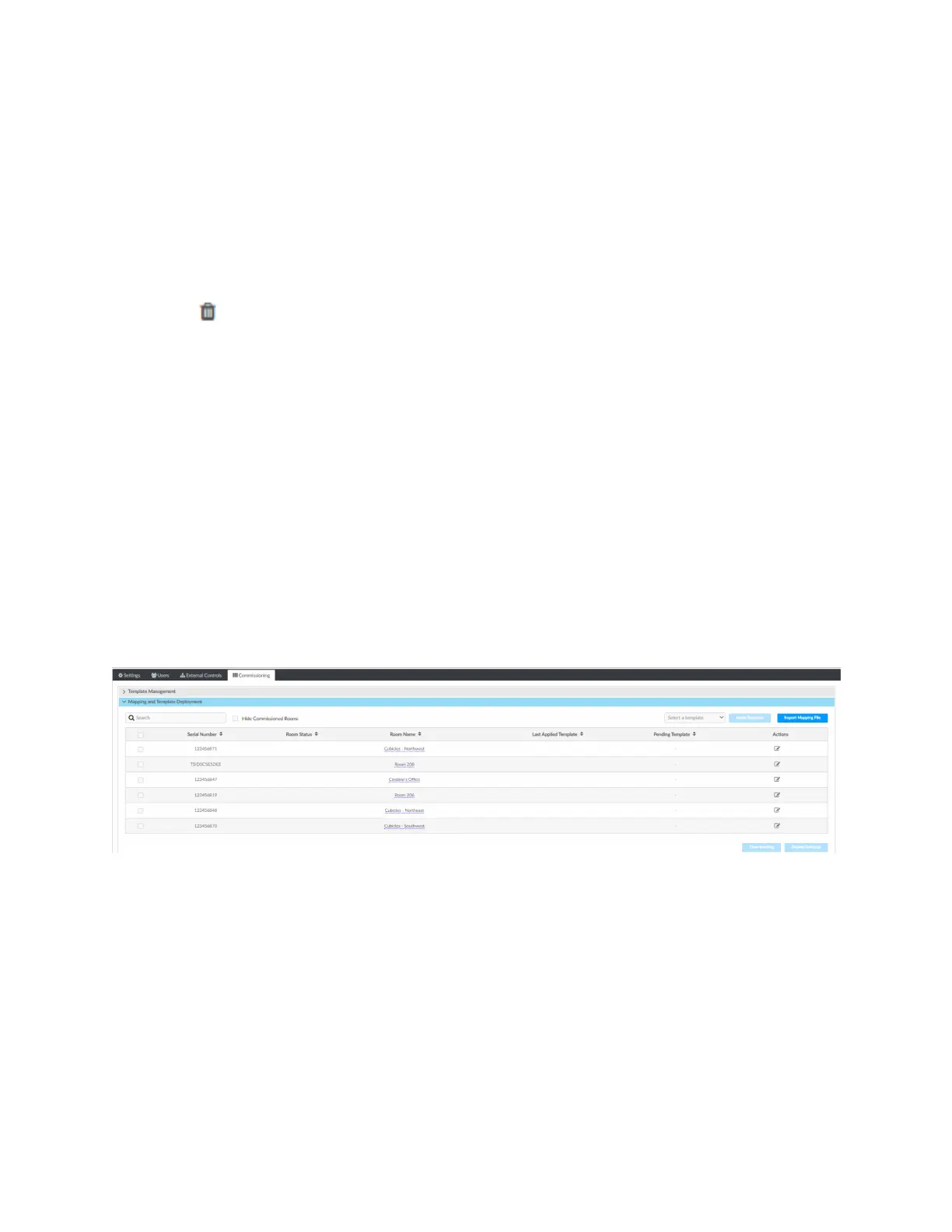
2. Click the Commissioning tab and expand the Mapping and Template Deployment menu.
3. Select a room or multiple rooms. If necessary, use the Search bar to find a room.
4. From the Select a template drop-down menu, choose the desired template.
5. Click Apply Template. When the template is successfully applied, the template is now
pending.


 To Next Page