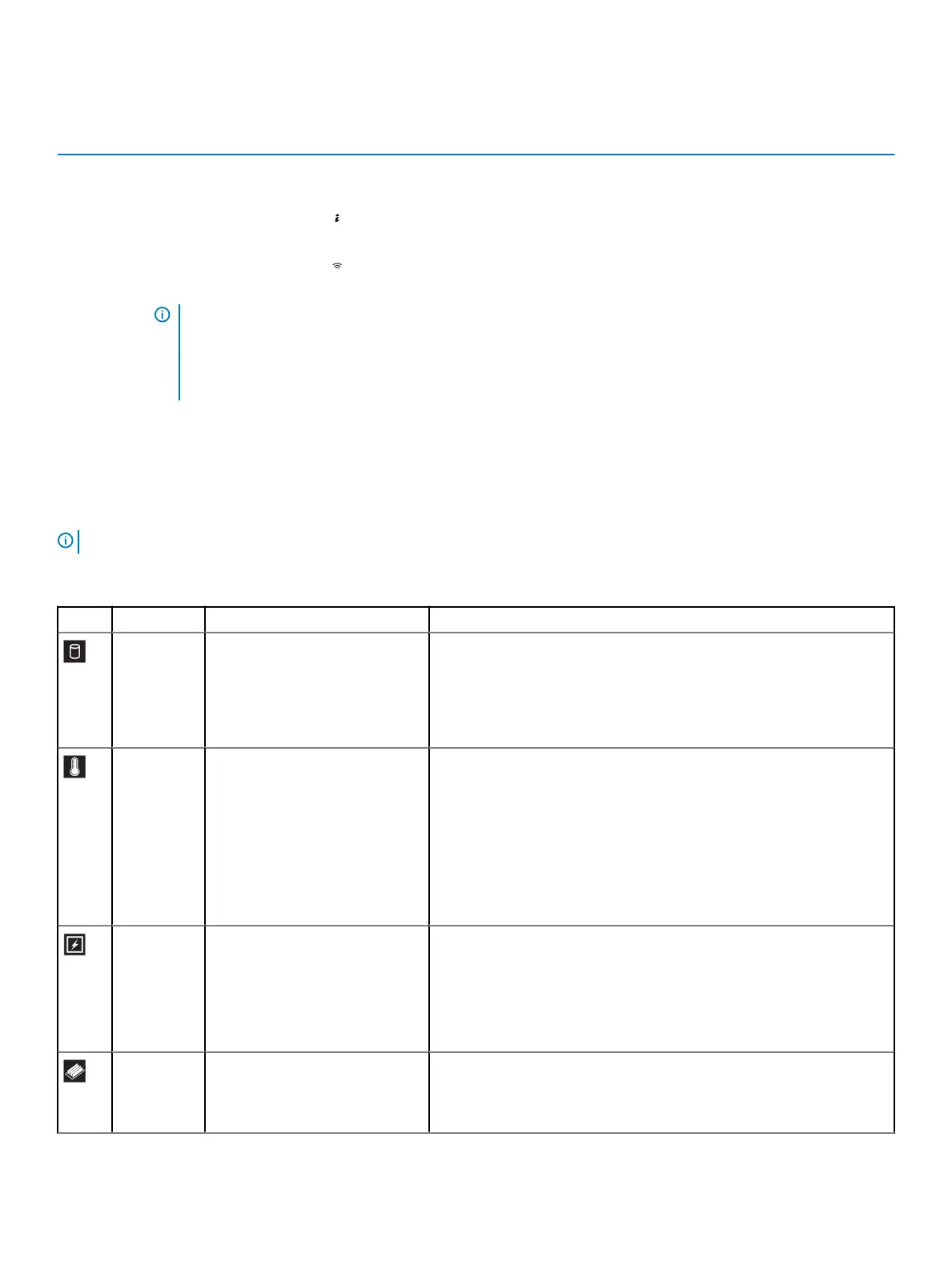
Table 4. Left control panel
Item Indicator or button Icon Description
1 Status LED indicators N/A Indicate the status of the system. For more information, see the
Status LED indicators section.
2 System health and system
ID indicator
Indicates the system health. For more information, see the System
health and system ID indicator codes section.
3 iDRAC Quick Sync 2
wireless indicator (optional)
NOTE: iDRAC Quick
Sync 2 wireless
indicator is available
only on certain
congurations.
Indicates if the iDRAC Quick Sync 2 wireless option is activated. The
Quick Sync 2 feature allows management of the system using mobile
devices. This feature aggregates hardware/rmware inventory and
various system level diagnostic/error information that can be used in
troubleshooting the system. You can access system inventory, Dell
EMC Lifecycle Controller logs or system logs, system health status,
and also congure iDRAC, BIOS, and networking parameters. You can
also launch the virtual Keyboard, Video, and Mouse (KVM) viewer
and virtual Kernel based Virtual Machine (KVM), on a supported
mobile device.Dell.com/poweredgemanuals
Status LED indicators
NOTE: The indicators display solid amber if any error occurs.
Table 5. Status LED indicators and descriptions
Icon Description Condition Corrective action
Drive
indicator
The indicator turns solid amber if
there is a drive error.
• Check the System Event Log to determine if the drive has an error.
• Run the appropriate Online Diagnostics test. Restart the system and
run embedded diagnostics (ePSA).
• If the drives are congured in a RAID array, restart the system, and
enter the host adapter conguration utility program.
Temperature
indicator
The indicator turns solid amber if
the system experiences a thermal
error (for example, the ambient
temperature is out of range or
there is a fan failure).
Ensure that none of the following conditions exist:
• A cooling fan has been removed or has failed.
• System cover, air shroud, memory module blank, or back ller bracket is
removed.
• Ambient temperature is too high.
• External airow is obstructed.
If the problem persists, see Getting help.
Electrical
indicator
The indicator turns solid amber if
the system experiences an
electrical error (for example,
voltage out of range, or a failed
power supply unit (PSU) or voltage
regulator).
Check the System Event Log or system messages for the specic issue. If
it is due to a problem with the PSU, check the LED on the PSU. Reseat the
PSU.
If the problem persists, see Getting help.
Memory
indicator
The indicator turns solid amber if a
memory error occurs.
Check the System Event Log or system messages for the location of the
failed memory. Reseat the memory module.
If the problem persists, see Getting help.
14 Dell EMC PowerEdge R640 system overview





 To Next Page