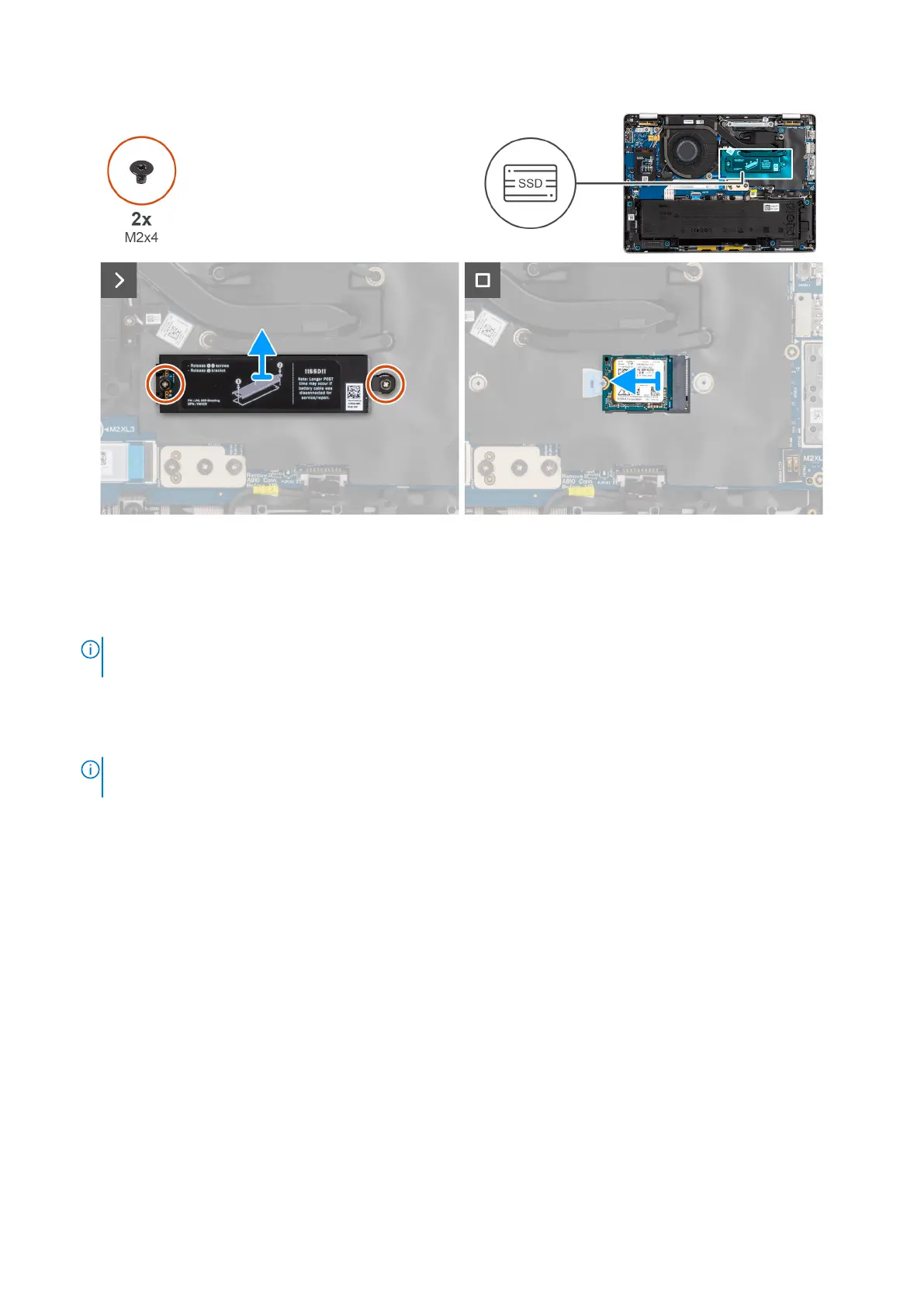
Figure 30. Removing the M.2 2230 SSD
Steps
1. Remove the two screws (M2x3) securing the SSD shielding cover in place.
2. Remove the SSD shielding cover from the computer.
NOTE:
If the thermal pads get separated from the shielding cover or gets adhered to the SSD while replacing the SSD,
the technicians must readhere the thermal pad to the SSD cover before reinstalling it to the computer.
3. Remove the screw (M2x4) securing the M.2 2230 SSD in place.
4. Remove the M.2 SSD from the computer.
5. Remove the M.2 2230 SSD mounting bracket from the computer.
NOTE:
For models shipped with M.2 2230 SSD, ensure that the SSD screw holder is transferred when the system board
is replaced.
Installing the M.2 2230 solid-state drive
About this task
The following images indicate the location of the solid state drive and provide a visual representation of the installation
procedure.
Removing and installing Customer Replaceable Units (CRUs)
55



 To Next Page