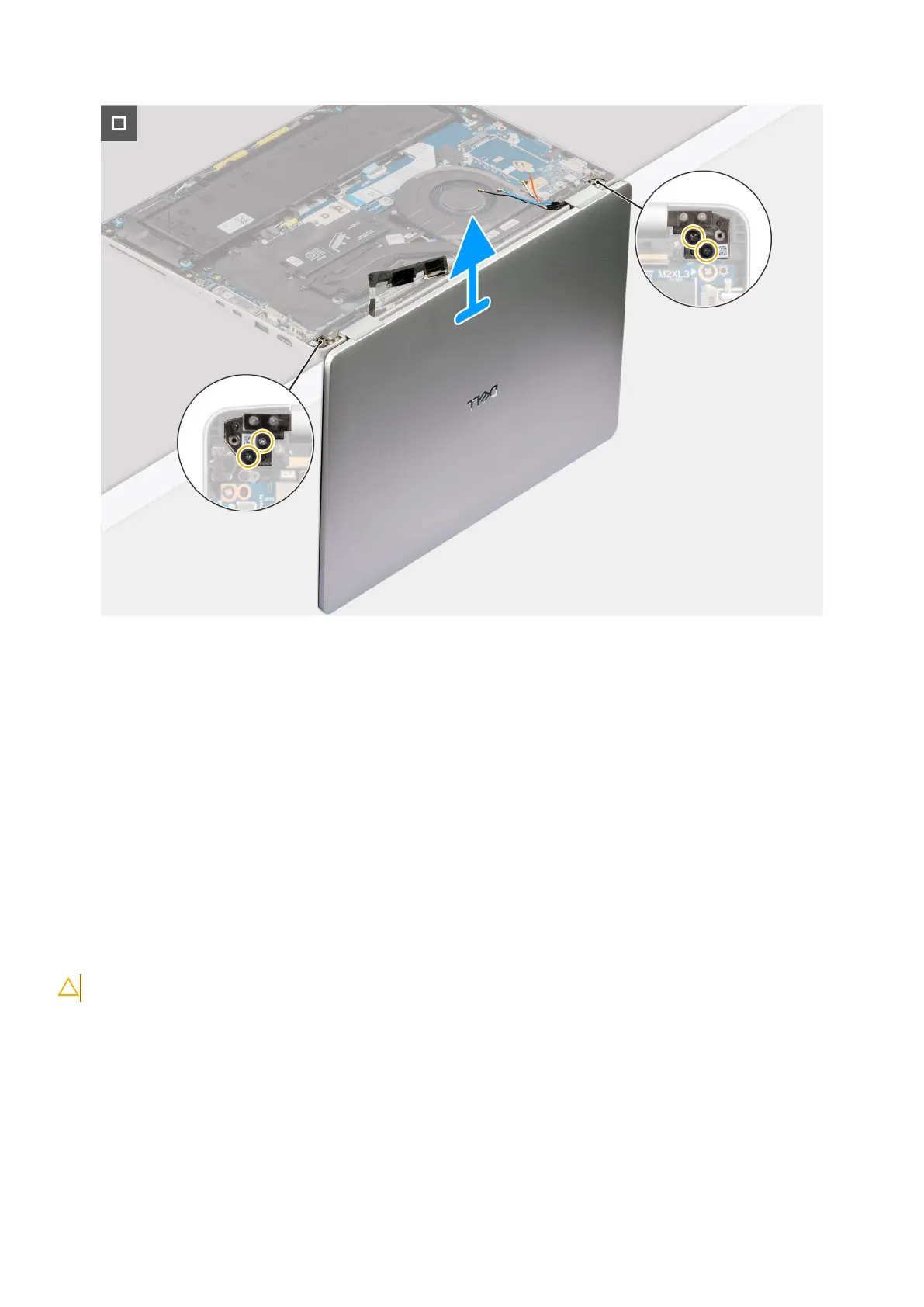
Figure 39. Placing the laptop at angle
Steps
1. Release the WWAN antenna cables out of the cable holder.
2. Remove the screw (M2x3) that secures the power-button bracket in place.
3. Lift the power-button bracket off the computer and disconnect the power-button cable from the system board.
4. Remove the two screws (M2x3) that secure the camera and display-cable bracket in place.
5. Open the flap and disconnect the camera cable and display cable from the connectors on the system board.
6. Open the display assembly to a 90-degree angle, flip the computer. Place the computer on the edge of a clean and flat
surface so the display assembly extends below the edge of the surface.
7. Remove the four screws (M2.5x4) that secure the display assembly to the computer.
8. Carefully remove the display assembly from the palm-rest assembly.
9. Place the display assembly on a clean, flat surface.
Installing the display assembly
CAUTION: The information in this installation section is intended for authorized service technicians only.
Prerequisites
If you are replacing a component, remove the existing component before performing the installation procedure.
About this task
The following images indicate the location of the display assembly and provide a visual representation of the installation
procedure.
Removing and installing Field Replaceable Units (FRUs)
65



 To Next Page