Steps
1. Unroute the WLAN antenna cables from the routing guides on the keyboard bracket.
2. Disconnect the keyboard FPC and keyboard backlight FPC (for models that are shipped with the keyboard backlight) from
the touchpad.
3. Remove the eighteen screws (M1.6x1.7) that secure the keyboard assembly in place.
4. Remove the keyboard assembly from the palm rest.
5. Remove the two screws (M2x2) that secure the keyboard to the keyboard bracket from the top side.
6. Remove the keyboard from the keyboard bracket.
Installing the keyboard
CAUTION: The information in this installation section is intended for authorized service technicians only.
Prerequisites
If you are replacing a component, remove the existing component before performing the installation procedure.
About this task
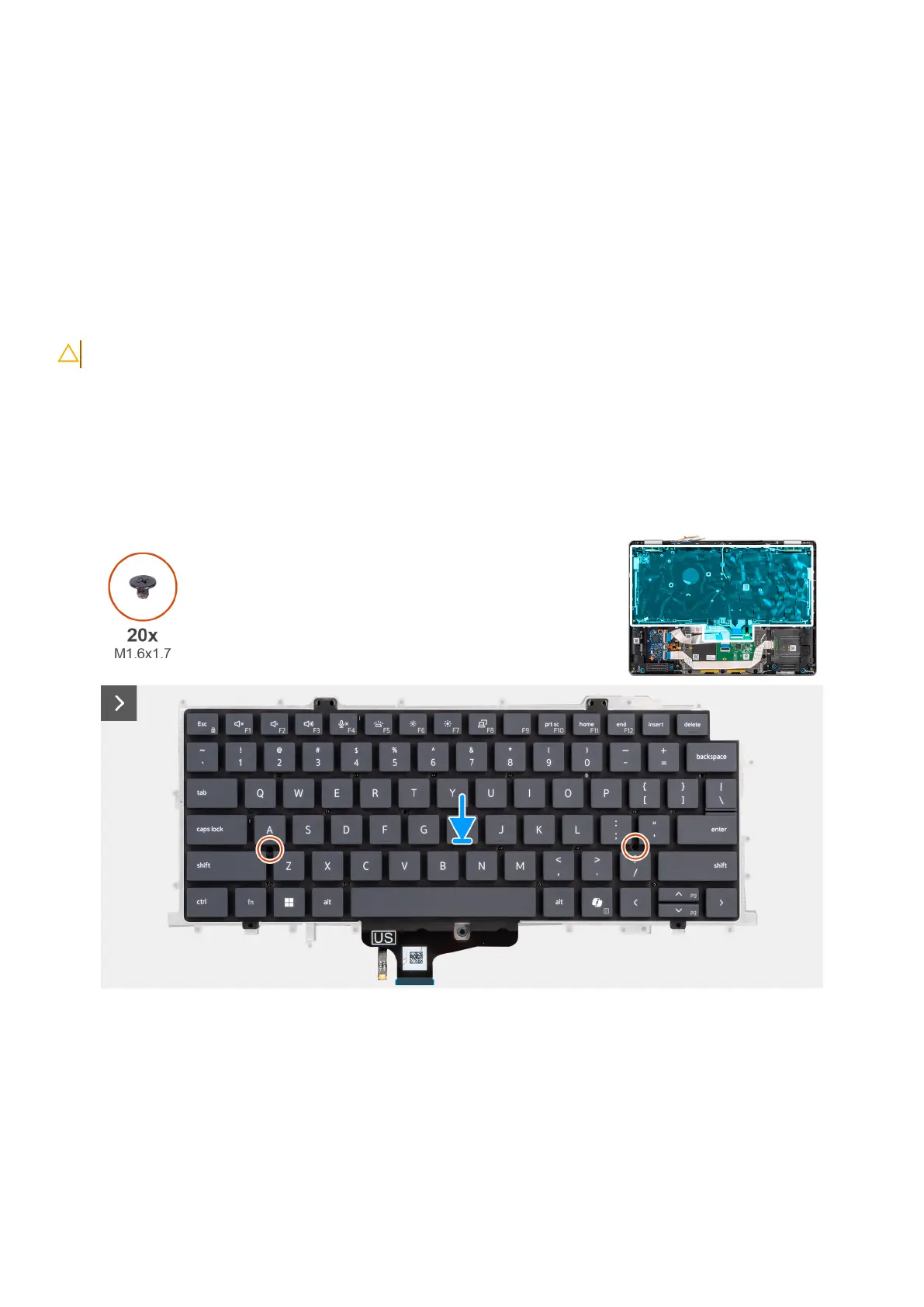
The following images indicate the location of the keyboard assembly and provide a visual representation of the installation
procedure.
Figure 81. Installing the keyboard
114
Removing and installing Field Replaceable Units (FRUs)



 To Next Page