100
[6] Defining the functions of the Shift key and Magic keys
Use the following procedure to change the key settings.
1. Select “6: KEY” at the SET SYSTEM menu and then press the ENT
key.
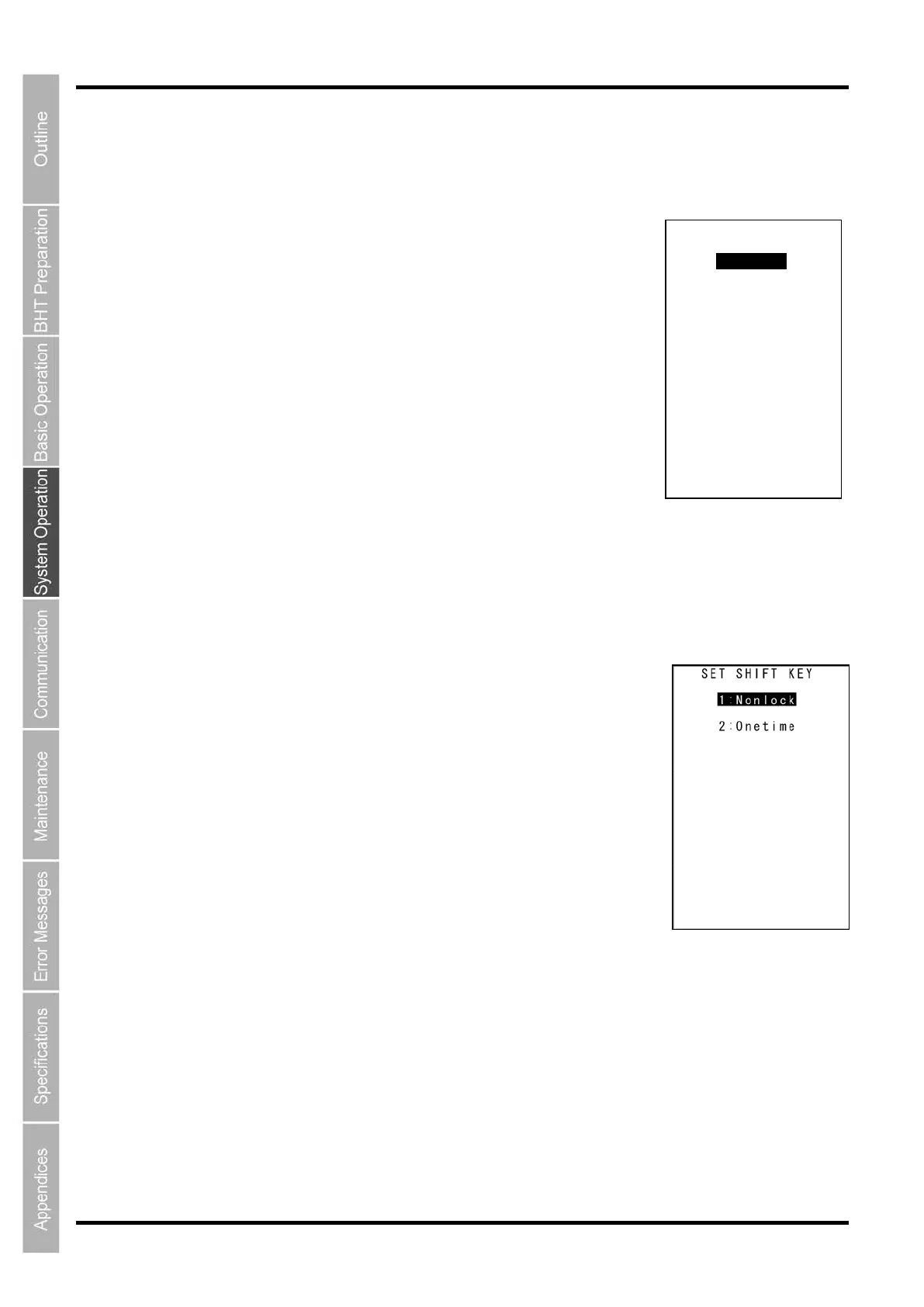
The SET KEY menu screen on the right is displayed.
2. Use the cursor keys ([▲] [▼]) or numerical keys ([1] [2] [3] [4] [5] [6]
[7] [8]) to highlight the item to be set, and then press the ENT key.
“1: SHIFT KEY”: Displays the SF key definition screen.
“2: M1 KEY”: Displays the M1 key definition screen.
“3: M2 KEY”: Displays the M2 key definition screen.
“4: M5 KEY”: Displays the M5 key (SCAN key) definition screen.
“5: BS/C KEY”: Displays the BS/C key definition screen.
“6: MENU KEY”: Displays the M1–M5 key menu definition screen.
Refer to the following section for details of the above items.
Press and hold the BS/C key to return to the SET SYSTEM menu.
“1:SHIFT KEY”: Defining the Shift key function
1. Select “1: SHIFT KEY” at the SET KEY menu and then press the
ENT key.
The SET SHIFT KEY menu screen on the right is displayed.
The highlighted setting is the current setting.
“1: Nonlock”: Shifts the keypad only when the SF key is held down.
“2: Onetime”: Shifts only the key pressed immediately after the SF
key is pressed. (The following keys will not be shifted.)
2. Use the cursor keys ([▲] [▼]) or numerical keys ([1] [2]) to highlight
the item to be set, and then press the ENT key.
The selected item will be set and the screen will return to the SET KEY menu.
SET KEY
1:SHIFT KEY
2:M1 KEY
3:M2 KEY
4:M5 KEY
5:BS/C KEY
6:MENU KEY


 To Next Page