FSoftware Omega 2
5.2.1 Crop
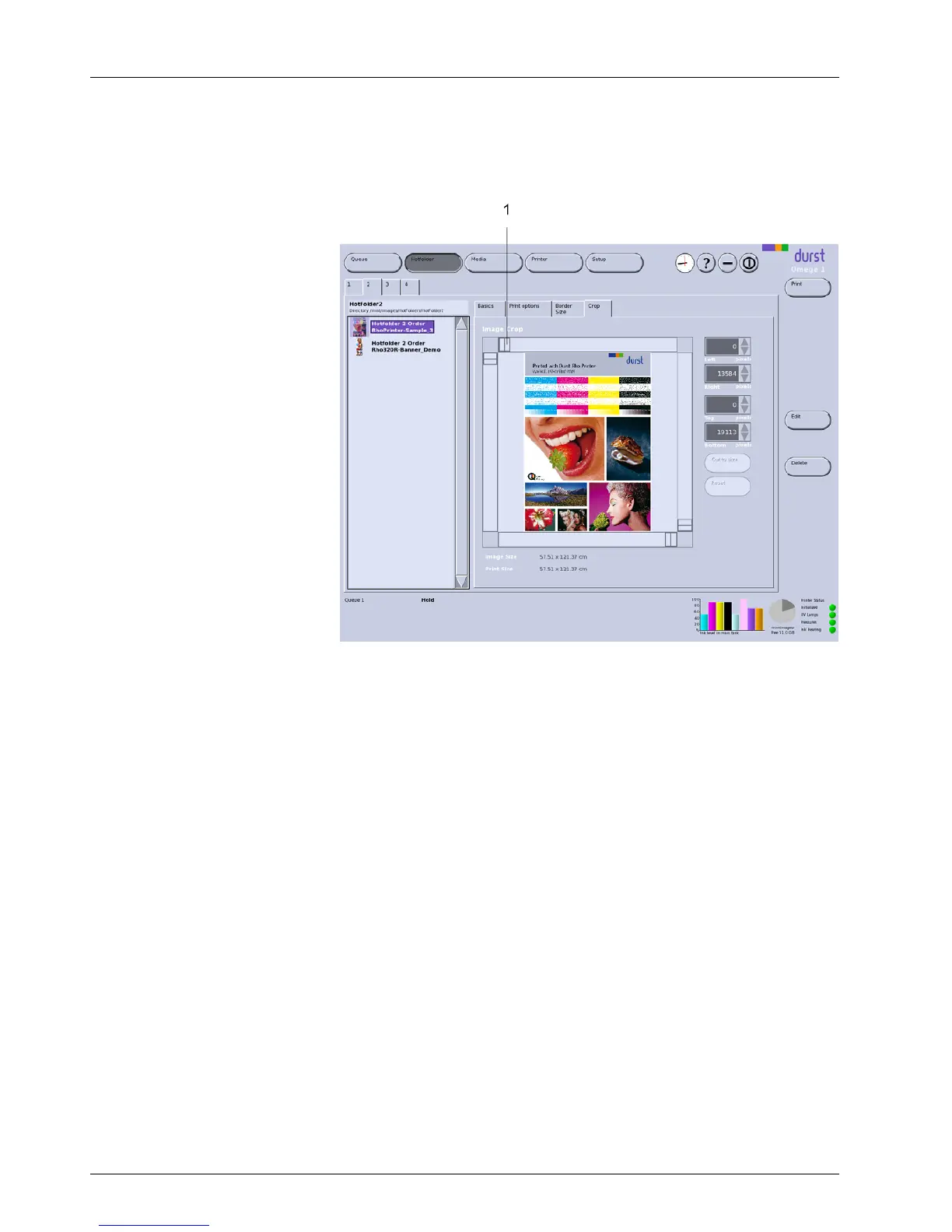
You can change the image s ection on the Crop tab.
1 Sliders
Fig. 44 Crop sub-tab
To select an image crop, you can define how
much is to be cut away from the
respective image border. Yo u have the f
ollowing options here:
You can enter the desired number of pixels with the Left, Right, Top and
Bottom entry boxes or with the arrow keys.
Select the s ec tio n with the s liders (1).
Cut to size With the Cut to size button, yo
ucancutanimagetofit the media size. For
this, the Print Job Descript
ion option must be deactivated on the Queue tab.
5.2.2 Preparing a job and transferring it to the queue
Opening a hotfolder
1. Click Hotfolder.
2. Select corresponding tab 1, 2, 3 etc. for the desired hotfolder.
All jobs currently stored in the hotfolder are displayed in the navigation
window.
Modifying parameters
✔ The desired hotfolder is open
1. Selec t desi
red job in the na vig ation window.
2. Select desired sub-tab Basics, Print options, Border/Size or Crop.
62 / 9 1 2004 – 2014 © Durst Ph ototechnik AG – www.d urst-online .com , Omega 2, Issued 0 7/20 14


 To Next Page