FSoftware Omega 2
1.3 Status b ar
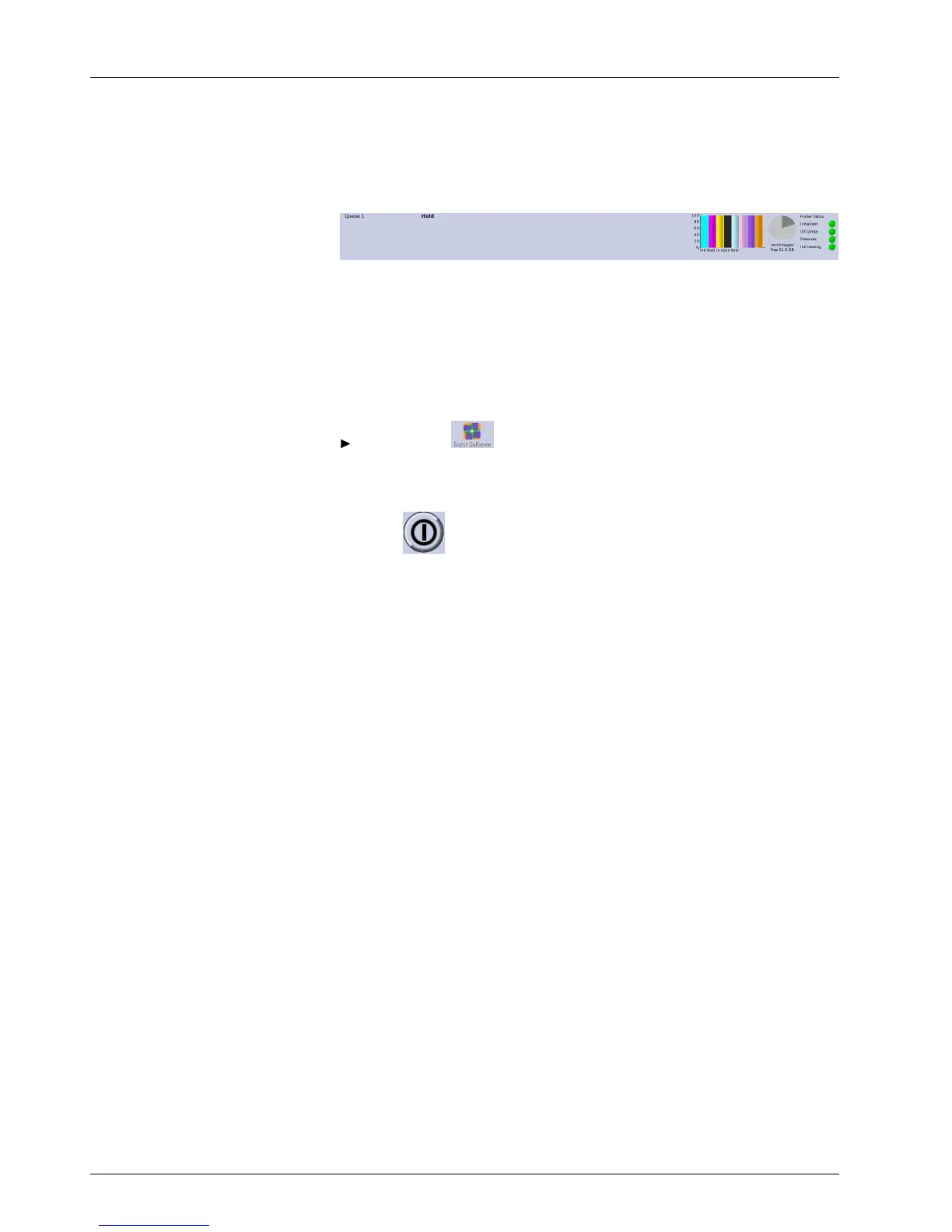
The status bar informs you of important current data of the printer, e.g. loaded
medium, medium width, remaining length or ink level.
Fig. 27 Status bar
1.4 Basic operation
1.4.1 Starting the softw are
✔ Monitor and computer are switched on
✔ The Linux operating system has been started
Double-click .
1.4.2 Exiting the software
1. Click .
The Durst Omega dialog window appears.
2. Confirm with Yes.
1.4.3 Modifying parameters
To modify the parameters on the tabs under Hotfolder, Media and Setup,
always proceed as follows:
1. Click Edit.
2. Modify desired parameters.
3. Click Save.
2 Setting up printer
2.1 Hotfolders
Hotfolders off
er the option of printing any number of image files automatically
with a fixed se
t of presettings, e.g. for print quality, medium or color mode.
When creating a hotfolder, define the settings of the various parameters.
You can specify up to 30 hotfolders.
Each image file copied from the external computer to a hotfolder is given
the s pecified settings of that particular hotfolder. This only applies if the
RIP station does not send a job ticket, however. If t he RIP station sends a
job ticket, the settings of the job ticket take precedence. The settings of the
hotfolder are ignored.
Hotfo
ldersaresetupontheHotfolder Setup tab.
46 / 9 1 2004 – 2014 © Durst Ph ototechnik AG – www.d urst-online .com , Omega 2, Issued 0 7/20 14


 To Next Page