Omega 2 F Softw are
3. Click Edit.
4. Modify desired parameters.
5. Click Save.
Transferring jobs to the queue
✔ The desired hotfolder is open
1. Select desired job in the navigation window.
2. Click Print.
5.3 Q ueue
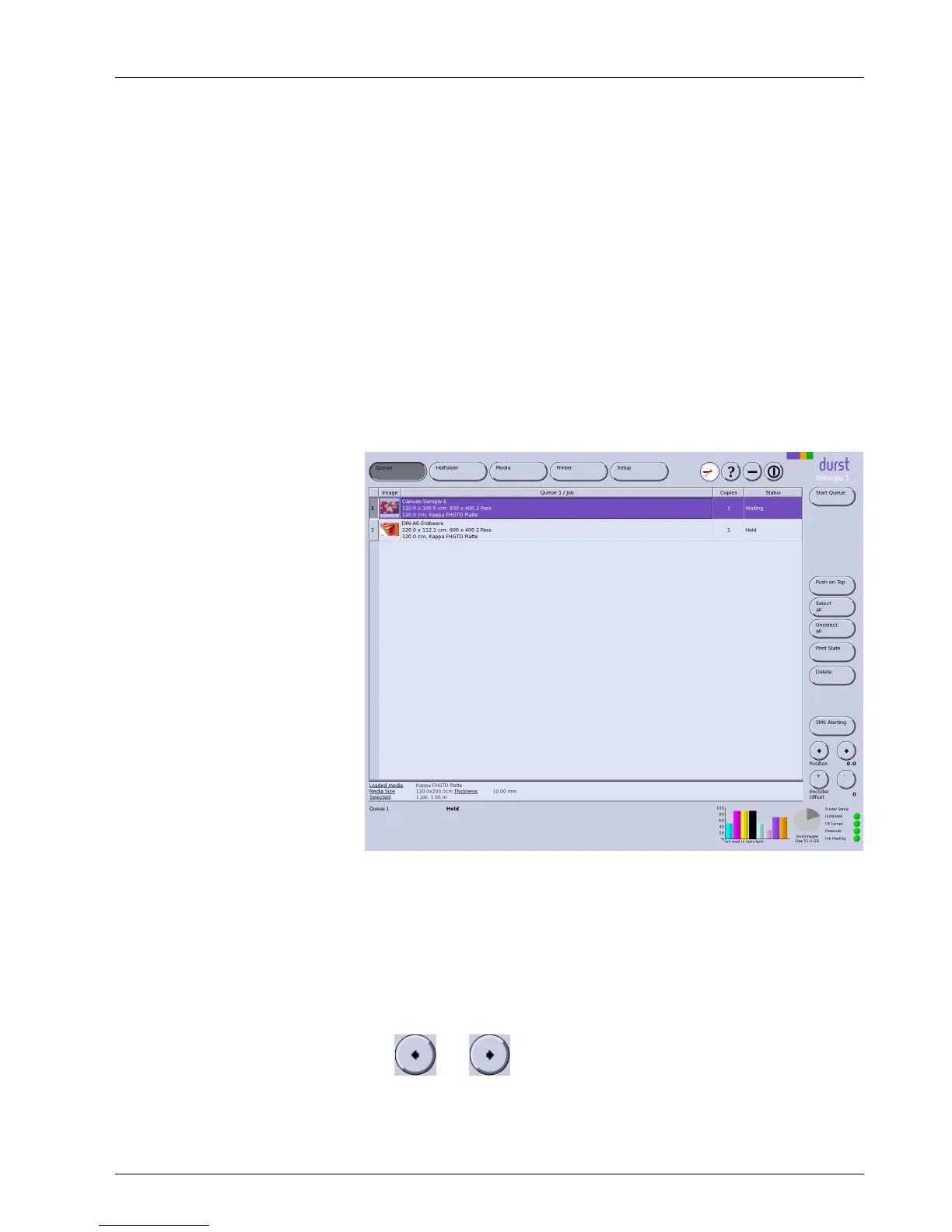
The Queue dialog win dow shows all the jobs which have b een transferred
from a hotfolder for printing. You can change the order of jobs in the queue,
delete jobs from the queue and initiate the printing process here.
Fig. 45 Queue
Start Queue The printing process is started for the selected job with the Start Queue
button.
Push on Top
The selected job is moved to the front of the queue with the Push on Top
button.
Printing statu
s
You can print out the current status of the queue either directly with the printer
or from another external printer.
Position
The
and buttons allow fine horizontal positioning of the image
during printing. The correction value is indicated in pixels.
2004 – 2014 © Durst Pho totechn ik AG – www.durst-online.co m , Omega 2 , Issued 07/201 4 63 / 91


 To Next Page