Contextual help of the web interface – 154
•
•
•
•
•
•
3.9.1.2 Update Device Firmware
Upgrade Device Firmware linked to the card.
3.9.1.2.1 Device Firmware information
a Status
Uploading
Invalid
Valid
Pending reboot
Active
b Version/Sha
Displays the associated firmware version and associated Sha.
3.9.1.2.2 Upgrade the Device firmware
During the upgrade process, loads are not protected. Any interruption to input power will result in an interruption of power to
protected loads
To upgrade the device firmware:
1. Download the latest firmware version from the website.For more information, see theServicing the Network Management
Module>>>Accessing to the latest Network Module firmware/driver
section.
2. Click on Upload & Activate button.
3. Select afile and pick the firmware package by navigating to the folder where you saved the downloaded firmware.
4. ClickUpload. The upload can take up to 5 minutes.
The firmware that was inactive will be erased by this operation.
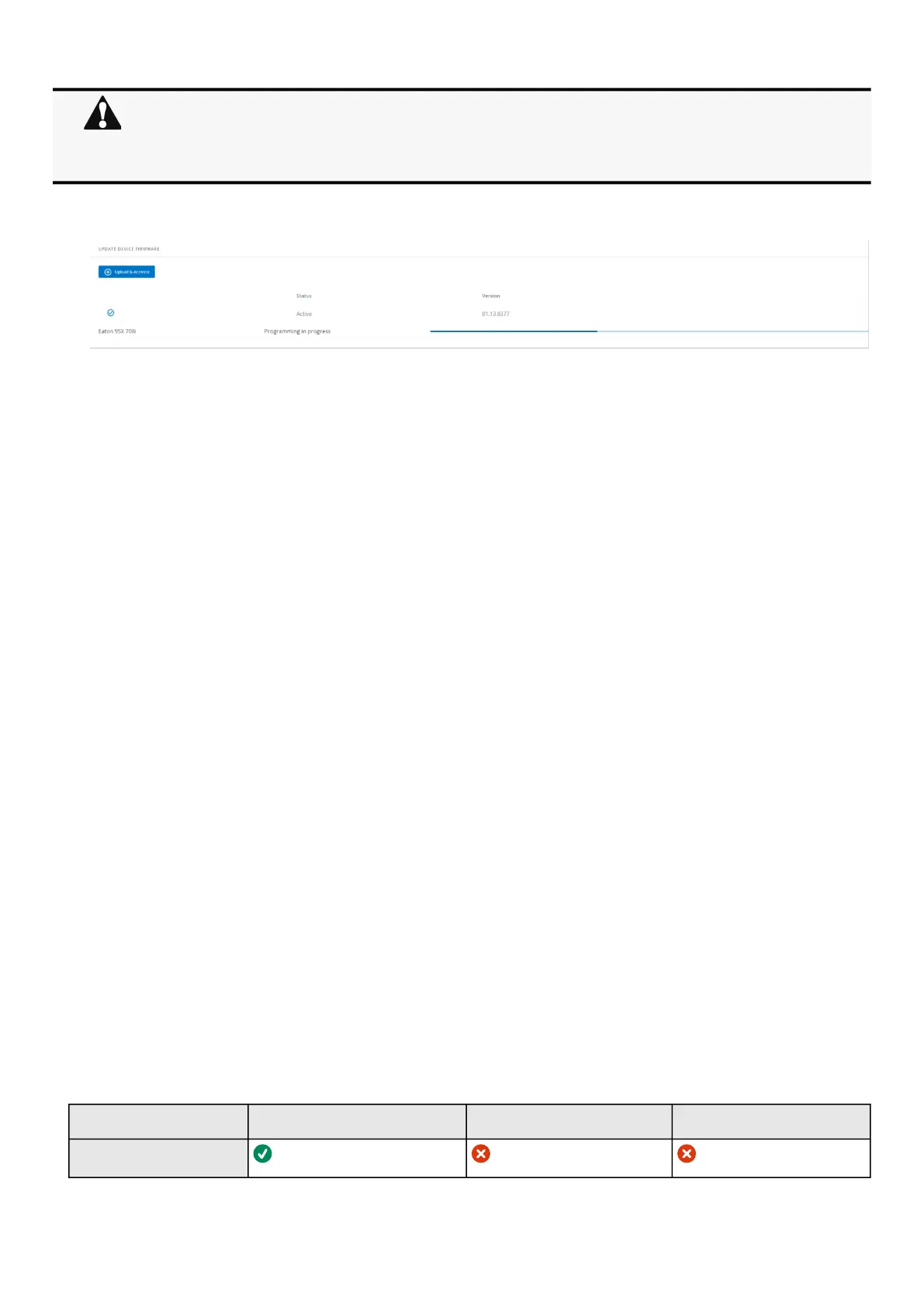
When an upgrade is in progress, the upload button is disabled, and the progress elements appear below the table with the
following steps:
Entering bootloader > Erasing Memory > Programming in progress > Restarting to application mode
A confirmation message displays when the firmware upload is successful.
3.9.1.3 Access rights per profiles
Administrator Operator Viewer
Firmware
Do not close the web browser or interrupt the operation.
Depending on your network configuration, the Network Module may restart with a different IP address.
Refresh the browser after the Network module reboot time to get access to the login page.
Press F5 or CTRL+F5 to empty the browser to get all the new features displayed on the Web user interface.
Communication Lost and Communication recovered may appear in the Contextual help>>>Alarms section.


 To Next Page