H50/H51 Hematology Analyzer User Manual Service
- 52 -
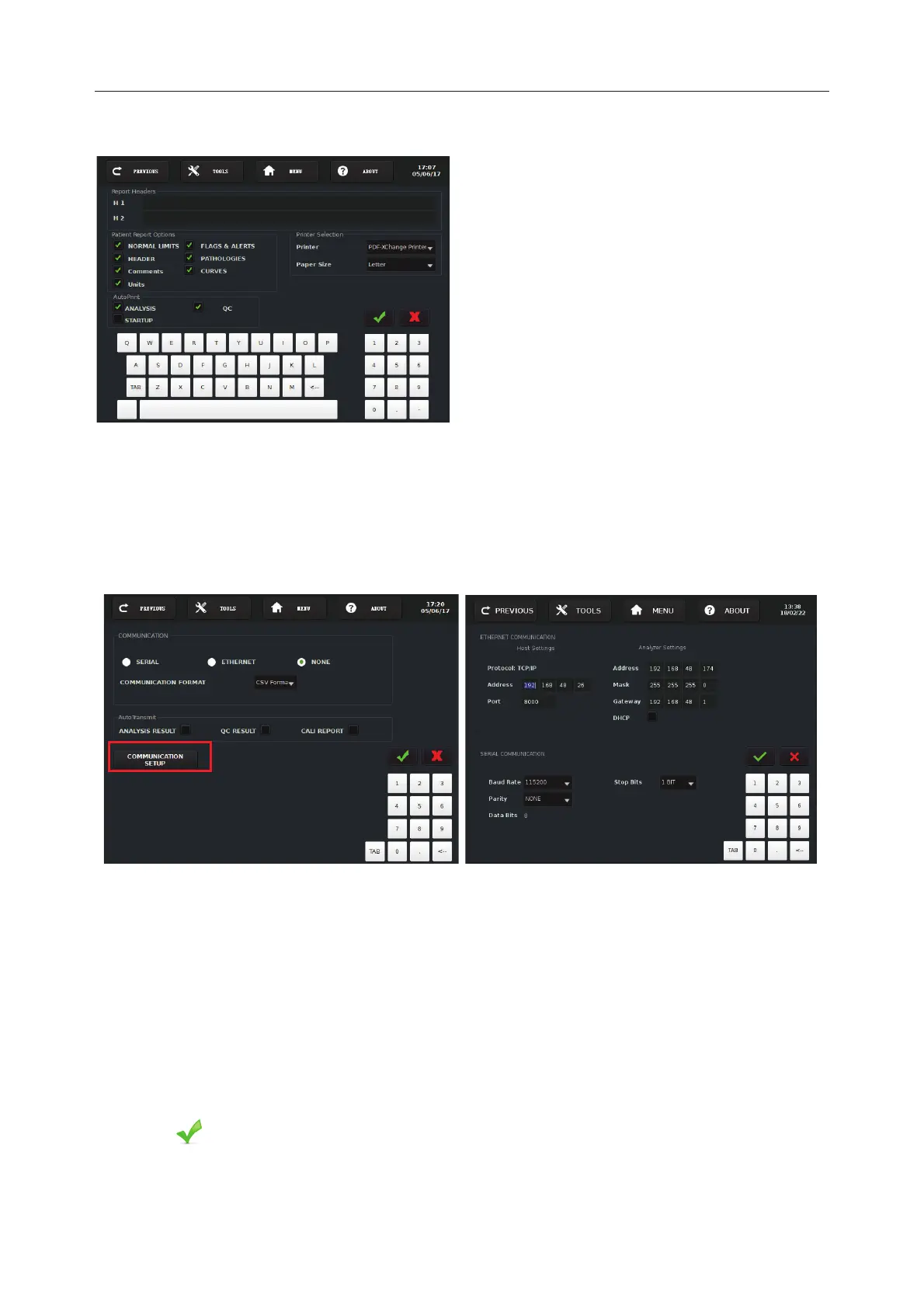
Printer Settings
Screen12-7
13.5.5 Communication Setting
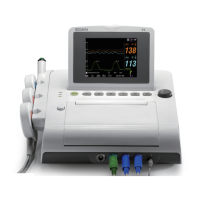
Press Communication to enter into Screen12-8. Press Communication Setup in Screen12-8 to
enter into Screen 12-9.
Screen12-8 Screen12-9
With the two screens, the operator can do the communication setting to transmit analysis results,
QC results and calibration test results to some data management systems such as hospital
LIS/HIS system. Please operate in accordance with the following procedures:
1) Do host settings in Screen 12-9:
Enter Address and Port of host which is intended to connect with the H50 analyzer.
2) Do analyzer settings in Screen 12-9:
Dis-select DHCP, manually enter address, mask and gateway. Alternatively, select DHCP and the
analyzer will automatically obtain address, mask and gateway and display them in the screen.
3) Press in Screen 12-9 to return to Screen 12-8.
4) Select communication mode (Serial, Ethernet, None) and the default communication mode is
None.
Press Printer Settings to enter into
Screen12
-7.
: Enter hospital’s name.
: Enter test report’s name.
Patient Report Options: Select what you
want to print out.
AutoPrint: Select what you want them to be
printed out automatically
after tests.
: Select the
targeted printer
and the paper size from the dropdown menu
pursuant to actual needs.



 To Next Page