24 |
patiEnt data > MEdiCaL
aLarMs
· Heart Rate
· Blood Pressure
· SpO2
· Bicycle
· Treadmill
It is recommended to enter all values
concerning the patient's condition at the
beginning of the physical therapy.
The settings for bicycle and treadmill
entered here override the settings in the
different protocols. The action selected
in the Heart Rate, Blood Pressure and
SpO2 panes will be performed.
The action determines how the training
session continues if a patient's parame-
ter values exceed or fall below the indi-
vidual alarm limits / ranges.
· None
the training continues (alarm is ignored)
· Alarm
initiates visual and audible signals, re-
fer to “Training Monitoring” on page
49.
· Recover
the patient enters the recovery phase
· Terminate
the training session will immediately be
terminated
Click the drop-down arrow and select
an option from the list box. As an alter-
native, you can click in the text box and
type the first letter from the keyboard or
choose an option with the [ ] [ ] keys.
Save the selection with [ Save ].
| 25
patiEnt data > MEdiCaL
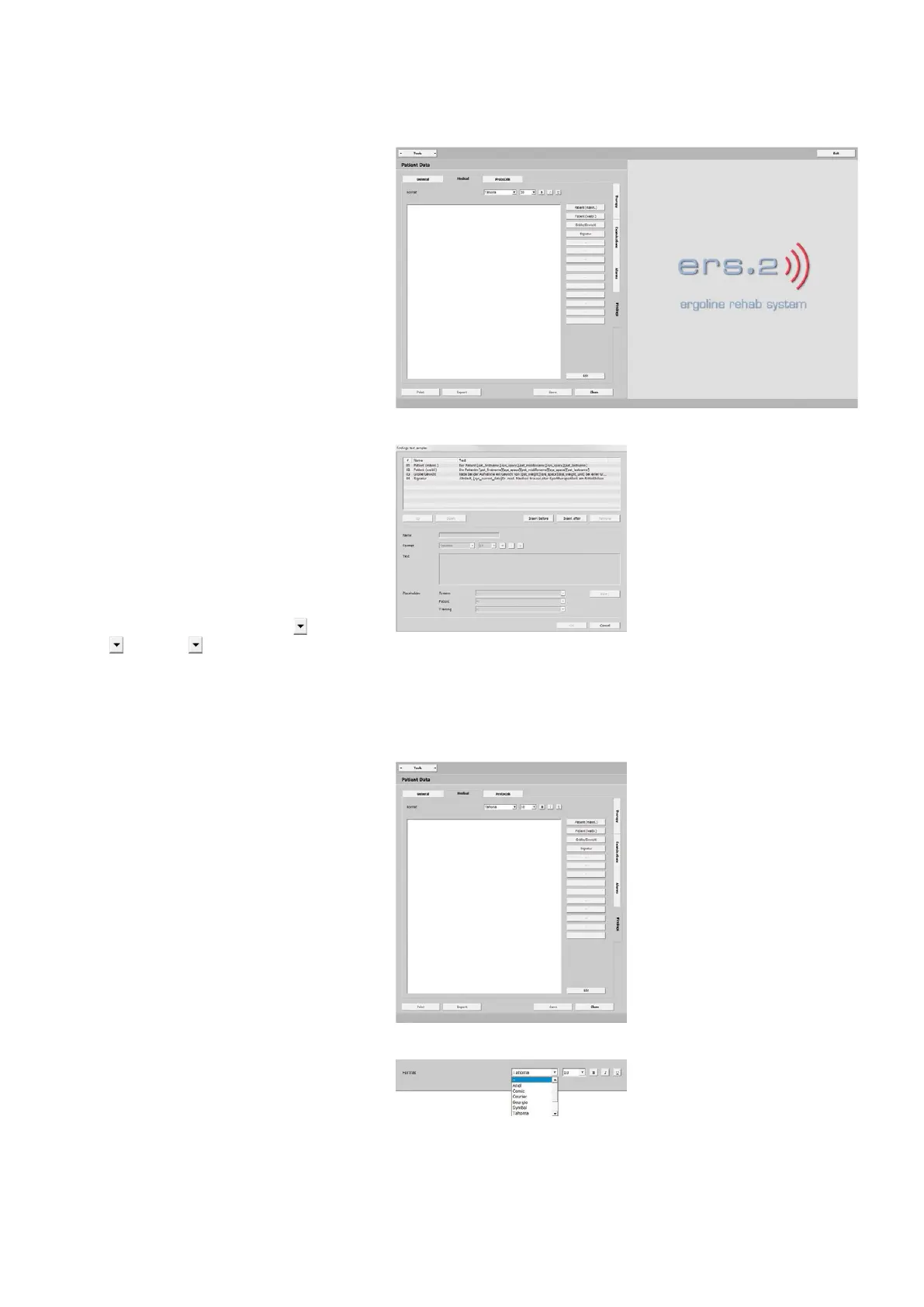
findings
Use this space to document findings or
results concerning the patients.
Frequently used phrases can be assigned
to the buttons on the right with [ Edit ].
The Findings text samples dialog opens.
Use the buttons [ Insert before ] or
[ Insert after ] to define the position of
the button in the list (for example, after
[ Signature ]).
Assign a unique name and create your
text sample by manual inputs or by us-
ing the placeholders (System , Patient
, Training ), and then click [ Insert ].
When you finally confirm your input with
[ OK ], you return to the Findings window.
The text sample you created appears as
a button.
The text samples corresponding to the
buttons can be modified and supple-
mented. Click [ Edit ] and select the but-
ton you want to edit (highlighted blue).
Modify the text and click [ OK ] to close
the window.
To emphasize text blocks or paragraphs,
highlight them with the cursor or by dou-
ble-clicking. Select the font, character
size, and style (bold, italic, underlined).
Editorial changes in the findings text can
be entered directly in the text box. Then
click
[ Save ] to save the entry.



 To Next Page