34 |
patiEnt data > protoCoLs
trEadMiLL
Protocol Type 'Custom'
Additional entries are mandatory for
custom protocols. Define the first step
with [ Insert before ] or [ Insert after ] and
choose the step type:
· constant (absolute),
the training workload is kept at a con-
stant level for the specified duration
· constant (relative),
the load value depends on the previous
step, the load is continuously increased
or decreased by the entered value
· Ramp (absolute),
the training load increases continuous-
ly for the duration
· Ramp (relative),
the load value depends on the previous
step, the load is continuously increased
or decreased by the entered value
Enter the duration, speed, and slope for
each step. If you select the blood-pres-
sure option (BP)
, a blood-pressure
measurement will take place.
Additionally, you can use [ Insert before ]
or [ Insert after ] to add further step types.
You change the order of steps with [ Up ]
and[ Down ] or by drag-&-drop.
If one step or more are to be used as
exercise phases (without warmup and
recovery), highlight these steps. Then
select Training under
[ Extended ]. The
steps are now marked with an X in the
Trng. column.
Steps can easily be copied with Repeat
under [ Extended ].
Save the custom protocol with [ Apply ].
| 35
patiEnt data > protoCoLs
trEadMiLL
Protocol Type ‘Custom’
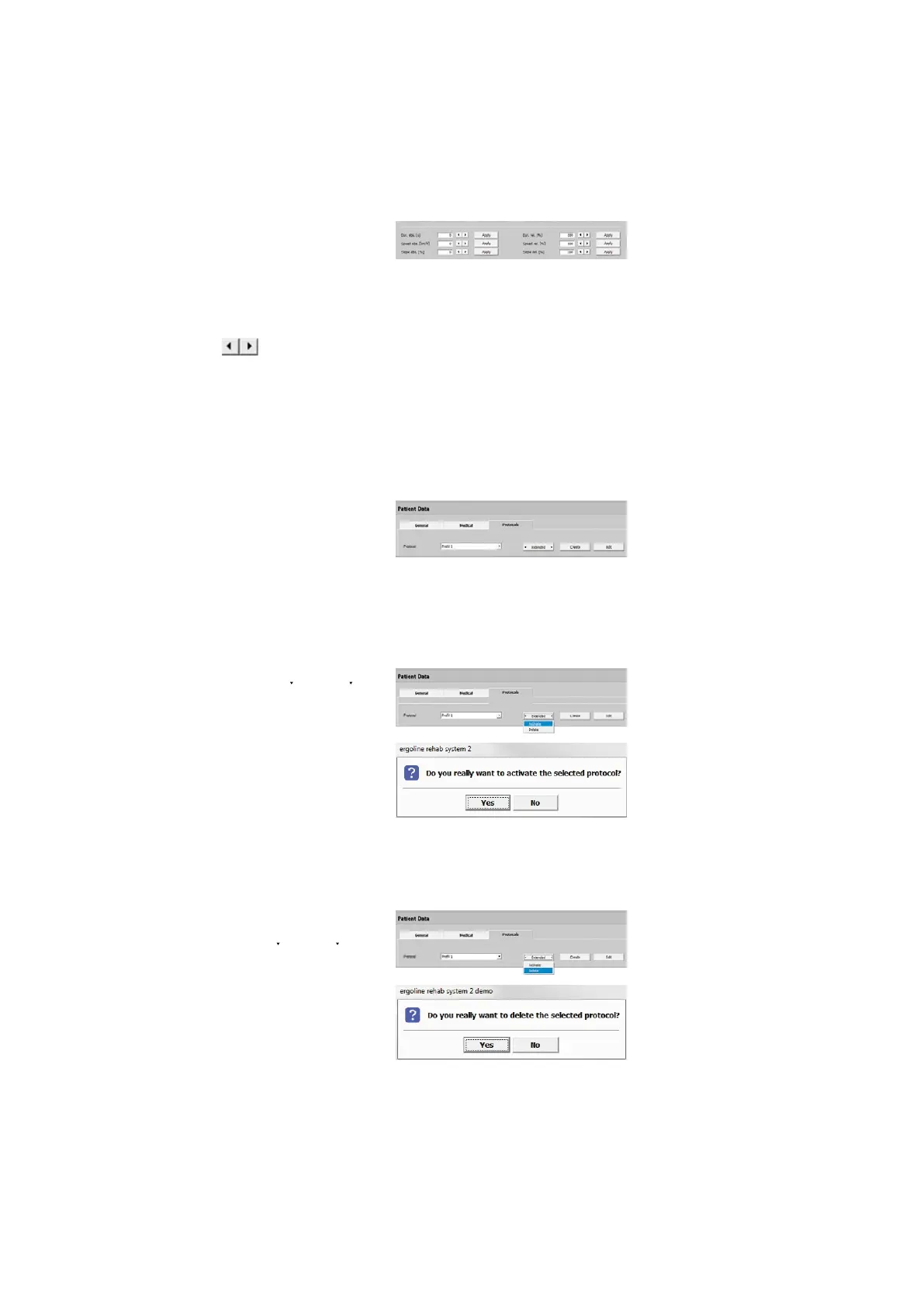
With [ Edit ] you can modify the duration
(abs. [s]/rel. [%]), the speed (abs. [km/h]/
rel. [%]) as well as the slope (abs. [%]/
rel. [%]) of the steps. Highlight the steps
you want to modify and enter a value in
the appropriate field using the keyboard
or the arrow keys . When you click
[ Apply ], the modifications will be adopt-
ed. Clicking [ Apply ] again will save the
modifications.
Editing a Protocol
If you wish to modify a protocol, you can
do so at any time with [ Edit ]. Select a
protocol, perform the changes and con-
clude your inputs with [ Apply ].
Activating a Protocol
To Activate a protocol, click [ Extended ].
If you click [ Yes ] in the new window,
the protocol becomes active, which is
marked by an asterisk *. This protocol is
now the patient's Training Protocol.
Deleting a Protocol
To delete protocol you must first call it
up. Then select Delete via [ Extended ].
If you exit the dialog with [ Yes ], the pro-
tocol will be deleted; if you choose [ No ],
it remains available for future use.
Please note that it is not possible to de-
lete an active protocol!



 To Next Page