30 |
patiEnt data > protoCoLs
biCyCLE
Protocol Type ‘Custom’
Repeat under [ Extended ] allows you to
copy one step or multiple steps. The cop-
ied steps will be appended to the existing
steps.
With [ Edit ] you can change the duration
and load of individual or of all steps.
Highlight the steps you would like to
change and enter the value in the ap-
propriate field or by means of the arrow
keys . When you select [ Apply ],
the Load (abs. [W]/rel. [%]) and/or the
Duration (abs. [s]/rel. [%]) will change by
the entered value. Close the window by
selecting [ Apply ] again.
Editing a Protocol
To edit or reconfigure an existing pro-
tocol, select the protocol, and then click
[ Edit ]. The parameter fields are populated
with the set standard values. Edit these
values and exit the menu with [ Apply ].
Activating a Protocol
When you click [ Extended ] and then
choose Activate, a dialog window will
be displayed. If you agree and click [ Yes ],
the protocol will be activated, which is
marked by an asterisk *. This protocol is
now the patient's Training Protocol.
Deleting a Protocol
Display the protocol that is not needed
any more. Under [ Extended ], select De-
lete and then confirm the question asked
in the dialog window with [ Yes ] to delete
the protocol.
Please note that it is not possible to de-
lete an active protocol!
| 31
patiEnt data > protoCoLs
biCyCLE
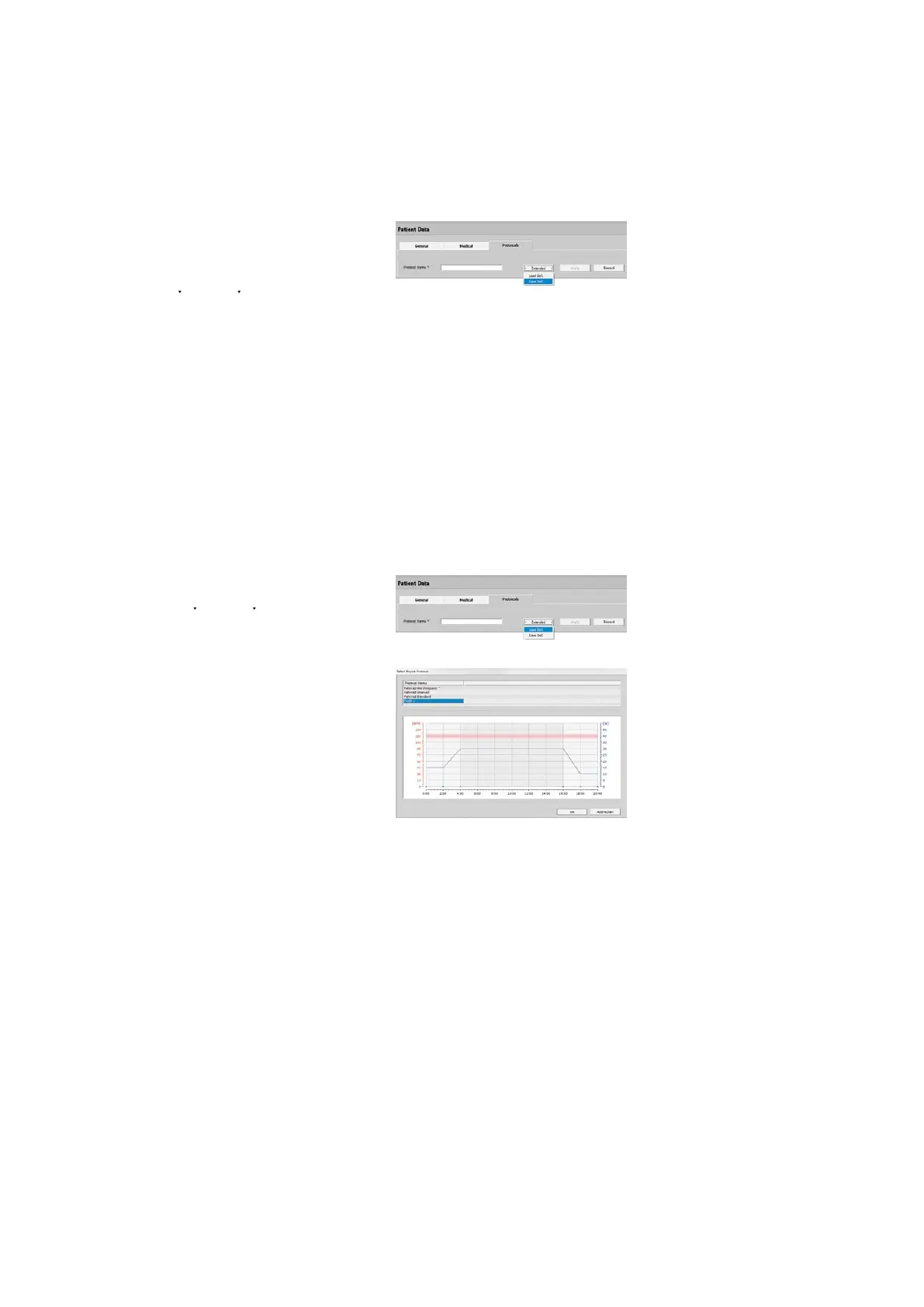
Saving a Protocol as Default
At this point you can define one of the
protocols as the Default. Having entered
the protocol name, protocol type, etc,
you click [ Extended ] and choose Save
def..
The default protocols can be viewed and
edited
· on the Management Protocols tab,
see “Bicycle Saving the Default Proto-
col” on page 40. The protocols are
very flexible and can be applied to other
patients as templates.
Loading a Default Protocol
Created default protocols can be loaded
via [ Create ], [ Extended ], Load def..
Choose your default protocol in the next
window. Double-click or click [ OK ] and
[ Apply ] to add the default protocol to
the patient's protocol list. All parameters
of this protocol can now be adapted to
the patient's needs and then you can Ac-
tivate the protocol.



 To Next Page