44 |
ManagEMEnt > protoCoLs
biCyCLE
Protocol Type ‘Custom’
With [ Edit ] you can change the duration
and load of the steps. Mark individual or
consecutive steps (highlighted blue) and
enter the values for Duration (abs. [s]/
rel. [%]) or Load (abs. [W]/rel. [%]) us-
ing the keyboard or the arrow buttons
. Select [ Apply ] to adopt the new
values. To close the window, click [ Apply ]
once more.
Editing the Default Protocol
To edit a Default Protocol click [ Edit ].
Edit the settings and close the window
with
[ Apply ]. The changes will be effec-
tive from now on.
Activating the Default Protocol
You activate a Default Protocol by click-
ing [ Extended ] and Activate. Answer the
question in the next window with [ Yes ].
The Default Protocol is now active which
can be recognized by the asterisk *.
Deleting the Default Protocol
To delete a Default Protocol, click
[ Extended ] and select Delete.
If you confirm the command with
[ Yes ],
the protocol will be deleted. It is no lon-
ger available for selection.
Please note that it is not possible to de-
lete an active protocol!
| 45
ManagEMEnt > protoCoLs
t
rEadMiLL
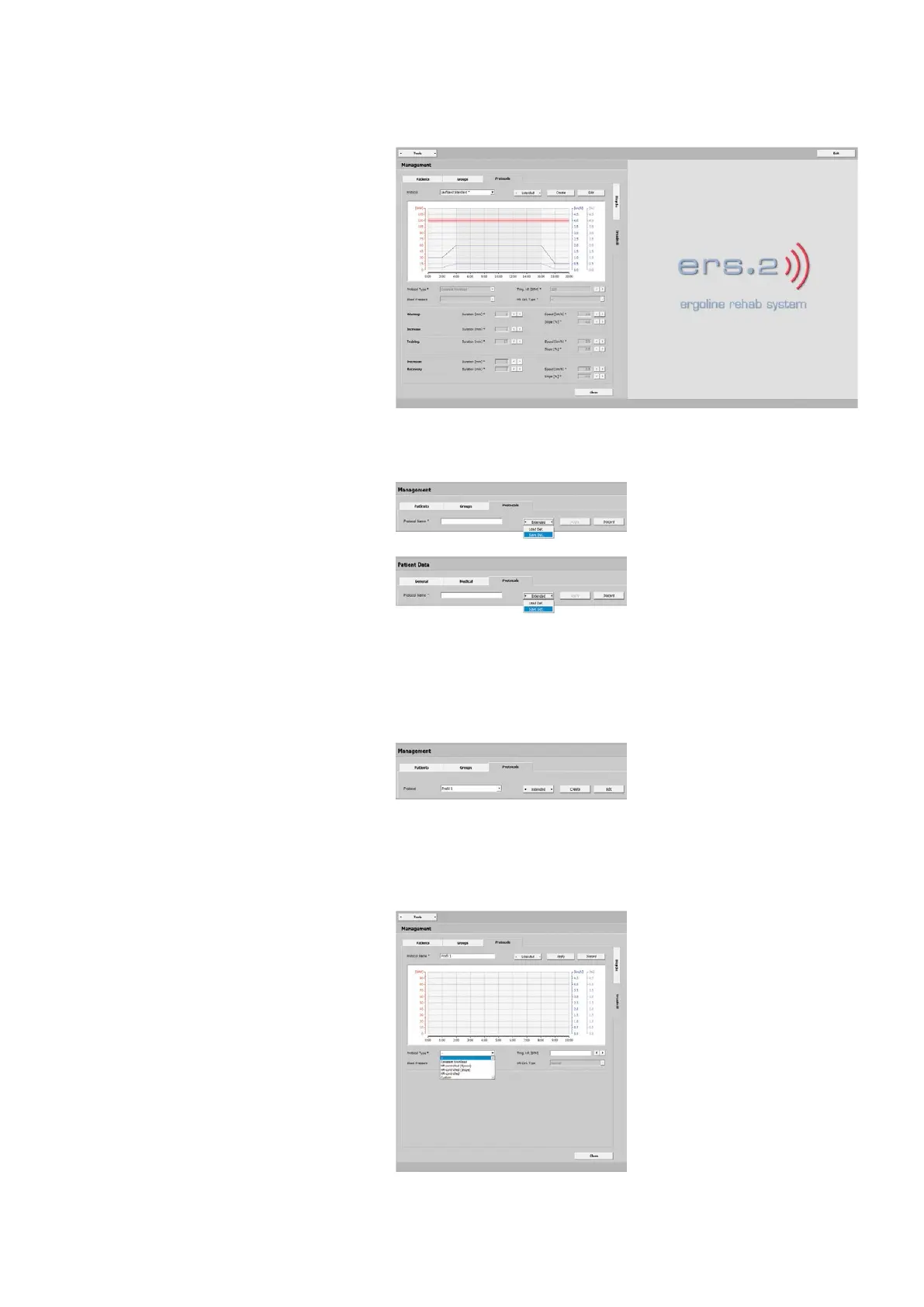
On the Management - Protocols -
Treadmill tab, you define general Default
Protocols. The following parameters are
presented for configuration:
· Warmup
· Increase
· Training
· Decrease
· Recovery
Saving the Default Protocol
The program allows you to create and
save Default Protocols (as templates)
· on the Management - Protocols tab and
· on the Patient Data - Protocols tab
see “Treadmill Loading a Default Proto-
col” on page 36.
The Default Protocols can be swiftly
transferred to other patients in the sys-
tem; various settings need to be entered
only once.
On the Management - Protocols tab, you
create Default Protocols with
[ Create ].
In the new window, enter all necessary
data, such as the name (Protocol 1, for
example), the type, etc. Save the entries
with [ Apply ].
Selecting the Protocol Type
At Type, you can choose from various
options:
· Constant Workload
· HR-controlled (Speed)
· HR-controlled (Slope)
· HR-controlled
· Custom



 To Next Page