42 |
ManagEMEnt > protoCoLs
biCyCLE
Protocol Type ‘SpO2-controlled‘
Subsequently, the SpO2 value is checked
on the basis of the Workload Control pa-
rameters. If another deviation is detect-
ed, the training load will automatically
be adjusted.
Entries can be made as absolute or rel-
ative values with respect to the training
load.
If you do not enter any values in the SpO2
Control window, the system will use the
preset defaults.
Protocol Type ‘Interval HR-controlled‘
In the Training pane click [ Extended ] to
open the Interval HR Control window
with the Workload Control parameters.
In this window, enter the permitted de-
viation at Threshold [1/min] and the time
interval at Delay [s]. If the heart rate
deviates for the entire time interval, the
workload will be adjusted accordingly.
At Type, you determine the nature of the
workload change: absolute or relative.
| 43
ManagEMEnt > protoCoLs
biCyCLE
Protocol Type 'Custom'
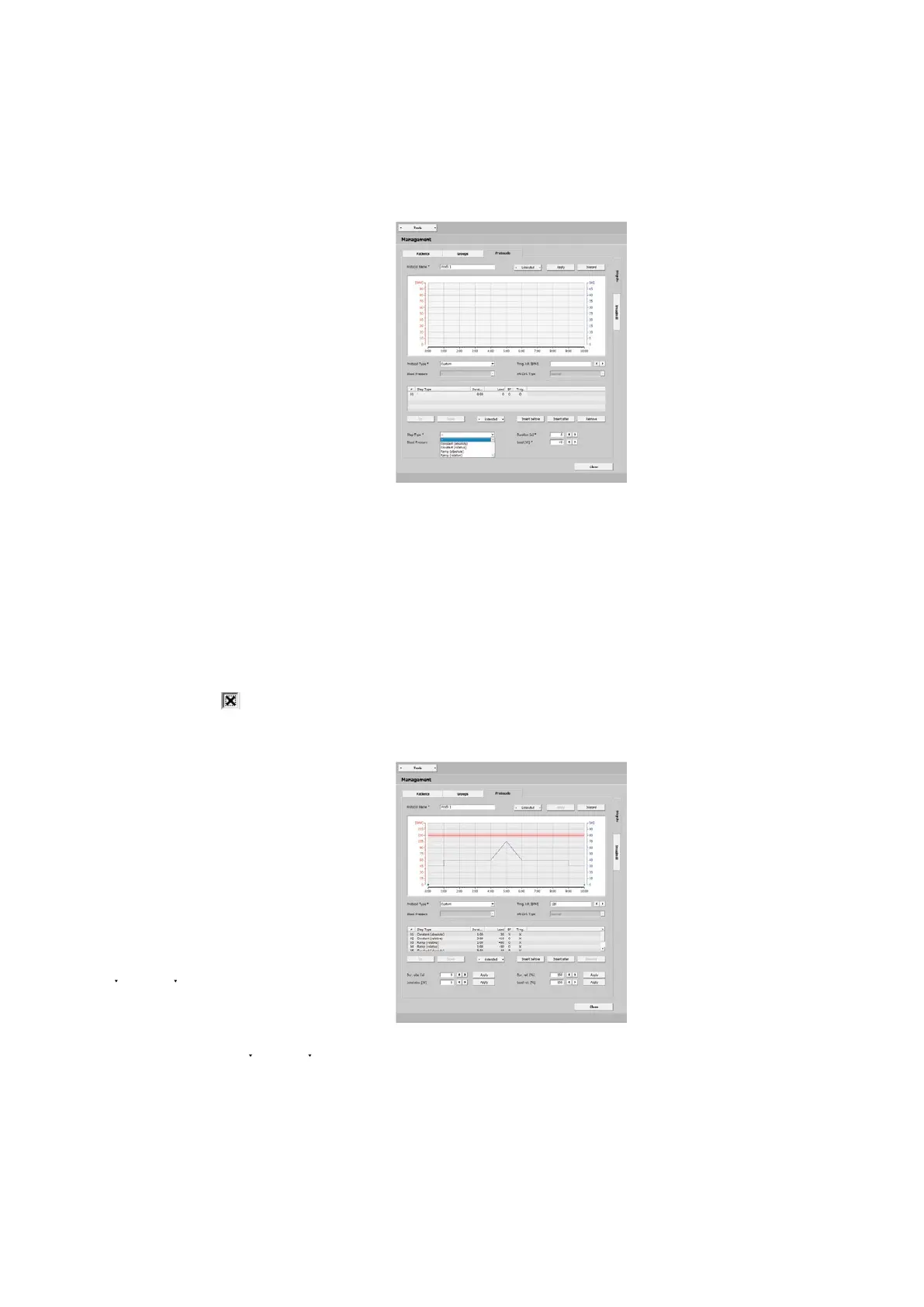
Various training steps can be configured
for this protocol type. With [ Insert before ]
or [ Insert after ] you define the first step
and choose a step type:
· constant (absolute),
the training workload is kept at a con-
stant level for the specified duration
· constant (relative),
the load value depends on the previous
step, the load is increased or decreased
by the entered value
· Ramp (absolute),
the load increases continuously for the
duration of the training
· Ramp (relative),
the load value depends on the previous
step, the load is continuously increased
or decreased by the entered value
Enter the duration and load for each step.
If a blood-pressure measurement is to be
performed, select
the blood-pressure
option.
Additional steps can be added with
[ Insert before ] and [ Insert after ]. You can
change the order of the steps with [ Up ]
and [ Down ]. As an alternative, you can
select the step (highlighted blue) and
drag it to its appropriate position.
If the created steps are to be used as
training phases (without warmup and
recovery), highlight one step or sev-
eral consecutive steps. Then choose
[ Extended ] and Training. The steps are
now marked as training steps with an X
in the Trng. column.
With Repeat in the [ Extended ] menu,
you can copy step types.



 To Next Page