58 |
patiEnt anaLysis
ovErviEw - trEnd
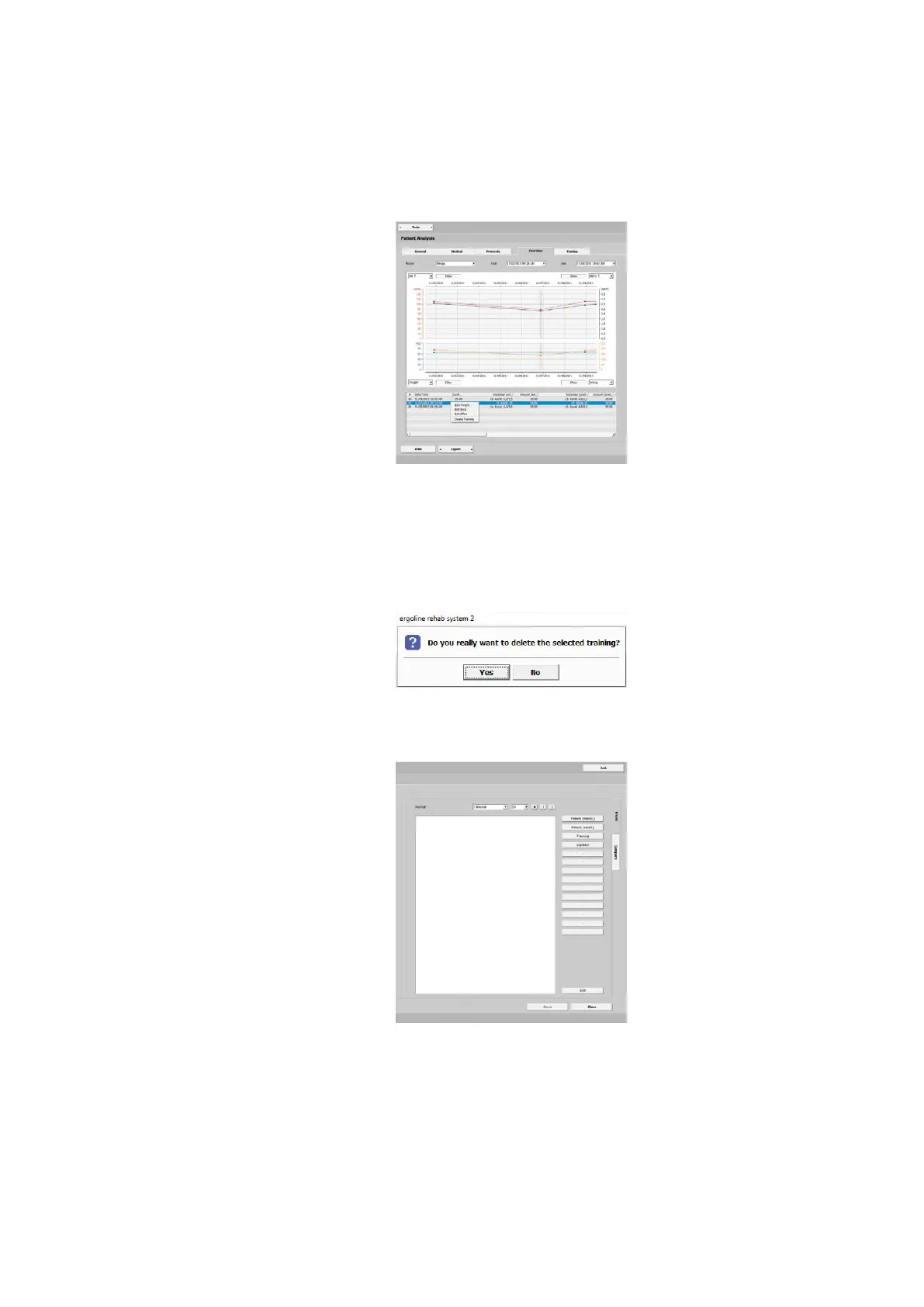
This screen provides an overview of all
analyzed parameters, such as:
- HR
- BP
- SpO2
- METs
- W/kg
- Load
- RPM
- Spd.
- Slp.
- Energy
- Distance
- Weight
When you move the mouse cursor over
the curves, the values will be updated
and displayed.
At Period, you can choose from various
options. You can change the displayed
time window easily be selecting the high-
lighted option (blue) and scrolling or you
can use the arrow keys on the keyboard
[ ] [ ]. All training sessions are listed in
the area below the curves.
Analyzing the Training Sessions
In the corners of the diagram, choose the
values to be displayed (e.g., the minimum,
maximum, first/last average value).
When you click
[ Show ], the correspond-
ing values and training sessions (data
points) will be alternately shown and
hidden. The different colors make the
differentiation easier. The selected train-
ing session is highlighted with a dark bar
cursor.
Additional details of all trainings are pro-
vided in text form below the curves.
| 59
patiEnt anaLysis
ovErviEw - trEnd
Analyzing the Training Sessions
With the [ Export ] command, you create
a CSV file (comma separated values,
default storage path C: \ ers2 \ ers2ex-
change) of the training session.
By double-clicking a training session
(data point) you change to the Training -
Single tab.
Editing / Deleting a Training Session
With a right mouse click you can edit the
weight, the Borg value, and the effort,
or you can delete a training session. Edit
the values as needed and confirm the
modification with
[ OK ].
If you wish to delete a training session,
answer the question in the window that
pops up by selecting [ Yes ].
Training Details
In addition to the diagram, there is am-
ple space for commenting on the training
sessions. The buttons on the right con-
tain sample phrases. With [ Edit ] you can
save new, frequently used sample phras-
es and easily add them to your comment
with a mouse click. The default phrases
assigned to the buttons can be modified
if needed, see “Patient Data > Medical
Findings” on page 25.
Click
[ Save ] to save all entries. To create
a printout, click [ Print ].



 To Next Page