52 |
training
Monitoring
Patient Data
Via the shortcut menu (in area 1), you
go to the Patient Data, while all training
stations and ECGs remain displayed on
the right side.
With [ Patients ], Patient Data and se-
lection of a patient, you also reach the
Patient Data window. The shortcut menu
is available here, too.
Patient Analysis
By selecting Patient Analysis from the
shortcut menu (in area 1), you display the
overview of all analyses.
With [ Print ] you can print an overview
(diagram, activities and report), with
[ Export ] you create a CSV file (comma
separated values, default storage path
C: \ ers2 \ ers2exchange).
Editing the Borg Value
Right-click (in area 1) to edit the Borg
value either by typing it into the text box
or by using the arrow buttons (de-
pending on your configuration, the value
may not be displayed).
Editing Effort
From the shortcut menu (in area 1), se-
lect Edit Effort. You can enter the pa-
tient's perceived exertion level in the
window that opens. Choose an option
and confirm with [ OK ] (depending on
your configuration, the value may not be
displayed).
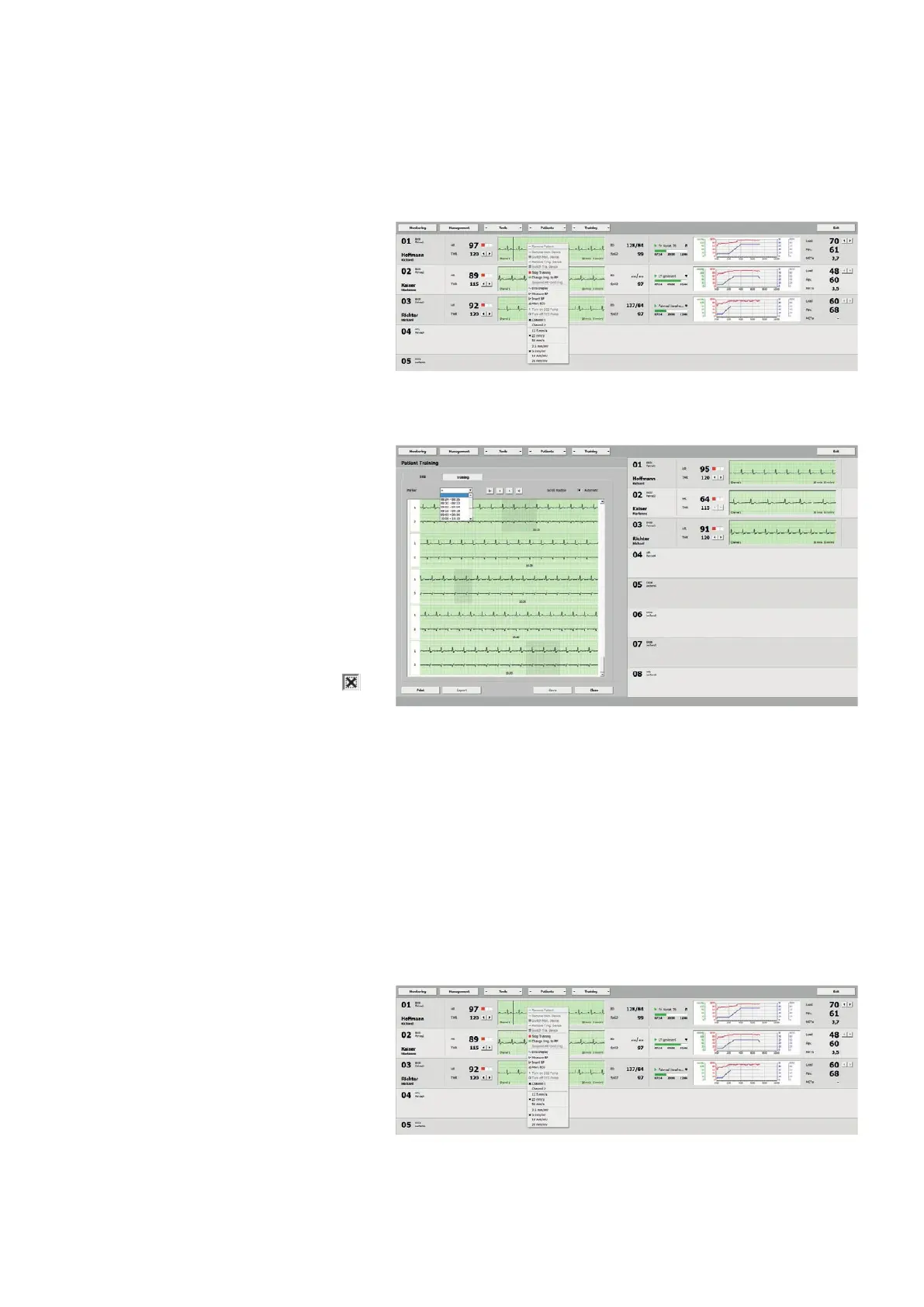
Area 1 Area 2 Area 3
| 53
training
Monitoring
ECG Display
The parameters currently displayed are
the ECG, the HR, and the THR. If your
training device supports the required
functions, you will also see the most
recent BP value and the SpO2 value.
From the ECG Display shortcut menu (in
area 2), you go to the Patient Training
ECG. A faster way to display the Patient
Training ECG is to double-click the ECG
segment.
This window allows you to view, moni-
tor, analyze, and print real-time ECGs.
Additional markers can be created di-
rectly in the ECG by clicking the mouse
button and dragging the mouse cursor.
With the keys
[ l
<
] and [
>
l ], you navi-
gate from the first to the last marker,
and with [
<
] and [
>
], you navigate be-
tween the individual segments, refer to
“Patient Analysis Training - Single” on
page 61.
When you select the Scroll Position
Automatic check box (default setting),
the ECG will be continuously displayed.
All training stations can be seen on the
right side, and in these areas, too, the
shortcut menus can be selected.
Optional settings for the channels, sweep
speed, and amplitude can be determined
after a right mouse click in the Patient
Training ECG or in Training Monitoring
(in area 2).
Measuring Blood Pressure
A blood-pressure measurement can be
initiated from the Measure BP shortcut
menu (in area 2).
Adding Blood-Pressure Readings
The results of a manual blood pressure
measurement can be added with the In-
sert BP function.



 To Next Page