38 |
group data
gEnEraL
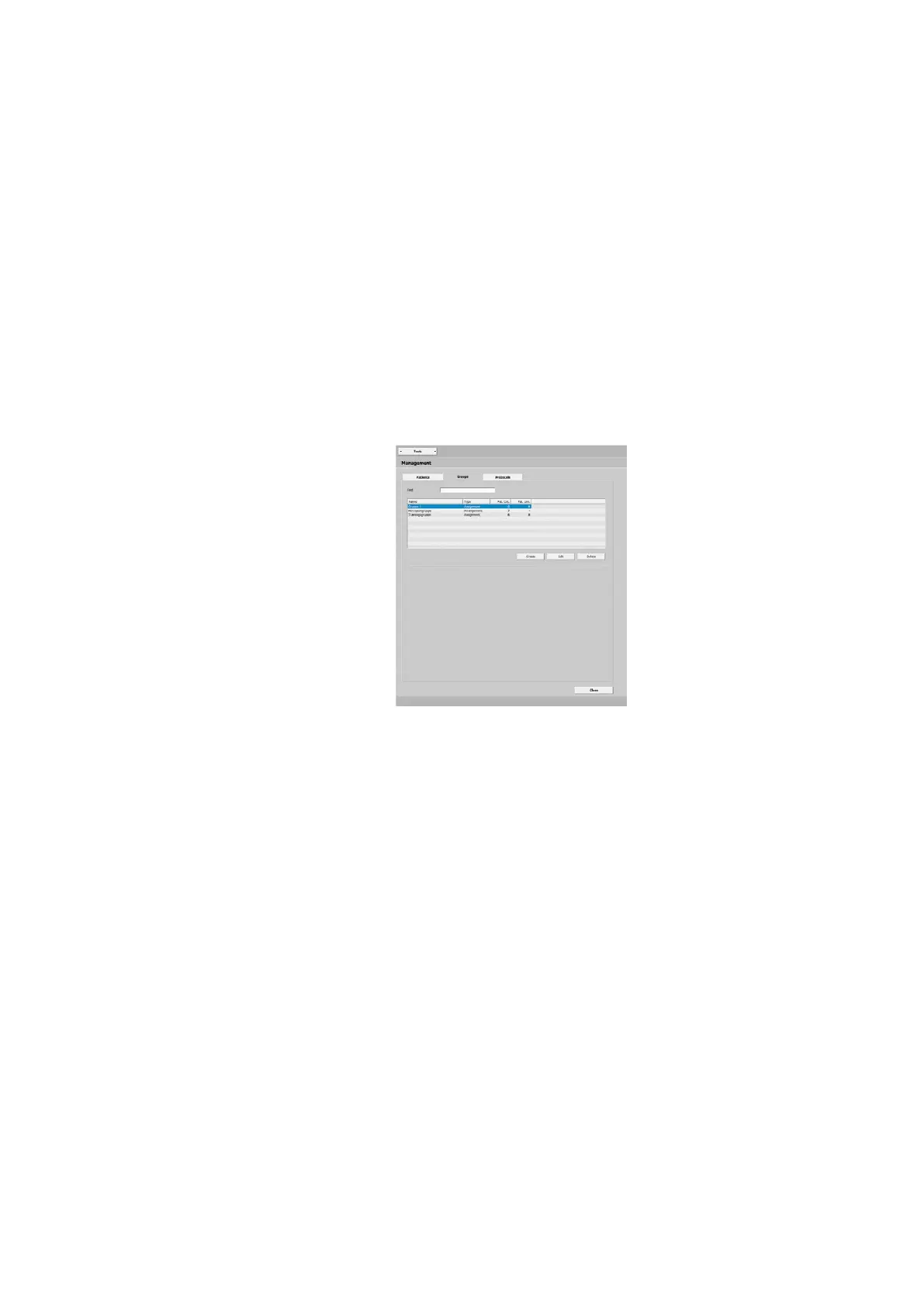
Creating Groups
To configure a new group, go to Man-
agement - Groups and click the [ Create ]
button. First enter the name (e.g., Group 1),
the type and, if needed, the patient limit.
Selecting the Group Type
You can choose between:
· Assignment and
· Arrangement.
Assignment means that you assign a
specific training device to a particular
patient. You can change the order with
the [ Up ] and [ Down ] buttons.
The option Arrangement allows you to
assign the patients consecutively to free
training stations.
Adding Patients to a Group
After you created a group, you can add
patients to this group. To do so, select
a system patient (highlighted blue) and
then click [ Add ]. Add more patients as
described above or by Drag & Drop (drag
the patient name to a training station).
Click the [ Save ] button to save the group.
| 39
group data
gEnEraL
Deleting Patients from a Group
To delete a patient, click the patient
name (highlighted blue) and then click
[ Remove ]. As an alternative you can dou-
ble-click the name of a group patient to
delete it.
To remove all patients of a group at once,
click the [ Empty ] button.
Editing a Group
If you wish to edit a group, highlight the
group name by double-clicking or by
selecting the group via Management -
Groups and click the
[ Edit ] button.
Change the data as appropriate and ter-
minate the procedure with [ Save ].



 To Next Page