48 |
ManagEMEnt > protoCoLs
trEadMiLL
Protocol Type ‘Custom’
Via [ Extended ] and Repeat you can eas-
ily copy the step types.
With [ Edit ] you can modify the dura-
tion, speed, and slope of individual or of
all steps. Highlight the steps you want
to modify (they turn blue) and enter
a value for Duration (abs. [s]/rel. [%]),
Speed (abs. [km/h]/rel. [%]) and/or
Slope (abs. [%]/rel. [%]). When you click
[ Apply ], the modifications will be adopt-
ed. To close the window, click [ Apply ].
Editing the Default Protocol
To edit a Default Protocol click [ Edit ].
Edit the settings and close the window
with [ Apply ]. The changes will be effec-
tive from now on.
Activating the Default Protocol
You activate a Default Protocol by click-
ing [ Extended ] and Activate. Answer the
question in the next window with [ Yes ].
The Default Protocol is now active which
can be recognized by the asterisk *.
Deleting the Default Protocol
To delete a Default Protocol click
[ Extended ] and select Delete.
When you click [ Yes ], the protocol will be
removed and is no longer available.
Please note that it is not possible to de-
lete an active protocol!
| 49
training
Monitoring
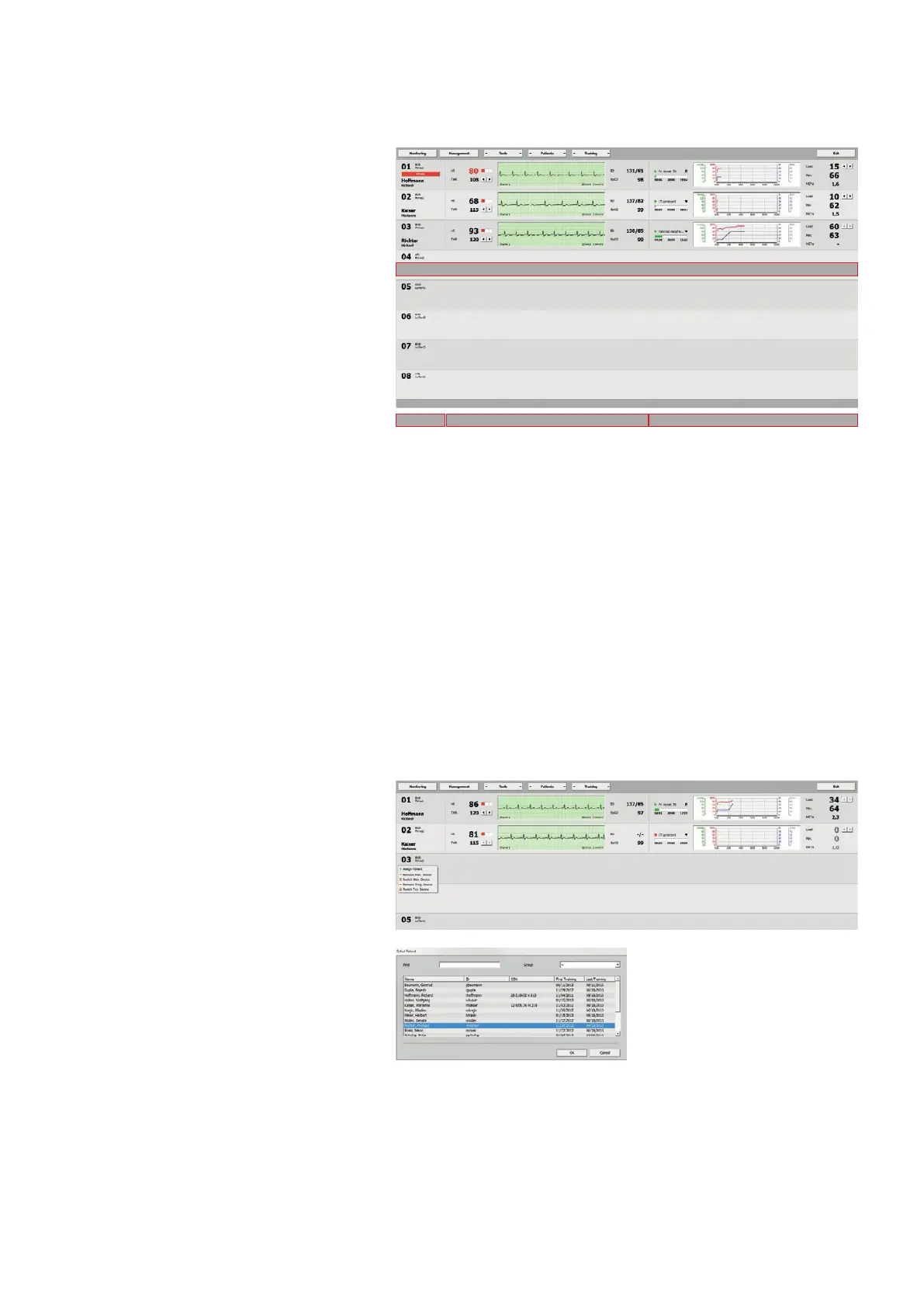
The overview presents the different areas
in the form of tabs:
Monitoring
ManagEMEnt
patiEnts
training
From this screen you start training ses-
sions, assign patients, and review train-
ing data. If the measured values exceed or
drop below the preset limits, the system
emits an audible and visual alarm (in the
illustration: training station 01) to allow
the user (physician, therapist) to respond
promptly to the problem. You silence the
signal by clicking the red button.
All settings can be modified even while
the training is in progress. These changes
affect the individual patient or this par-
ticular training station. On this screen
you can access three areas. With a right
mouse click in one of these areas, you
open the shortcut menu.
Assigning a Patient
Right-click a training station and select
Assign Patient.
In the following window, highlight a pa-
tient and click
[ OK ]. As an alternative,
you can double-click the patient name.
The correspondence between patients
and training devices can be swiftly
changed by dragging the patient name
to another training station (not during a
training session).
Area 1
Area 2 Area 3
Training station



 To Next Page