56 |
training
ManagEMEnt
Via [ Management ] you display the tabs
patiEnts
groups
p
rotoCoLs
The pane on the right shows all training
stations with the most important data.
Frequently used commands are easily ac-
cessible via shortcut menus.
patiEnts
With the [ Patients ] button you access
the options Create Patient, Patient Data,
Patient Analysis, Create Group, and
Group Data. These functions allow you to
create, view, and modify numerous data.
training
This [ Training ] menu refers to all associ-
ated training stations. You can assign an
entire group with Assign Group, remove
all patients with Remove Patients, start
all training sessions with Start Train-
ings, stop all training sessions with Stop
Trainings, switch from the training phase
to the recovery phase with to RP, view
the training overview with Show Trng.
Overview, switch on all ECG pumps with
Turn on ECG Pumps, or switch them off
with Turn off ECG Pumps.
Area 1 Area 2 Area 3
| 57
anaLysis
patiEnts
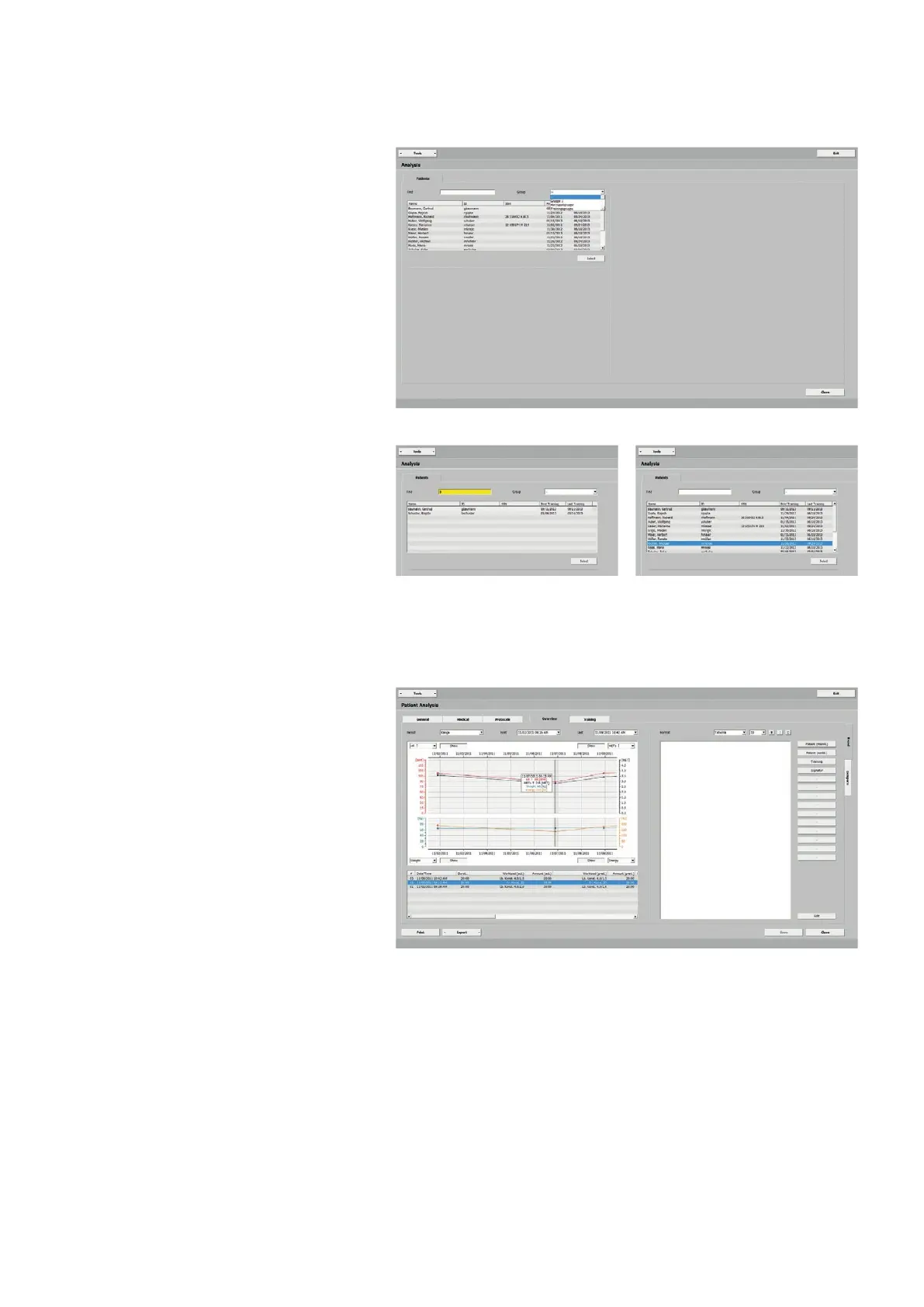
The Analysis - Patients view provides
an organized overview of all patients in
the system. The Group list comprises all
groups that were created. If you select a
group, the patients of that group will be
displayed.
With Find you can quickly access the pa-
tient data. After typing the first letters
or a part of the patient's name or the ID,
the patient will be displayed.
With
[ Select ] or by double-clicking the
patient highlighted blue, you open the
Patient Analysis.
patiEnt anaLysis
These are the tabs of the Patient Analy-
sis windows:
gEnEraL
MEdiCaL
protoCoLs
ovErviEw
training
Some of the tabs offer further options.
The following paragraphs discuss the
Overview and Training tabs.
The tabs General, Medical, and Protocols
are discussed in “Patient Data > General”
on page 19, “Patient Data > Medical”
on page 22 and “Patient Data > Pro-
tocols Bicycle” on page 26.



 To Next Page