36 |
patiEnt data > protoCoLs
trEadMiLL
Saving a Protocol as Default
Frequently used protocols can be saved as
the Default protocol. Select [ Extended ]
Save Def. The default protocols can be
edited
· on the Management Protocols tab,
see “Treadmill Saving the Default Pro-
tocol” on page 45.
The protocols are very flexible and can
be applied to other patients as templates.
Loading a Default Protocol
Existing Default Protocols can be opened
via [ Create ], [ Extended ], Load Def..
The existing default protocols are shown
in the next window. Select the proto-
col, then click [ OK ] and [ Apply ] or dou-
ble-click to transfer the Default Protocol
(e.g., Protocol 1) to the patient's list of
protocols. Then you can adapt the proto-
col parameters to this patient and acti-
vate it with the Activate button.
| 37
ManagEMEnt
g
roups
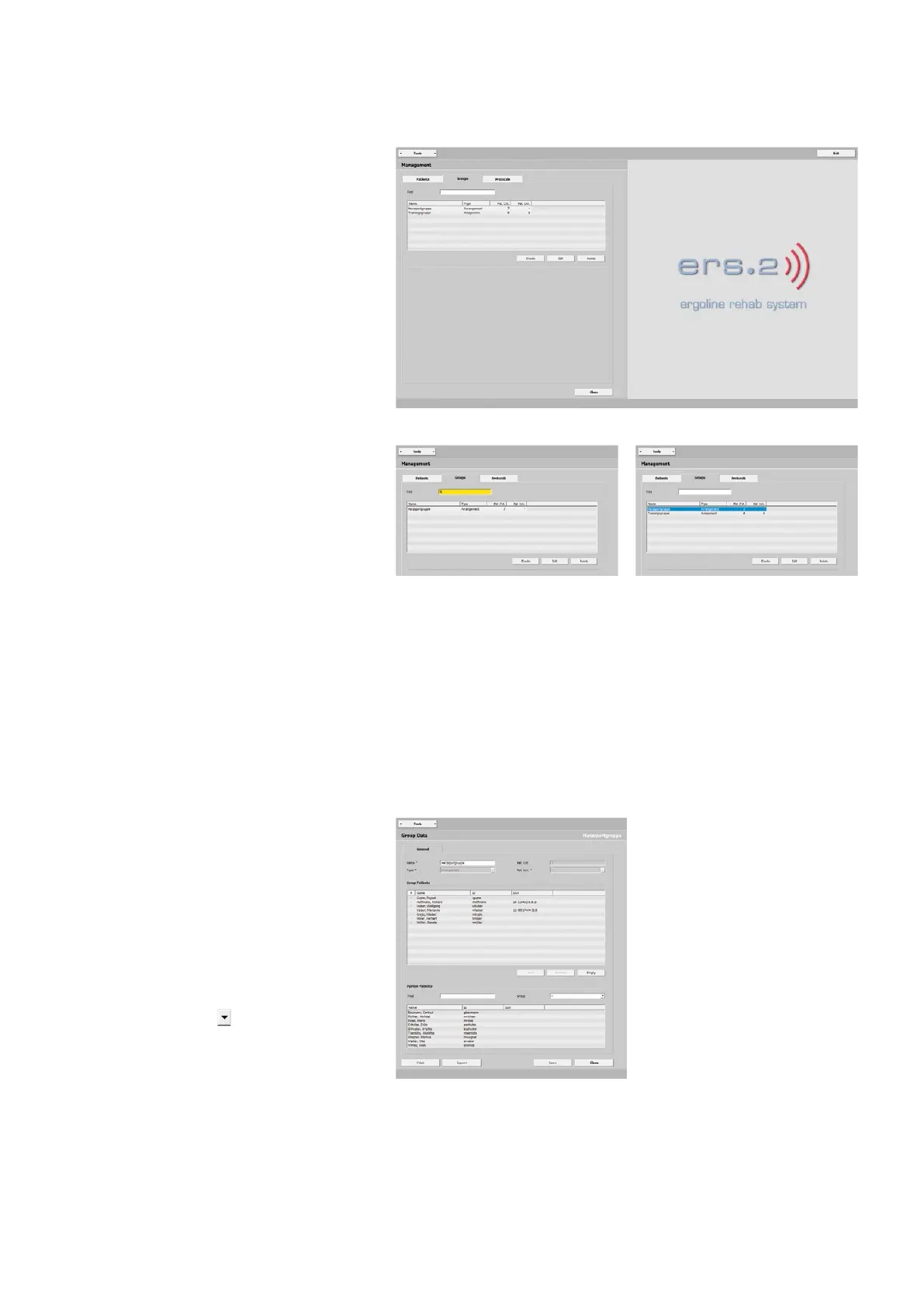
On this tab you configure different train-
ing groups for your patients.
The illustration shows an overview of
existing groups with these group details:
- Name
- Type
- Number of patients (Pat. Cnt.)
- Maximum number of patients
(Pat. Lim.)
The Find text box allows you to search
for existing groups. After you type the
initial letters of the group name (high-
lighted yellow) into the text box, the
group matching the criteria will be dis-
played.
With
[ Create ] you create a new group.
By selecting a group (highlighted blue)
and clicking the [ Edit ] button or with
a double-click you open the tab Group
Data - General.
group data
gEnEraL
· Group Patients
· System Patients
Under Group Data - General you first
find all patients belonging to a group,
followed by the system patients.
Via the Find text box, you can search for
a specific patient.
From the Group
drop-down list, you
can select a group to view only the pa-
tients of that group.



 To Next Page