20 |
patiEnt data > gEnEraL
pErsonaL data
· Chip Card
Via Standard [ Write ] you save the data
to the chip card. Via Extended [ View ] you
can review the entered data once more.
With [ Format ] you prepare data for their
first use or delete the data on the chip
card.
· Remark
Remarks concerning the patient or par-
ticular conditions can be entered in
this text box. After you click the [ Save ]
button, the entries will be saved to the
database. With [ Close ], your entries will
be discarded.
A warning will be displayed. Click
[ Yes ] to
save the entries, or click [ No ] to exit the
menu without saving.
New entries are always adopted via the
button. If the entry already exists in
the list, a warning will be displayed: The
input is not unique. This prevents double
entries in the database.
With the [ Close ] button you always exit
the current level and return to the parent
menu.
Click the [ Exit ] button to return to the
initial screen.
| 21
patiEnt data > gEnEraL
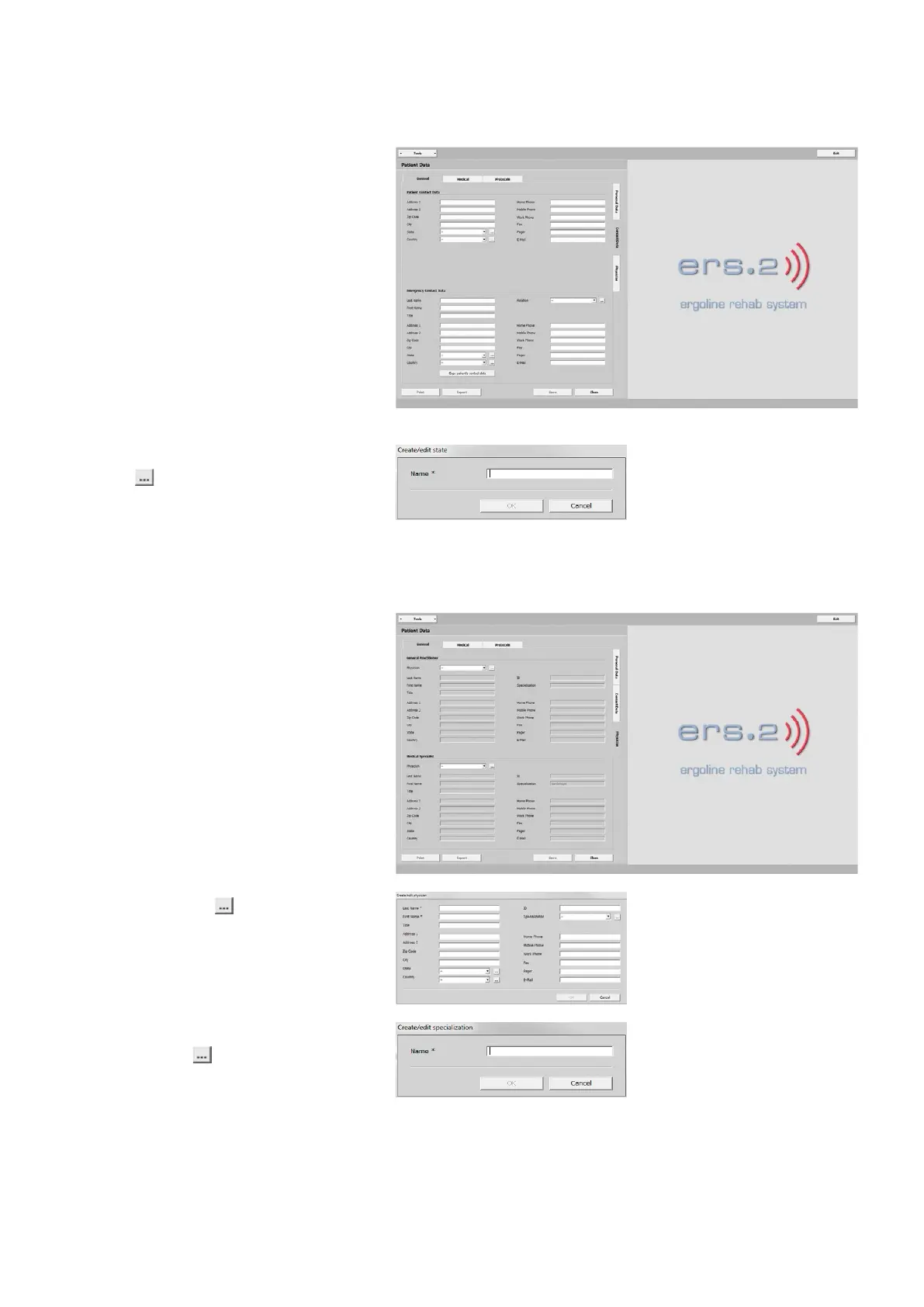
ContaCt data
· Patient Contact Data
· Emergency Contact Data
Enter address, names, etc. on this screen.
These inputs are optional.
State, Country, or Relation are added via
the button. Type a name and save it
with [ OK ]. The new entries will be added
to the drop-down list. Click the
[ Save ]
button to save your entries, or click
[ Close ] to exit the contact data.
patiEnt data > gEnEraL
pHysiCian
· General Practitioner
· Medical Specialist
Enter the physician's last name, first
name, title, etc. (via the combo box) into
the appropriate fields.
By clicking the
button, you add a
physician to the database. In the new
window, fill out all mandatory fields
(identified with an asterisk *).
The medical specialty can be added by
clicking the button. Click [ OK ] to
save the medical specialty. Clicking [ OK ]
again will add the physician to the drop-
down list. Click [ Save ] to finish the pro-
cedure.



 To Next Page