VIP-X System Manual
VIP-X - 74 Revision 1.0
5. Before proceeding, the PC server must be unlocked.
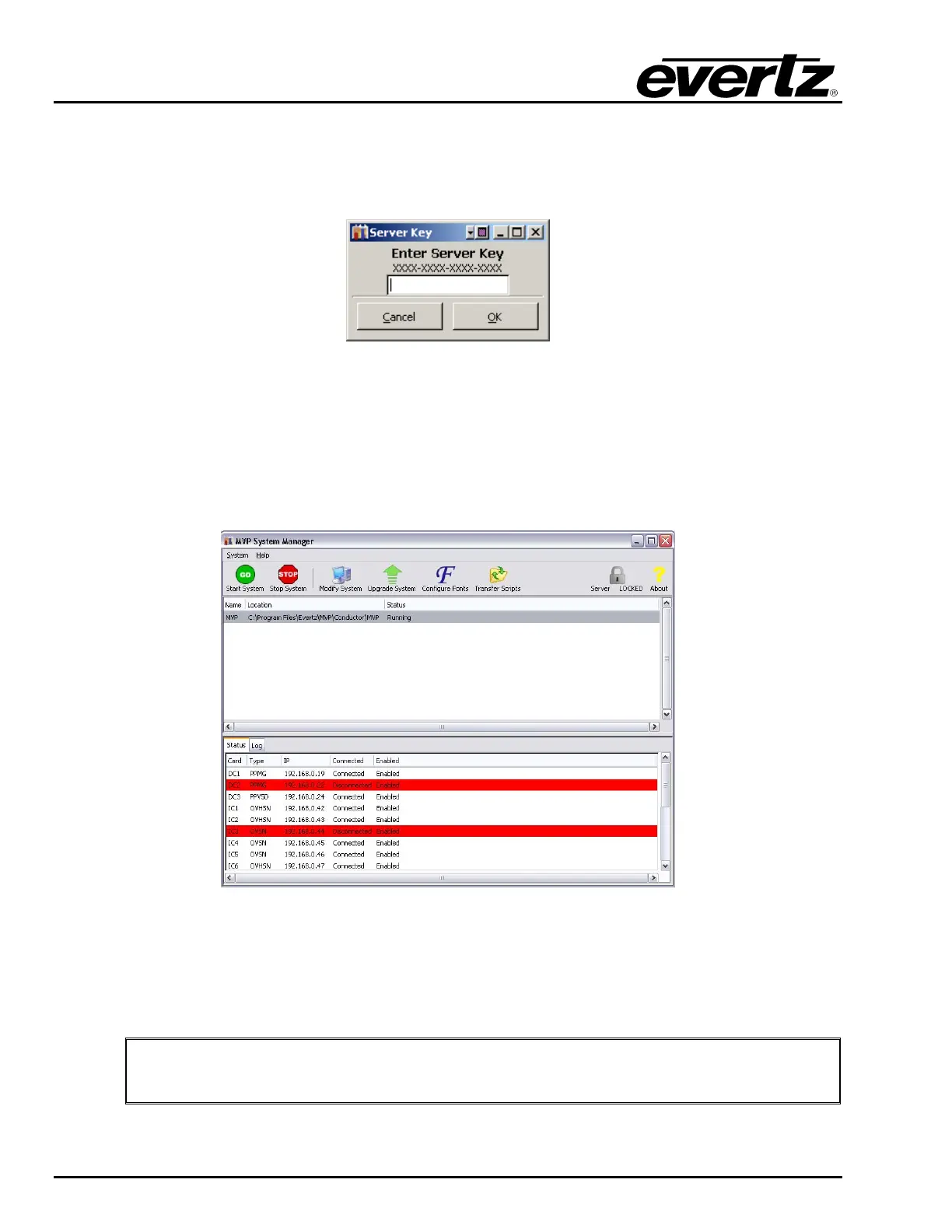
To unlock the server, click on the Server LOCKED button. Enter the server key provided as shown
in Figure 12-1, with dashes “-“. After entering the key, the lock symbol will change and the server
will be “UNLOCKED”.
Figure 12-1: Unlocking the Server
6. To start the system, click on the Start System (GO) button.
The status window (lower pane) of the software will report the connection status of the server to the
VIP-X hardware. If there is a problem connecting to any of the hardware, an error message will be
displayed here. Use the status tab to view the hardware components’ network connection status to
the VIP-X server. Please see Figure 12-2.
Figure 12-2: System Connection Status Window
7. To stop a server, click the Stop System (STOP) button.
8. To exit the System Manager, the user must navigate to the System menu and then select Quit.
"
If the user uses the windows “X” button, the program will only minimize to the tool
tray, not exit.



 To Next Page