MULTIMEDIA
334
NAVIGATION
(where provided)
Press the "Nav" graphic button to show
the navigation map on the display.
You can use map view in the same way
as you might look at a traditional paper
map. You can move around the map
using gestures, and zoom using the
zoom buttons.
You can find your destination by
selecting it on the map, choosing a
saved destination (for example "Home"
or "Work") or searching for an address
using the "Search" button in the main
menu.
After selecting the destination, a route
is planned and shown on the "Map
view" screen. The route bar appears
on the right hand side of the display
and provides an additional indication of
events along the route, e.g. accidents
and speed cameras. The arrival time
and remaining distance are also
available.
You can choose to view the route via a
3D image in the "Guidance view".
NOTE The navigation system volume
can only be adjusted during navigation
when the system provides voice
indications.
NOTE In some countries, the use
of the keyboard is only permitted
when the vehicle is stationary. If an
attempt is made to enter text (e.g.
an address) with vehicle in motion or
if driving is resumed without having
completed engagement, a warning
message will appear on the display
and the operation will be ended.
We recommend the use of voice
commands while driving.
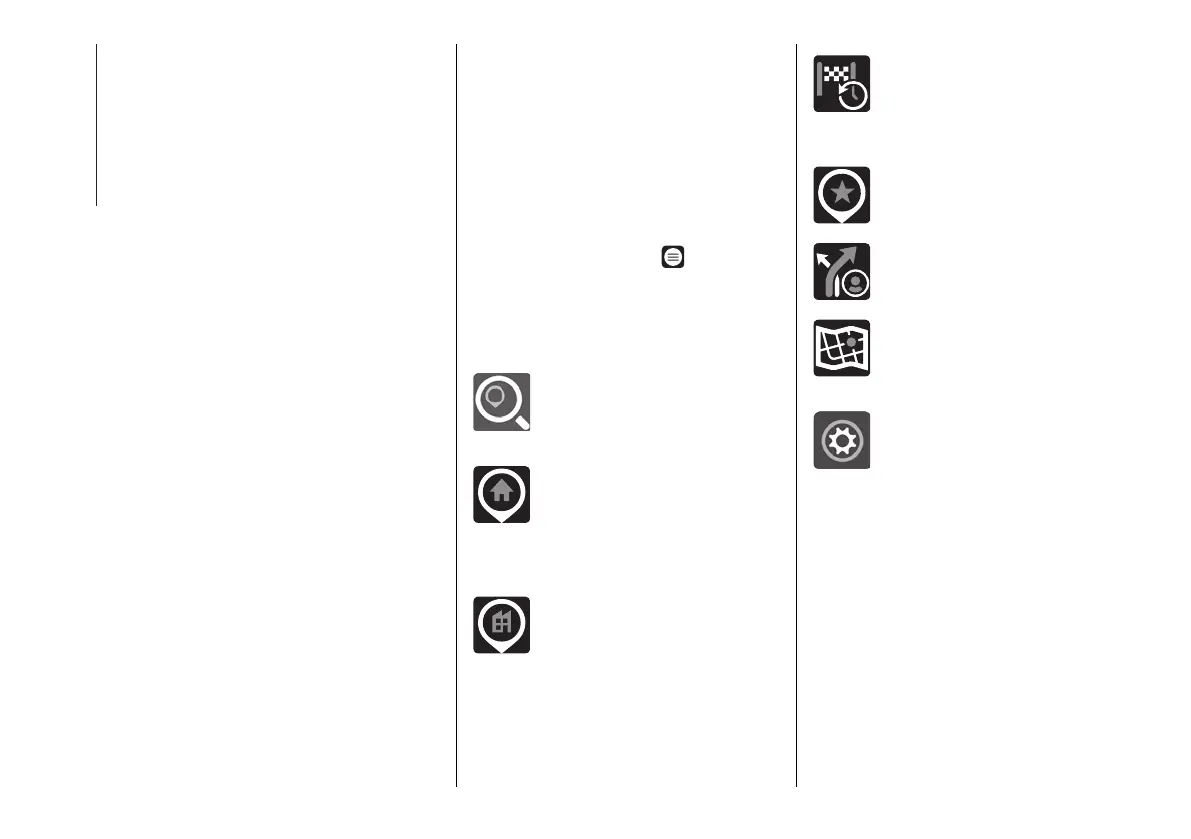
Navigation main menu
In "Map view" or "Guidance view", tap
the "Main menu" button to open the
menu.
The following buttons are available in
the main menu:
"Search”: select this graphic
button to search for an address,
a place or a point of interest,
then plan a route to the location.
"Drive Home": Select this button
to navigate to the location
registered as "Home". If this
button is displayed as "Add
Home", select this button to set
the location of your home.
"Drive to work": Select this
button to navigate to the
location registered as "Work". If
this button is displayed as "Add
Work", select this button to set
the work position.
"Recent": Select this button
to open the list of recent
destinations. Select a recent
destination to plan a route to
that destination.
"Favourites": select this button
to show the saved favourite
places.
"Trips": select this button to
show saved trips.
"Maps": select this button
to display a list of installed
maps. The maps are updated
automatically.
"Settings": select this button
to open the Settings Menu. In
the "Settings" menu, you can
change the items shown on the
navigation display.
System buttons
The following buttons are available on
the different screens of the navigation
system:





 To Next Page