Chapter 3 Component Status
3.6 Controller Enclosure Detail
ETERNUS Web GUI User’s Guide (Operation)
Copyright 2016 FUJITSU LIMITED P2X0-1260-19ENZ0
119
■ Front View
The image that is displayed in this screen varies depending on the storage system model.
● For the ETERNUS DX60 S3/DX100 S3/DX200 S3, the ETERNUS AF250, and the ETERNUS DX200F
The following items are displayed in the Main area:
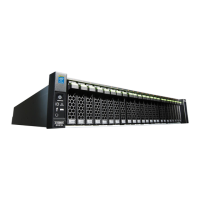
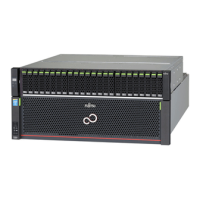
- Storage system image
The front view of the CE that is installed in the ETERNUS DX/AF is displayed. The number of drives that
can be installed for each CE type is as follows:
• 2.5" CEs
24 drives (24 drives are lined up horizontally)
• 3.5" CEs
12 drives (3 drives are lined up vertically and 4 drives are lined up horizontally)
• When no drives are installed
Blank
The drive status is displayed with an icon. Refer to "A.5 Component Status" (page 410)
for details.
By clicking the drive image, the [Drive Detail] screen is displayed. Refer to "3.19 Drive Detail" (page
164) for display items.
- Parts
The drive number is displayed. By clicking the drive number, the [Drive Detail] screen is displayed.
Refer to "3.19 Drive Detail" (page 164)
for display items.
- Status
The drive status is displayed. Refer to "A.5.1 Drive Status" (page 411)
for details.
- Capacity
The capacity of the drive is displayed.
The drive capacity that is displayed for the SSD-L differs from the product's actual capacity. For
example, the drive capacity of a "1.92TB SSD-L" is displayed as "2.00 TB".



 To Next Page
 Loading...