SERVICING
72
PULSE Installaon, Commissioning and Servicing Manual - Revision 19
11 SD CARD CONTENT
The SD Card MUST be set to LOCKED before it can be safely removed and set to
ACTIVE once reinserted.
SD (Secure Digital) cards are re-writable data storage devices.
PULSE dispensers read from, and write to, SD cards as follows:
y Reading: loading pump config, keyboard map, firmware upgrades
y Writing: event log files, error logs
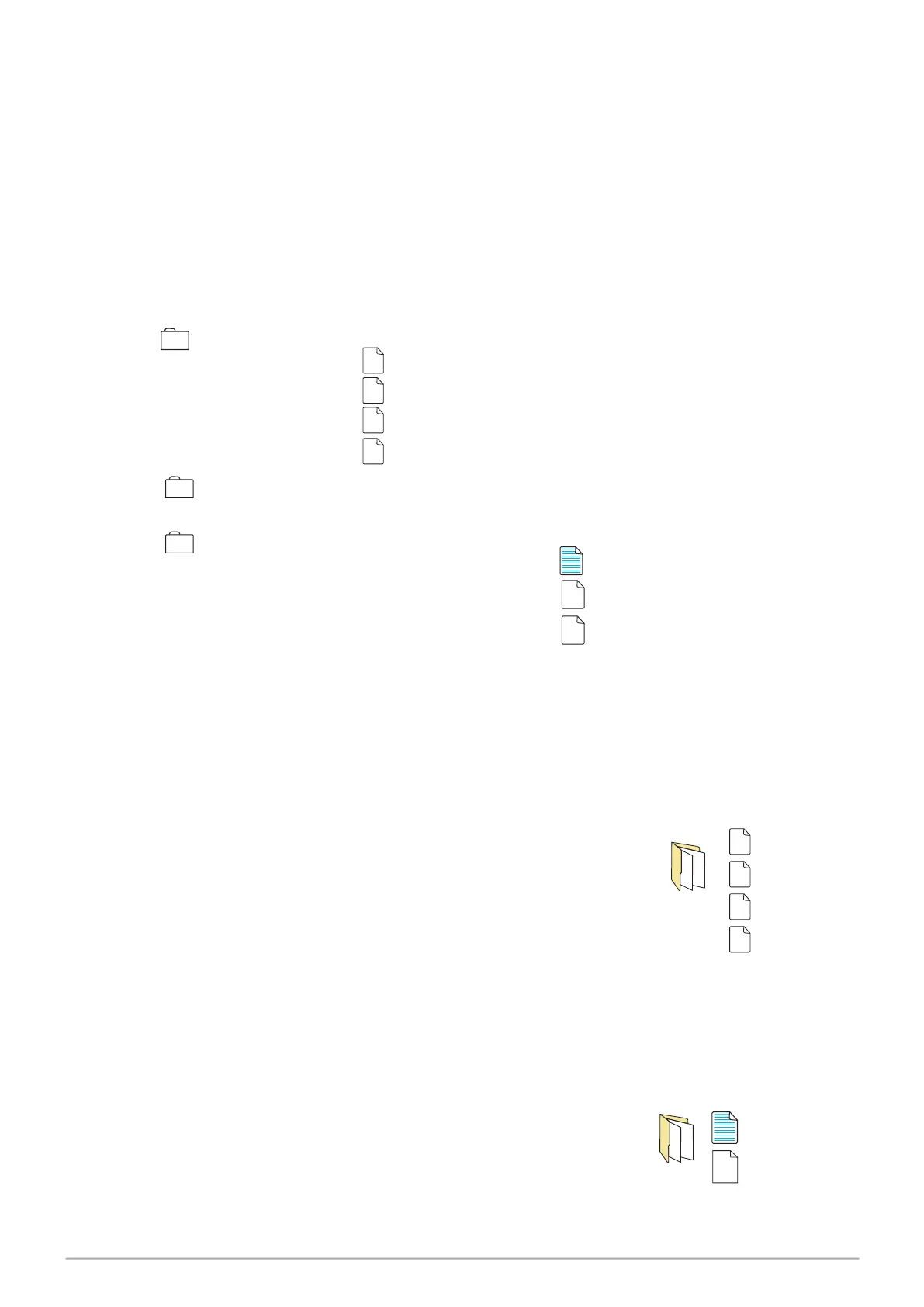
Typical SD Card contents for a dispenser:
Firmware Folder
User Interface 12001.UI_
Stack Controller 12001.LSC
Central Controller 12001.CC_
Central Controller 12001.LCC
Logs Folder
Folders are: year, month and day
Config Folder
The configuration files for this dispenser Config.xml
Bitmap file Bit_maps
Keyboard map KB_map
1. Safely remove the SD card (see Servicing - Section 12.2 SD
Card Setting).
2. Place the SD card in a computer and open the Firmware
folder.
3. Place the supplied firmware in the Firmware folder.
4. The card is now ready to use for a firmware upgrade.
11.1 Process for Loading Firmware onto the SD Card
The latest firmware release is available from Gallagher Technical Support or from the Fuel
Systems website: https://fuelsystems.gallagher.com/support
The latest firmware release must be installed during the commissioning of a new dispenser.
Gallagher recommend that service agents carry a copy of the latest firmware.
Cong
Firmware
12001.UI_
12001.LSC
12001.CC_
12001.LCC
Config0.xml
KB_map
11.2 Configuration Reinstall
To restore default settings:
1. Safely remove the SD card (see Servicing - Section 12.2 SD Card Setting).
2. Place the SD card in your computer, open the Config folder to view the Config file.
3. Rename the Config file by adding a zero (i.e. Config0).
4. Replace the SD card in the dispenser and repower to force
the Config to be reinstalled.
5. This will cause the dispenser to revert to default settings,
as contained in the Config0 file. Overrides such as pump
numbers will need to be re-entered.


 To Next Page