GE MEDICAL SYSTEMS
DIRECTION 2380207, REVISION 7 LOGIQ™ 5 PRO SERVICE MANUAL
8 - 4 Section 8-3 - Monitor
8-3-1-6 Monitor Calibration
Purpose: This procedure describe the monitor calibration procedure for newly installed monitor or CRT
assembly. The newly installed monitor should be adjusted the gain uniformity for each RGB
analog signal which come from VGA port of BEP assy.
8-3-1-7 Enable test pattern for calibration
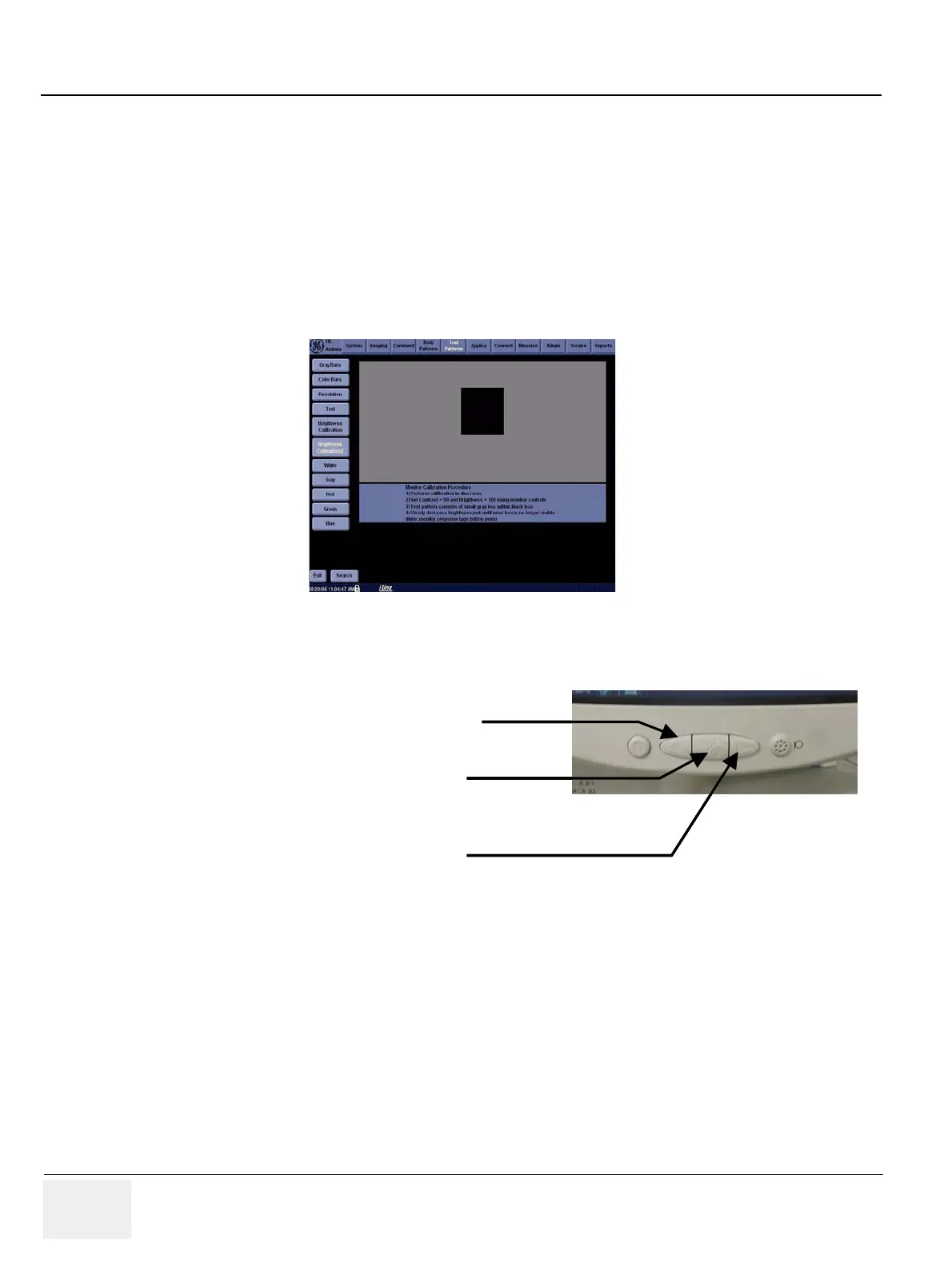
1.) Set the display screen to reference for monitor calibration.
• Select the "utility" button on LCD -> Select the "Test Pattern" button on LCD. -> Move the trackball
cursor to the "White" button on monitor screen. Then calibration reference screen would be show
up on monitor screen.
2.) Monitor OSD Menu selection
• push the center button for more 4 seconds untilOSD menu is turned on. Push the right button 4
times to move to "RGB" icon. If the "RGB" icon become highlight, push the Center button to go into
sub menu.
• Move the cursor to "calibration" menu and push center button to activate calibration. wait until
Figure 8-4 Reference Screen for Monitor Calibration
Figure 8-5 Monitor OSD Menu
Left Button : Move the OSD cursor to left direction
Center Button : Turn on OSD menu Or enable highlighted menu
Right Button : Move the OSD cursor to left direction
Left Button : Move the OSD cursor to left direction
Center Button : Turn on OSD menu Or enable highlighted menu
Right Button : Move the OSD cursor to left direction



 To Next Page