page | 52
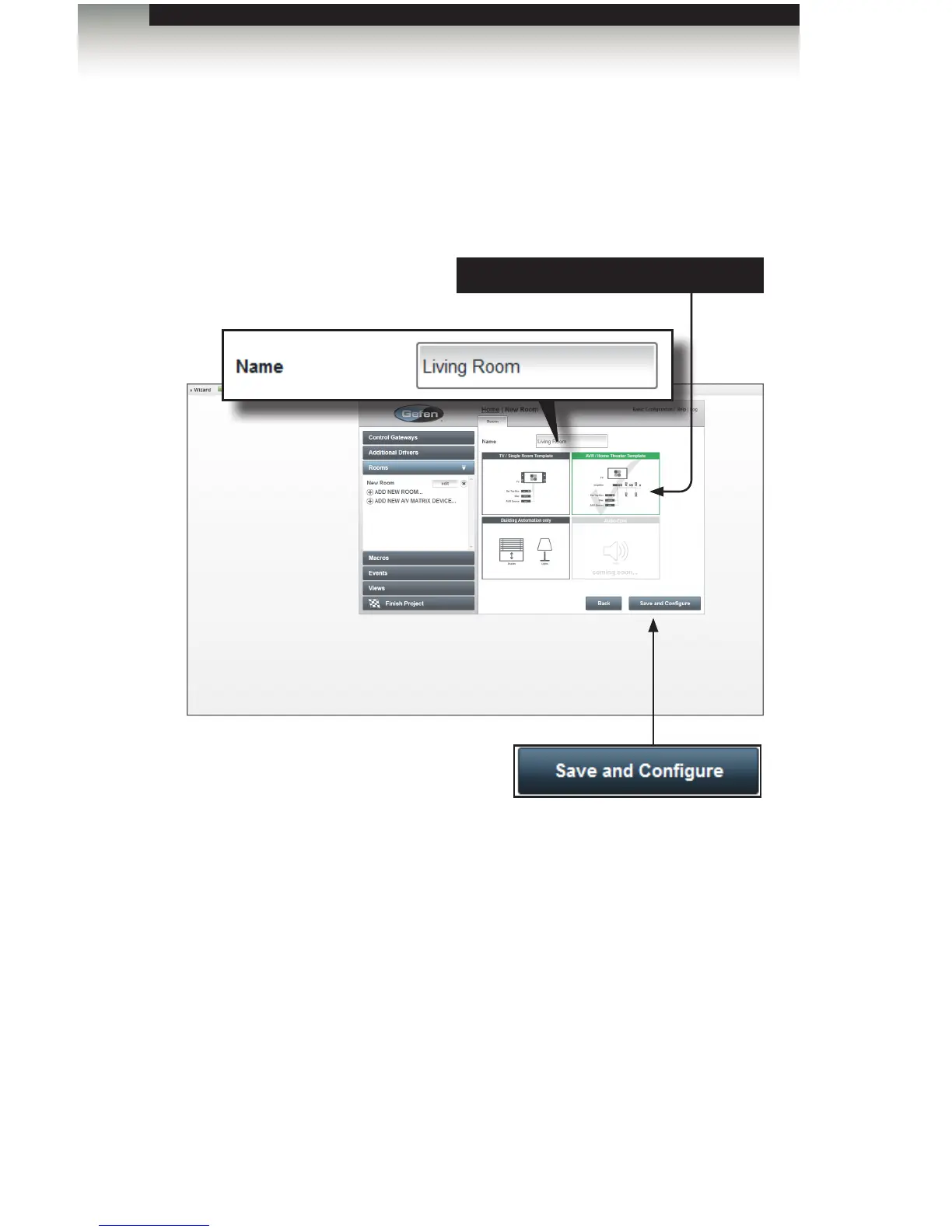
4. Type the name of the room in the Name eld. For this example, we will use the word
“Living Room”.
5. Select the system design that is appropriate from the four options on the right side
of the screen. In the example on the next page, we will select AVR / Home Theater
Template. The selected template will be highlighted in green.
6. Click the Save and Congure button.
The conguration screen for the named room (in this case, “Living Room”) will be
displayed in the top-portion of the screen. Once the “room” has been created,
the next step is to add devices to the room. The rst step will be to add an A/V
receiver.
If the “TV/Single Room Template” is selected, the rst option will be to select a display.
Adding Rooms
Using the GAVA Wizard
Selected template highlighted in green
Save and Congure
Saves the selected room
conguration and room name and
continues with the TV and source
conguration information.



 To Next Page