page | 87
Additional Drivers
Using the GAVA Wizard
6. Click the Next button to access the Control tab.
7. Select the method of control from the Controller drop-down list. In this example,
we will use the RS-232 port on the GAVA.
8. Click the Save button to nish adding the device. The scaler will appear under the
Additional Drivers tab.
9. To continue adding devices, click ADD NEW... and repeat the above steps as
necessary.
Controlling the device
Now that we’ve added the device to the GAVA system, we can control it using Macros or
Events. In addition, feedback from the device can be used to trigger and Event.
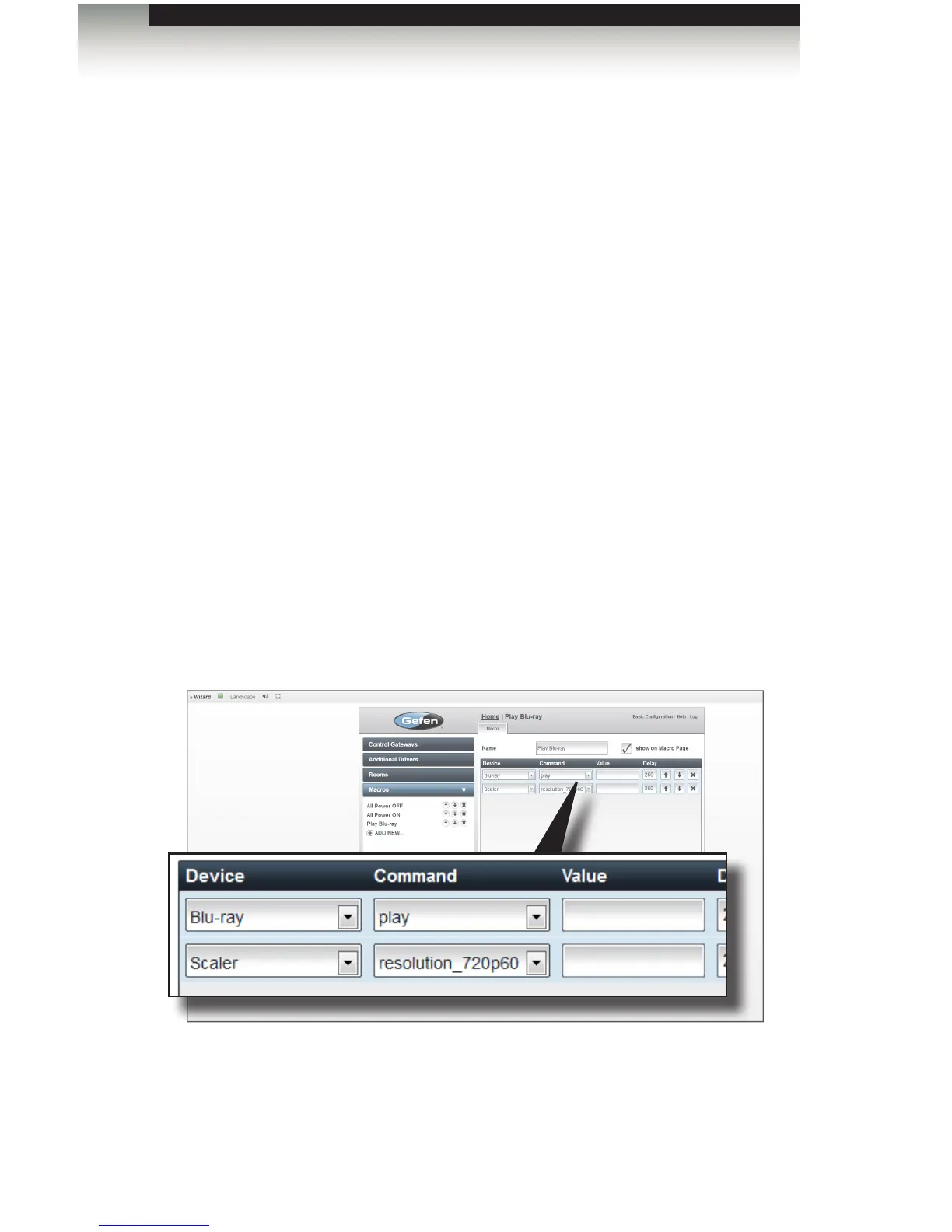
In the example below, we will change the output resolution of the scaler to 720p60 when we
begin playing the Blu-ray. We will create a Macro to accomplish this task.
1. Click the Macros tab and select ADD NEW...
2. Provide a name for the macro and add the devices and commands, as shown below.
3. Click the Save and Close button to save the changes to the macro.



 To Next Page