page | 101
Using the GAVA Wizard
Views
The Views tab lets you create different Graphical User Interfaces (GUI’s) for different users.
For example, the iPad you use in the Living Room can show only the Living Room system,
while the iPod Touch in the Bedroom can show just the Bedroom system. Or the Kids’
iPhone can be set to have access only to the Kids’ Bedroom system.
You can also “hide” Device controls that are not ordinarily used, and change the order
of selections, so the Blu-ray player and Apple TV are always visible, while the Receiver
controls, which are rarely used, are at the end of the list (of course, the Receiver Volume
slider is always visible).
You can create as many “views” as you need. Each View will use a different URL. If you
use the “Add To Home Screen” option on your iPad, iPod, iPhone, or one of the GAVA
Apps, the URL will be hidden and only the selected GUI will be available.
Views may be password-protected to prevent unauthorized users from accessing certain
devices, Rooms, or controls.
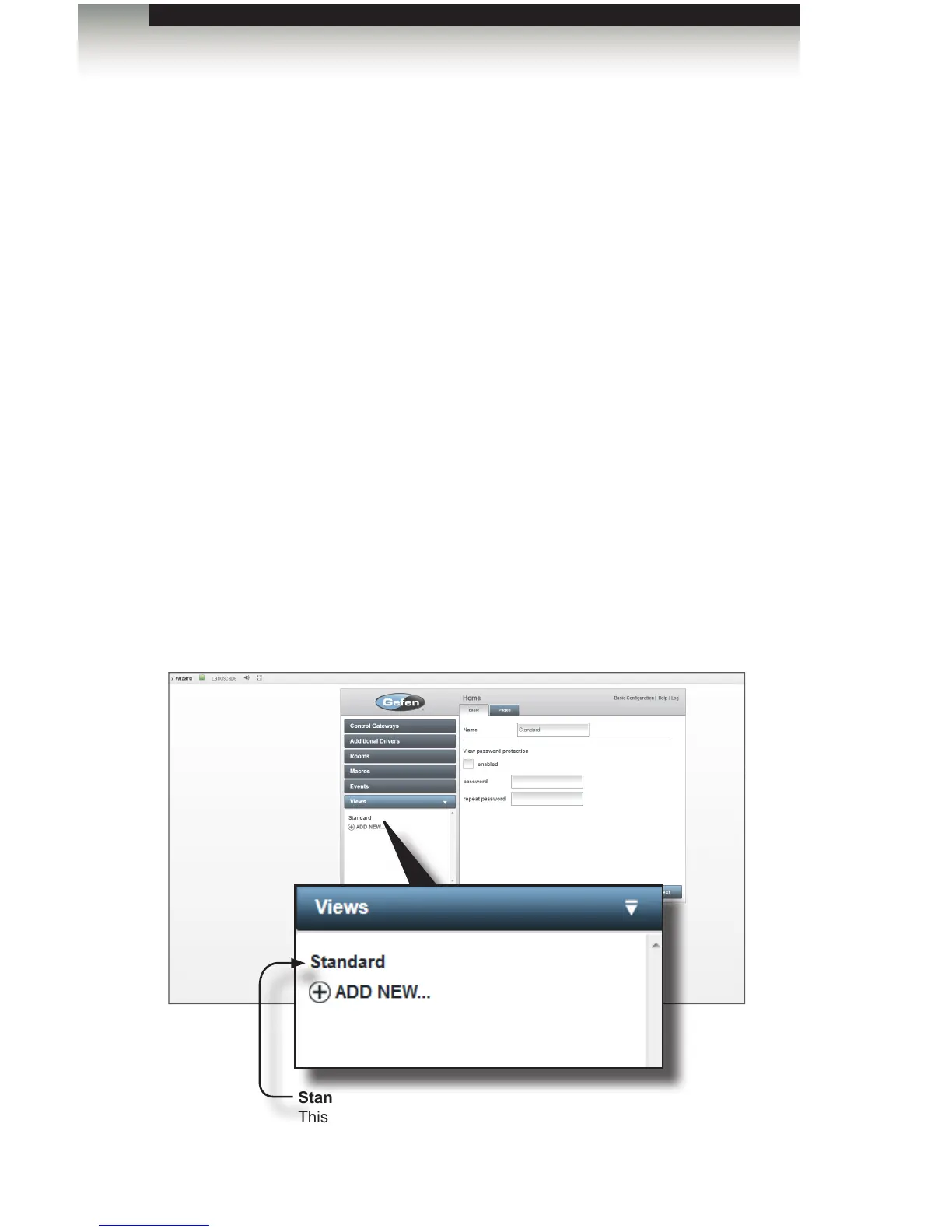
Managing Views
1. Click the Views tab on the left side of the screen.
2. Click the Standard View. One View must exists at all times. By default, the Standard
view is automatically created by GAVA.
Standard
This View is automatically created by GAVA.



 To Next Page