page | 102
Using the GAVA Wizard
Views
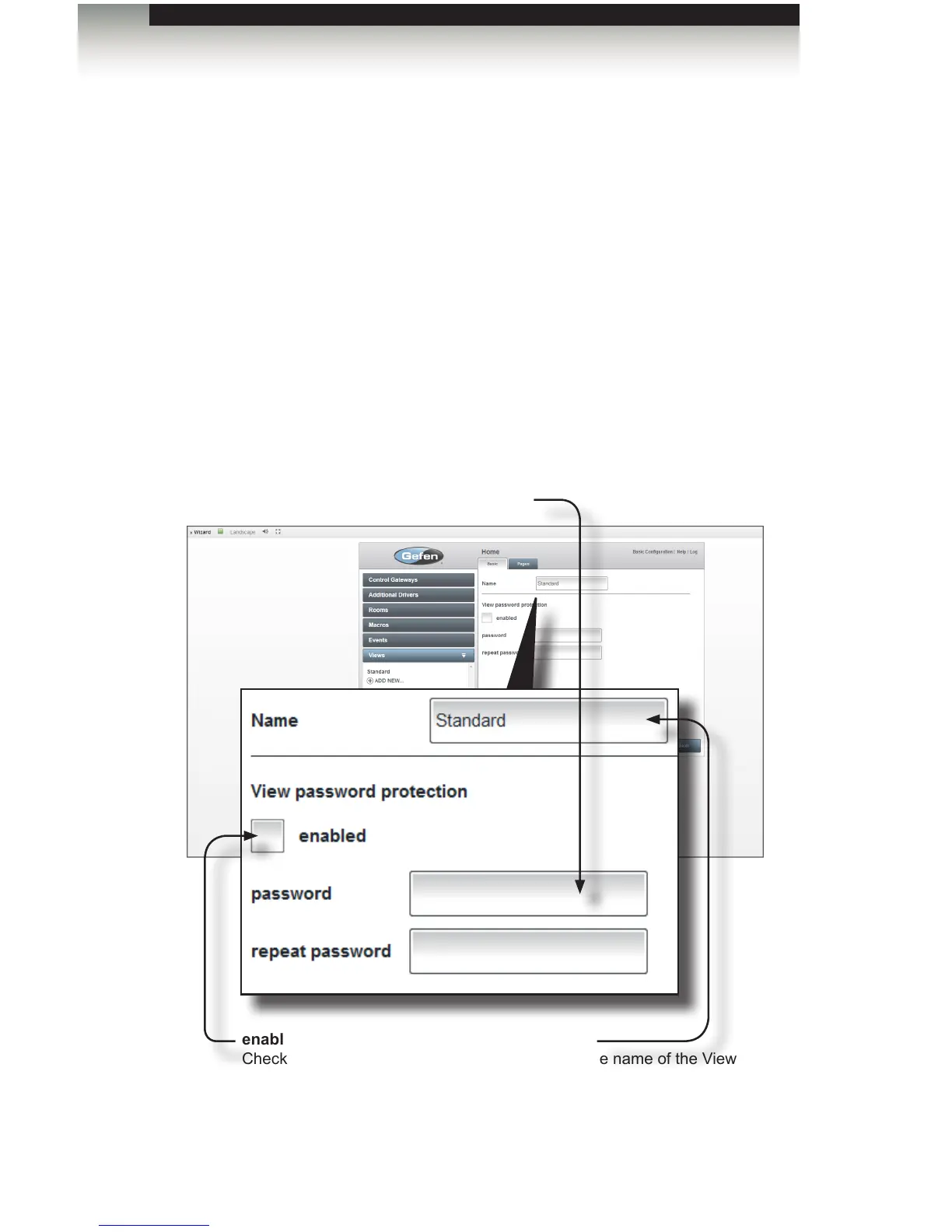
3. Click the Name eld and delete the name “Standard”. Although it is possible to use
the name of each Room for a View, we will use the name of each end-user:
“Andrew” and “Orrin”. Let’s rst change “Standard” to “Andrew”.
4. Enter a password in the password eld, if desired. The password will be masked
as it is entered. Views may be password- protected to prevent unauthorized users
from accessing certain devices, Rooms, or controls The password may be any
combination of letters and numbers. If a password is not desired, skip to step 7.
5. Retype the password in the repeat password eld to verify the password.
6. Click the enabled check box to have the GAVA prompt for a password. Leave the
enabled check box blank to temporarily disable the password and allow unrestricted
access to all Views.
7. Click the Next button to proceed to the Pages tab.
enabled
Check the enabled box to require
a password. Un-check the box to
temporarily disable the password and
allow unrestricted access to all Views.
Name
Type the name of the View in
this eld.
password
Enter a password in the “password” box. The password
may be any combination of letters and numbers.



 To Next Page