13
3rd Wave User Manual
Working with Multi-Parts
volume
tuning
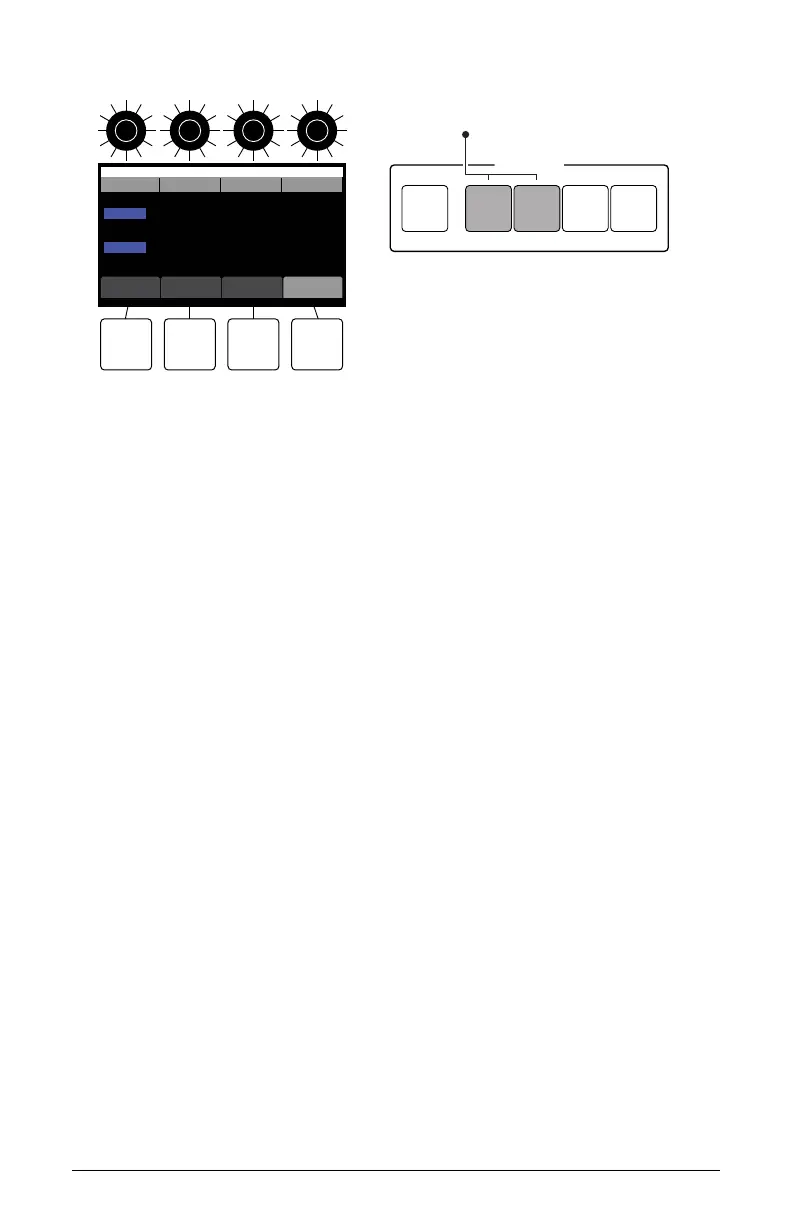
Part Select - Copy a part to the current program
Copy from:
B1 - P010
Digi Bass - Part 1
Copy to:
B1 - P020
Current Program- Part 2
100
Part 1 Part 2 Part 3 Part 4
100 100 100
pan splits parts
OS v1.0
bank program part from part to
MULTI-PART
MODE 1 2 3 4
Parts 1,2 are active
Copying multi-parts
You can create huge-sounding stereo versions of a program by copying the
same program to Parts 1 and 2, then panning part 1 hard left and part 2 hard
right. To further widen the effect, vary the parameters slightly between the
two parts. You can vary the envelope times, lter cutoff, tuning, or other
parameters to create slight differences between the two parts.
To make a stereo program:
1. To create a stereo program, you will copy the same program to Part 1
and Part 2 and pan each Part fully right and fully left respectively.
2. Use the Bank and Program knobs to select a program that you want to
make stereo.
3. Activate Parts 1 and 2 by pressing Part 1 or Part 2 button if they are not
lit or blinking.
4. Press the mode button. The multi-part parameters should appear in the
display.
5. Press soft button 4 (parts).
6. Use soft knobs 1-2 to select the bank and program that you want to
copy from.
7. Use soft knob 3 to choose which part (1-4) you want to copy in the
selected program.
8. Use soft knob 4 to select the Part in the currently active program that
you want to copy the selected program/part to. In this case, select
“Current Program - Part 1” as the destination.



 To Next Page