39
3rd Wave User Manual
Saving and Assigning Samples to a Slot
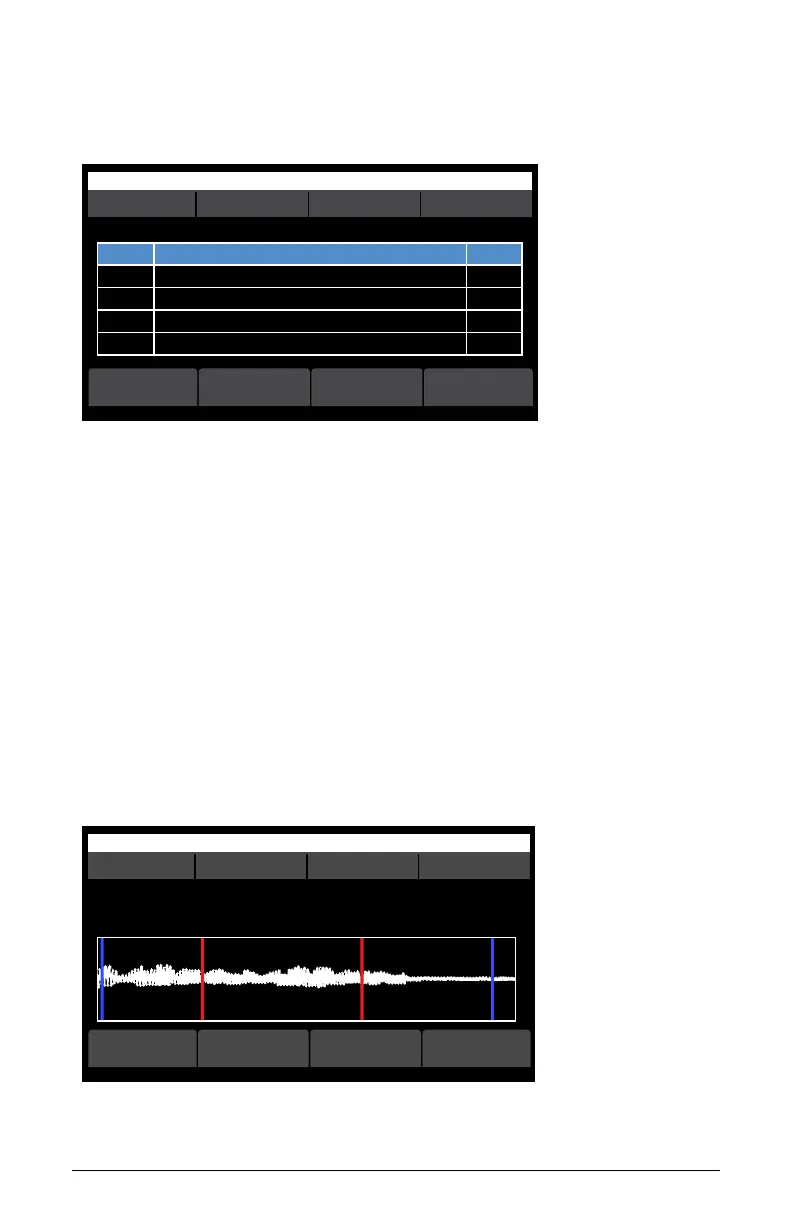
10. After the les have been imported, the Manage Sample Memory screen
appears, showing each le and its size.
OS v1.8B5-P012 Orchest Hit
select
r# sizename
Manage sample memory 0 used. 1683456 free (100% avail)
r#1 Press new button to save a new recording to memory 36544
removebulk load<-- clear all
Manage Sample Memory screen (page 2)
Now that you have imported the samples, you can assign them to sample
containers. They will then be available in the “S” category of any of the
three oscillators and can be used in programs for playback.
To assign existing samples from memory into sample slots:
1. Press the global button and use soft knob 1 to scroll to the manage
multisamples setting.
2. Turn soft knob 2 to select go. The sample editing screen appears as
seen below.
3. Use soft knob 1 to select the desired multi-sample container.
OS v1.8B5-P015 Modeled Texture
S slot multisample start end
Sample S00 - multisample 1 of 1
C15 Synth - Attack 1
Assigned note: C4, range [C2, C6]
playloop
add to
multi
-->
Sample Edit screen (page 1)



 To Next Page