4.3.3.7 Cloud Storage
As a new feature our device support upload video & picture to the cloud. Device will upload the
video and picture to the cloud automatically after you set this function correctly.
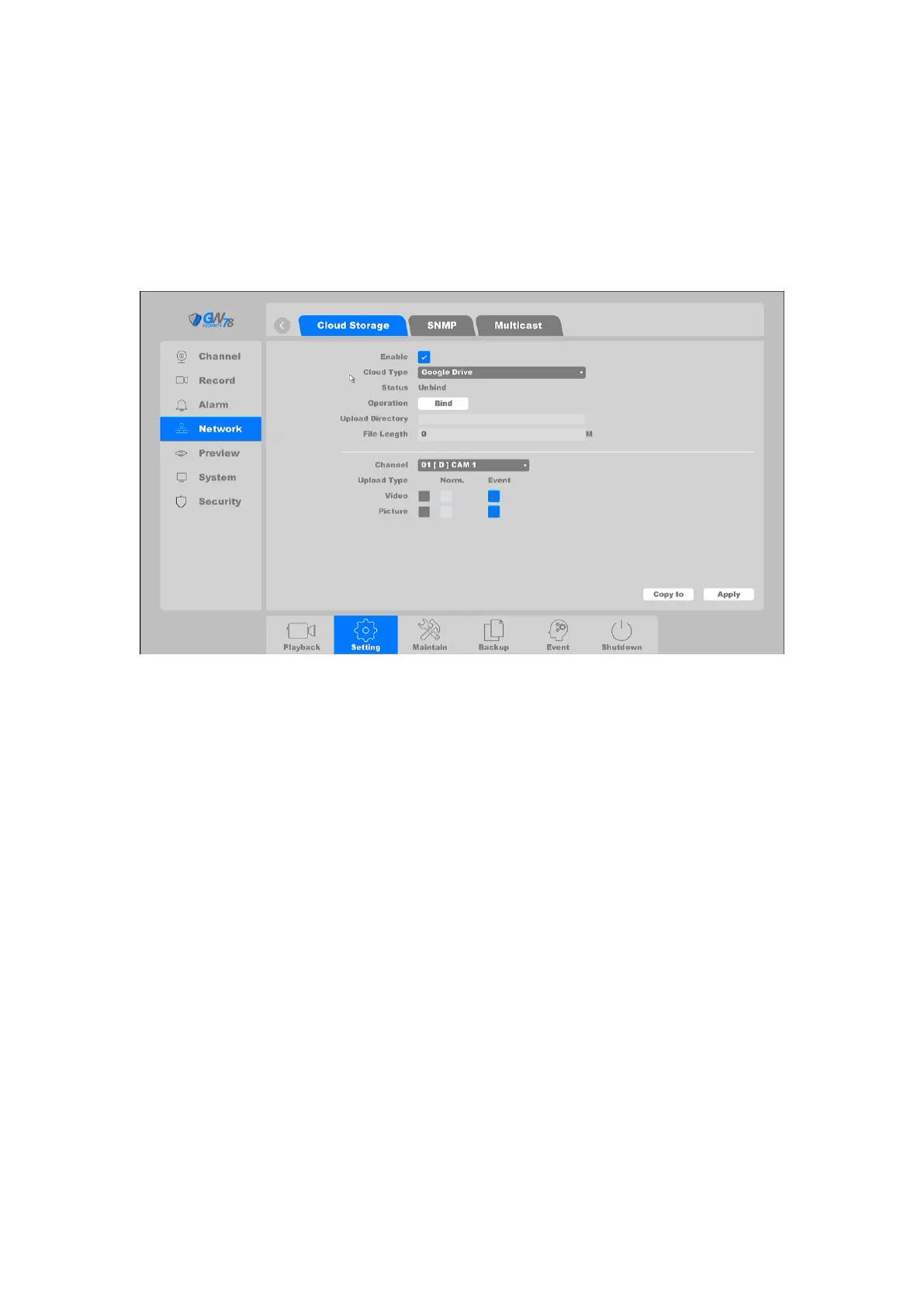
Click on "Setting -> Network → Cloud Storage", as shown in figure 4-31.
Figure 4-31 Cloud Storage
Enable: Enable the cloud storage function.
Cloud Type: Support two kinds of cloud services “Google Drive” & “Dropbox”.
Status: Shows the cloud storage function status “Bind” or “Unbind”.
Operation: Make sure you have already access to internet, click “Bind ” button, the
device and your Google account will be bound.
Upload directly: You can set the path of your account folder on your device.
File length: Set the video length that will upload to the cloud.
You can set which kind of file you want to upload as you followed by the steps below.
Channel: Choose the channel which you want upload files. Also you can choose
different channels to set different upload plan.
Upload type: Including “Norm” “Event” “Main” “Sub stream” four kinds of upload type.
Video: In “Norm” type device will keep upload the video file all the time as long as
recording keep going. In “Event” type device will only upload video files as plan that you set
in alarm trigger process. “Main” and “Sub stream” means you can choose which the record
file type you want to upload.
Picture: Same as the video configuration. It has “Norm.” and “Even” type of upload. But
it's of merely a still image.
After the operation is finished, click the Save button to save the configuration.



 To Next Page