After all the setting finished, click the button Apply to activate the configuration.
4.3.6.5 Cover
You are allowed to configure the four-sided privacy mask zones that cannot be viewed by the
operator. The privacy mask can prevent certain surveillance areas to be viewed or recorded.
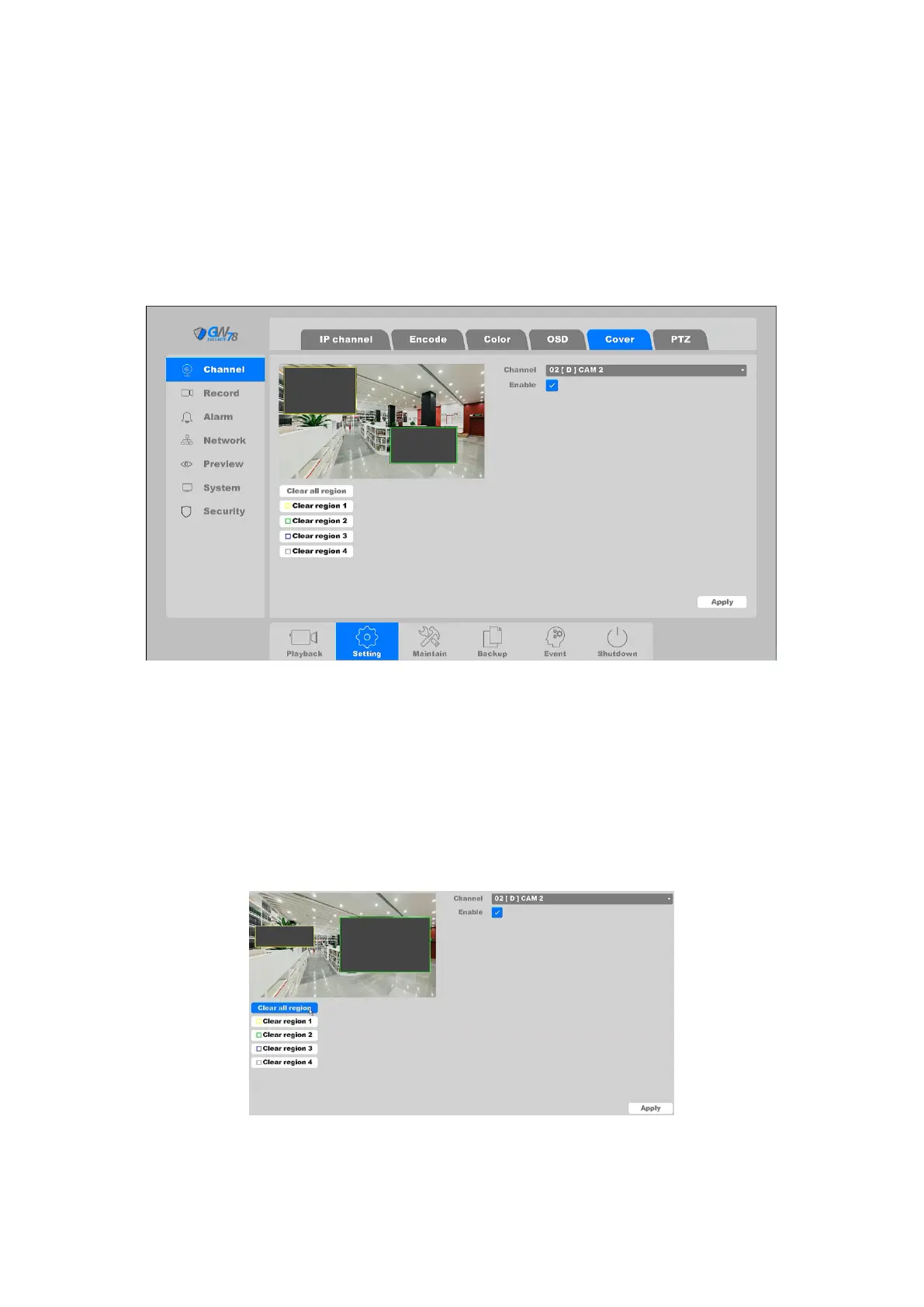
Click on the "Settings -> Channel ->Cover”, as shown in figure 4-58.
Figure 4-58 Channel Cover Setting
Channel: Select the channel to configure.
Enable: Check the box to enable the feature.
Use the mouse to draw a zone on the window. The zones will be marked with different frame
colors. Up to 4 privacy masks zones can be configured and the size of each area can be adjusted.
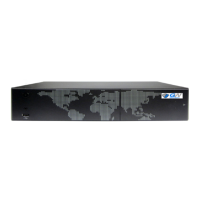
The configured privacy mask zones on the window can be cleared by clicking the corresponding
Clear Region button with different colors on the bottom side of the preview window, or click
Clear All Region to clear all regions. Please refer to Figure 4-59.
Figure 4-59 Draw mask zone
After all the setting finished, click the button Apply to save the configuration.



 To Next Page