4.8 Verifying Settings and Starting Recording
69
Chapter 4 Configuring the Instrument before Measurement (SYSTEM - SYSTEM screen) and
Wiring
4
C
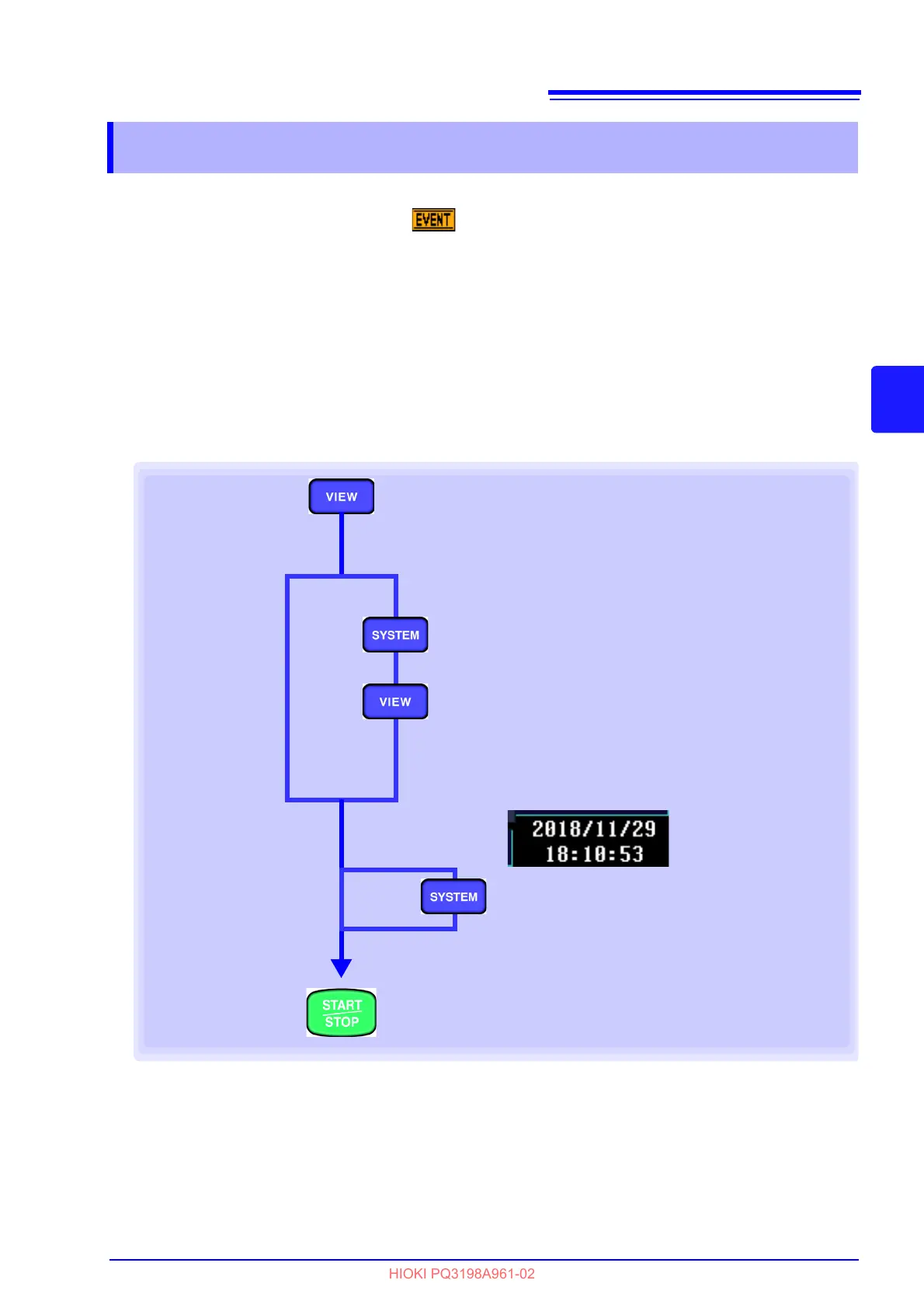
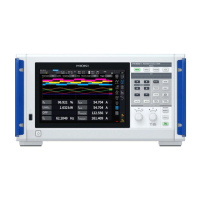
Once you have determined that the settings are appropriate, start recording by pressing the START/
STOP key. Verify that the event icon ( ) is not orange (indicating that the
event is occurring fre-
quently) and that measured values and waveforms on the
[VIEW] screen are normal.
If
the event icon is appearing frequently
Verify which event is occurring with the event list on the
[EVENT] screen and change the problematic
event threshold on the
[SYSTEM] screen.
If
measured values or waveforms are abnormal
Change the measurement condition settings on the
[SYSTEM] screen and verify measured values
again.
Repeat these steps until there are no other problems.
4.8 Verifying Settings and Starting Recording
Verify
Check how frequently the event icon is appearing.
Select the [VIEW] screen and check measured values and
waveforms.
See: Chapter 6 (p.95)
No problem
Start recording.
See: "Start and Stop Recording" (p.22)
Problem
Change settings
Change the settings on the [SYSTEM] screen.
See: Chapter 5 (p.71)
Check again
Check how frequently the event icon is appearing.
Select the [VIEW] screen and check measured values
and waveforms.
No problem
Change settings
Change the settings on the [SYSTEM] screen.
See: "4.2Setting the Clock" (p.52)
Problem
Check the clock
No problem


 To Next Page