Affirm Breast Biopsy Guidance System Service Manual
Chapter 3: Installation, Verification, and Removal
MAN-05754 Revision 002 Page 15
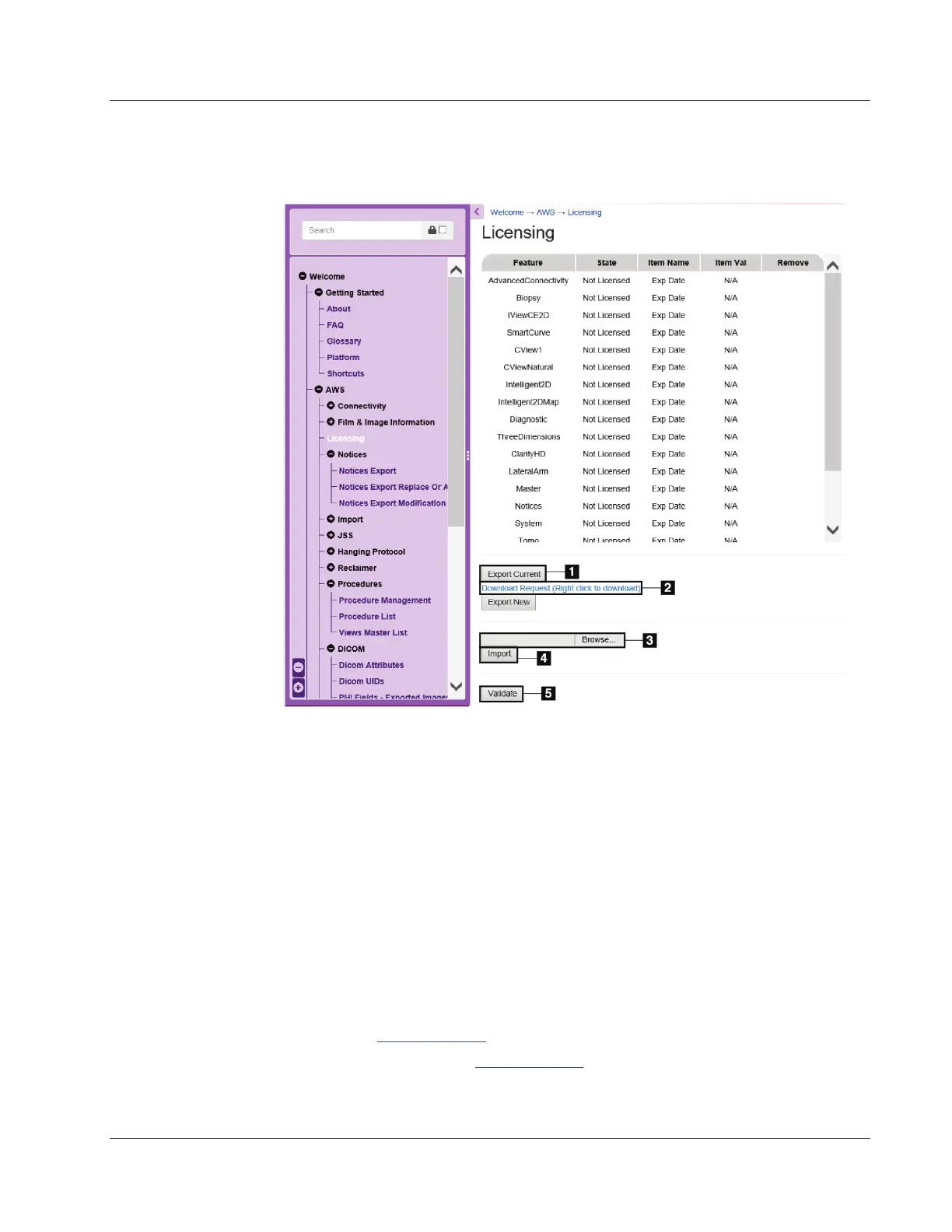
6. Navigate to the AWS > Licensing. The Licensing screen opens (see the following
figure).
Figure 8: System Tools > AWS > Licensing screen
7. Generate a feature request file (xxxxxx.holx). This file includes all the features
currently activated on the system and the MAC address of the computer. Refer to the
previous figure for item references.
d. Click Export Current (item 1).
e. Click Download Request (item 2).
f. In the browser dialog, click Save as.
g. Navigate to the folder where you want to save the xxxxxx.holx file. Make sure
HOLX File is selected as file type.
h. In the browser dialog, click Save.
8. Create an email and include the Sales Order # of the feature in addition to attaching
the generated xxxxx.holx file.
9. Send email to 3D@Hologic.com.
10. Receive a return email from 3D@Hologic.com with a new activation file (xxxxxx.holx).
This file includes all the features currently activated on the system plus the one or
more newly requested features.











 To Next Page