B_configure.doc 109 Tue Jul 2 15:27:17 1996
109
Changing Your Workstation’s Hardware Configuration
Installing Storage Devices
Installing a Hard Disk Drive in Position 1
Perform the following procedure to install a hard disk drive:
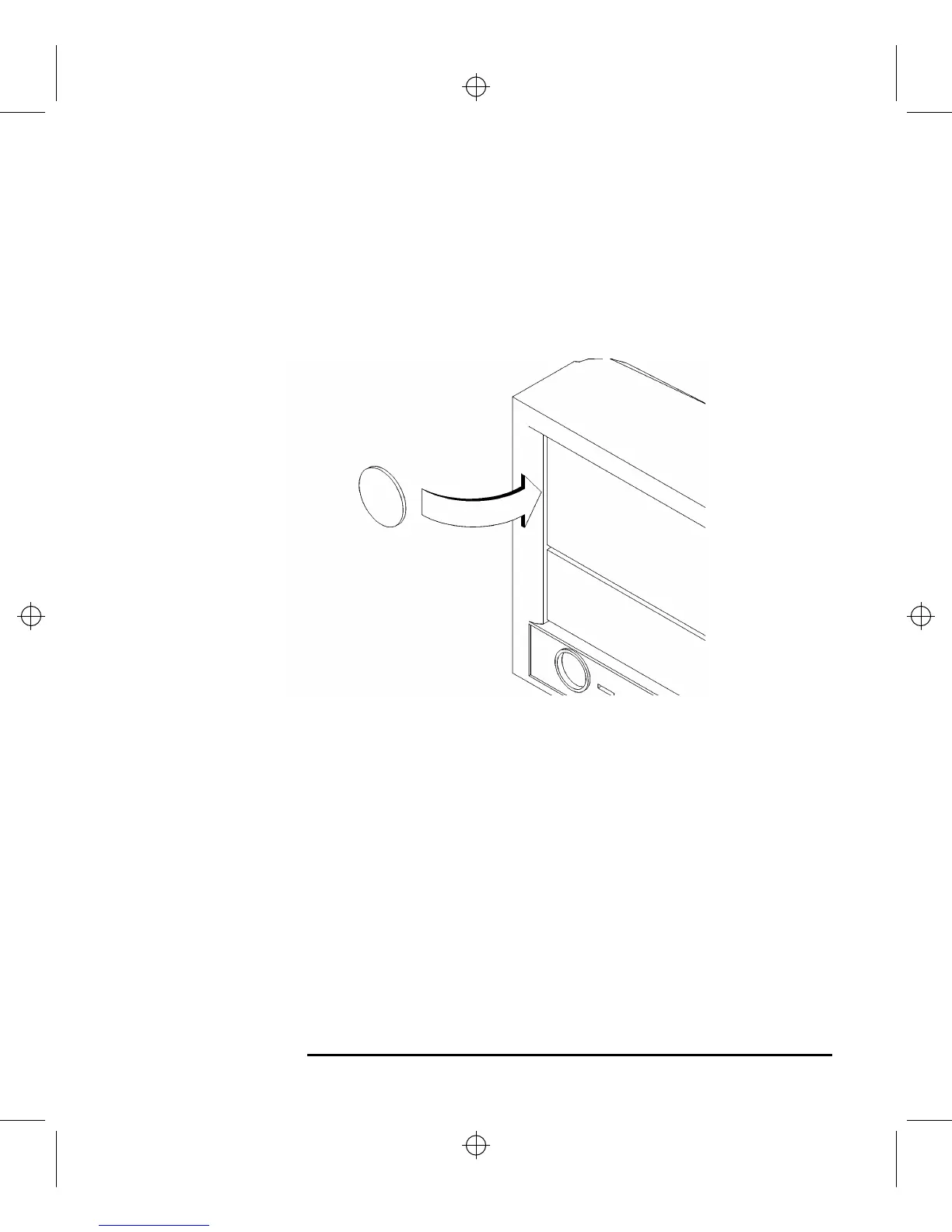
1 Remove the disk filler panel from the bottom location of the bezel by using a coin
or other flat, blunt object to pry it from the front, as shown in Figure 32.
Figure 32 Removing a Disk Filler Panel
2 Reach into the storage bay and locate the power and data cables for the disk drive.
Refer to the cable routing label on the storage tray. See Figure 33.
3 Connect the cables to the drive.
4 From the front of the storage tray, line up the disk slides on the hard disk drive
with the position 1 slots in the storage tray chassis and slide it into place, as shown
in Figure 33.



 To Next Page