8
USING AN SD CARD
8-5
Saving the setting data onto an SD card (Continued)
D Saving with a different le name
You can change the le name to one of up to 15
characters. You can use upper case letters, lower
case letters, numbers, some symbols and spaces.
* You cannot enter symbols: \ / : ; * ? " < > ǀ
If you enter those symbols, an error message is
displayed and you cannot save the le.
(Example: Changing a le name to “My data.”)
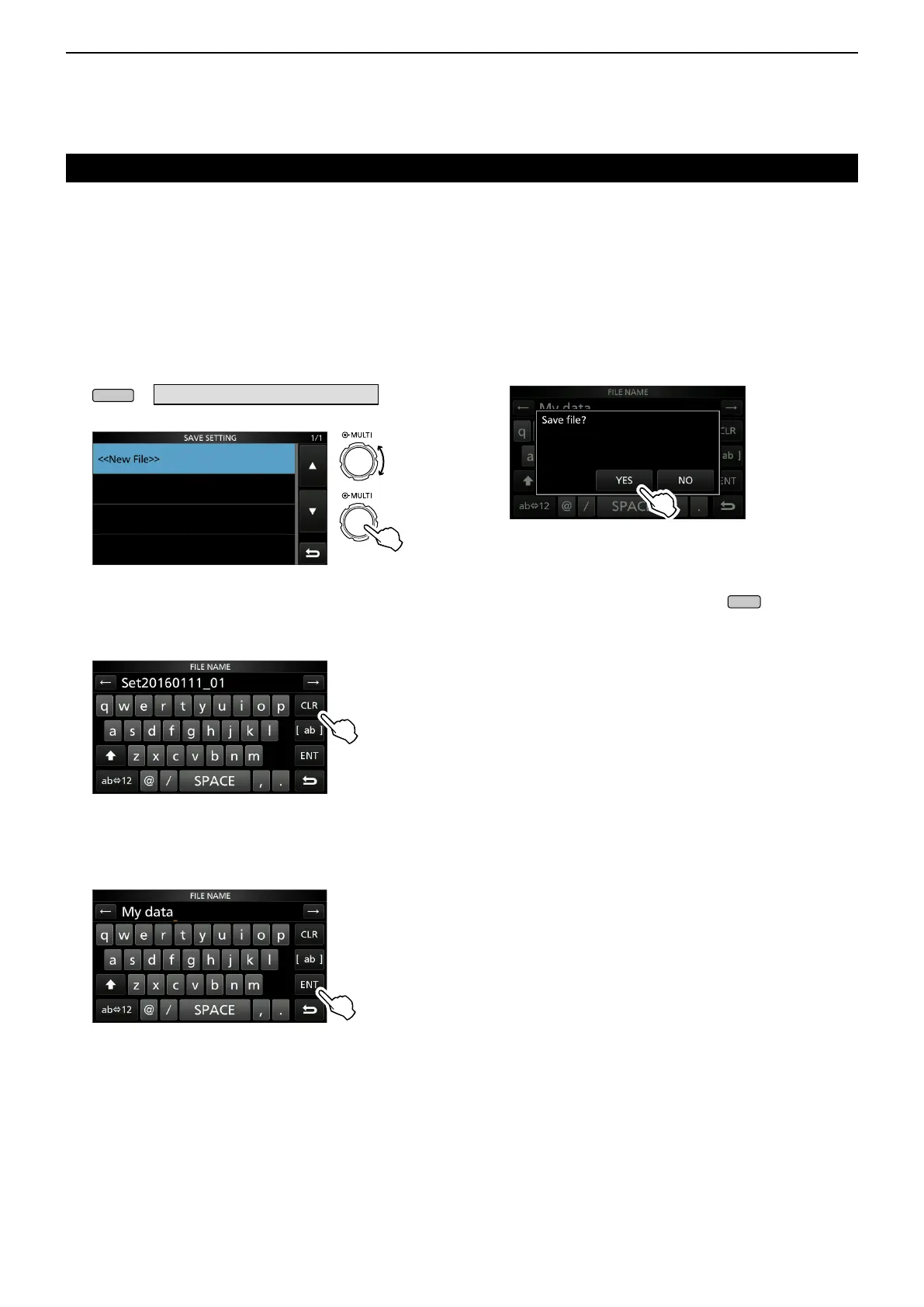
1. Open the SAVE SETTING screen.
» SET > SD Card > Save Setting
2. Select “<<New File>>.”
Rotate
Push
SAVE SETTING screen
3. Touch [CLR] to delete the previously entered
character.
L If you continuously touch [CLR], all the characters are
deleted.
• The character to the left of the cursor is deleted.
4. Touch the keyboard to enter a desired name, and
then touch [ENT].
L See “Keyboard entering and editing” (p. 1-8) for
details.
5. Touch [YES].
• Saves the data settings.
L While saving, the SD card icon blinks.
L After saving, automatically returns to the SD CARD
set screen.
6. To close the SET screen, push
several
times.


 To Next Page