EasyManua.ls Logo

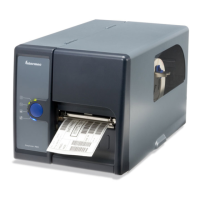
Intermec EasyCoder PD42 - User Manual

Intermec EasyCoder PD42
126 pages
Print Icon
To Next Page IconTo Next Page
Loading...
EasyCoder® PD42
Printer
Users Guide

Table of Contents

Other manuals for Intermec EasyCoder PD42

Questions and Answers

  • M
    Marcus OrtizAug 29, 2025
    What to do if the Error LED is turned on (solid light) on Intermec EasyCoder PD42 Printer?
    • R
      royjamesAug 30, 2025
      If the Intermec Printer's Error LED is on with a solid light, it indicates a problem. Check the following: * Ensure the printer has media or ribbon. * Verify the printhead is closed and locked. * Check for jammed or tangled media. * Make sure the label gap sensor isn't blocked. * Inspect the cutter, if there is one.
  • D
    Dan MoranSep 6, 2025
    How to fix Intermec EasyCoder PD42 Printer showing LSS too high or LSS too low error?
    • J
      Jamie StephensSep 6, 2025
      To resolve the 'LSS too high, LSS too low' error on your Intermec printer, load the printer with media, restart the printer in Test mode and select the appropriate media type. For more information, see the EasyCoder PD42 User’s Guide (P/N 934-009-xxx). These errors can occur when you run a testfeed without any media installed, or if you have incorrect media settings.
  • J
    James WilliamsAug 28, 2025
    Why is my Intermec EasyCoder PD42 Printer working but not printing anything?
    • D
      David RhodesAug 28, 2025
      If the printer is working but nothing is printed, check that the printhead is correctly connected to the print mechanism.
  • J
    Jamie WiseSep 15, 2025
    Why is printout darkness uneven across media path on my Intermec EasyCoder PD42 Printer?
    • A
      Amy CastroSep 15, 2025
      If the printout darkness is uneven across the media path: * Check the printhead balance. * Check the printhead pressure.
  • P
    Patrick RogersSep 7, 2025
    What to do if Intermec EasyCoder PD42 displays Test Cutter not found?
    • E
      Elizabeth VasquezSep 7, 2025
      If your Intermec Printer displays 'Test Cutter not found', ensure the cutter is installed properly. A cut-command has been sent but the printer cannot find the cutter.
  • L
    Lori RamirezSep 12, 2025
    Why Intermec Printer is showing Maintenance message?
    • B
      Benjamin HowardSep 12, 2025
      If your Intermec printer is undergoing maintenance, it is upgrading its firmware. Wait for it to complete the task.
  • J
    James HamiltonSep 14, 2025
    Why does my Intermec Printer skip labels when printing?
    • A
      Andrew ReynoldsSep 14, 2025
      If labels are skipped when printing: * Run a new testfeed. * Check if the label gap sensor is disturbed by dust or foreign particles.
  • P
    Paul BrownDec 1, 2025
    What to do if Intermec Printer has no reaction at power up?
    • T
      tmoralesDec 1, 2025
      If the Intermec Printer experiences no reaction at power up, check the following: * Verify the power outlet and power cord. * Check the power switch and cables to power module. * Check the main board and cable to the panel module. * Check the 24 VDC output on CN1 on the power module between line and ground. If there is no +24V, replace the entire power module. * Verify that the same electric potential is present in the other end of the cable to rule out the possibility of errors in the cable. * Check that the cable between CN1 on the power module and P60 on the main board is properly connected. * Check the status of the F1 and F2 fuses on the power module. If blown, replace the entire module. * Check for main board problems. * Check the cable between main board and conso...
  • J
    Joseph JohnsonAug 26, 2025
    Why Intermec EasyCoder PD42 has no printing due to software error?
    • J
      Judy HansenAug 26, 2025
      If the Intermec Printer is experiencing no printing due to a software error, check if a bad command was sent to the printer via Fingerprint or direct protocol. Also, check the Fingerprint application or the last issued instruction in Direct Protocol.
  • Y
    Yvonne DillonAug 25, 2025
    Why Intermec EasyCoder PD42 Printer is working, but nothing is printing?
    • M
      Maria GonzalezAug 26, 2025
      If your Intermec Printer is not printing anything, there could be several reasons: * Ensure the direct thermal media is loaded correctly with the heat-sensitive side facing up. * Check that the ink-coated side of the thermal transfer ribbon faces the media. * Verify the printer settings for media type, paper type, and print method are correct. * Confirm the printhead is properly inserted into the print mechanism. * Inspect the cables from the print mechanism to the main board for damage and proper connection. * Consider replacing the printhead. * Check the label taken sensor is folded out and enabled and if there is a label left in the feed slot or the ambient light disturbs the label taken sensor.

Summary

Using the Printer

Introducing the EasyCoder PD42 Printer

Introduces the printer's capabilities and suitability for medium-duty applications.

Features of the Printer

Describes the exterior, connectors, and media compartment of the printer.

Working With the Print Button and LED Indicators

Explains the function of the print button and the meaning of the LED indicators.

Working With the Display and the Soft Keys

Details how to interact with the printer's display and soft keys for operation.

Installing the Printer

Connecting the Printer to Your System

Explains various connection methods for the printer to a computer system.

Loading Media

Provides instructions for loading different types of media into the printer.

Loading Thermal Transfer Ribbon

Step-by-step guide on how to load a thermal transfer ribbon.

Configuring the Printer

Understanding Printer States

Explains the various operational states the printer can enter.

Changing Configuration Settings

Covers methods for modifying the printer's setup parameters.

Running Testmode and Extended Testmode

Details how to use test modes for verification and troubleshooting.

Troubleshooting and Maintaining the Printer

Printer Operation Problems

Lists common issues affecting printer operation and provides solutions.

Print Quality Problems

Addresses common issues related to the quality of printed output.

Troubleshooting Communication Problems

Guides on diagnosing and resolving communication issues with the printer.

Adjusting the Printer

Procedures for making adjustments to improve printer performance.

Specification, Interfaces, and Options

Printer Specifications

Provides detailed technical specifications for the printer.

Interfaces

Describes the standard and optional communication interfaces for the printer.

Options

Lists optional hardware kits that add functionality to the printer.

Media Specifications

Media Roll Sizes

Details the dimensions and specifications for media rolls.

Paper Types and Sizes

Explains different paper types and their dimensions.

Setup Parameters (Fingerprint)

Serial Communication Setup

Details parameters for serial communication setup.

Media Setup

Covers parameters for configuring media characteristics.

Paper Type

Controls transfer ribbon mechanism and ribbon sensor.

Setup Parameters (IPL)

Serial Communication Setup

Details parameters for serial communication setup.

Media Setup

Covers parameters for configuring media characteristics.

Configuration Setup

Details various configuration options like emulation and print speed.

Intermec EasyCoder PD42 Specifications

General IconGeneral
Media TypeLabels, Tags, Wristbands
Print TechnologyThermal Transfer, Direct Thermal
Print Resolution203 dpi
Maximum Print Width104 mm (4.09 in)
Media Thickness0.003 in to 0.010 in (0.08 mm to 0.25 mm)
ConnectivityUSB, Serial, Ethernet
Power Requirements100-240 VAC, 50-60 Hz
Operating Temperature+5°C to +40°C (+41°F to +104°F)
Storage Temperature-40°F to 140°F (-40°C to 60°C)
Humidity10-90% RH non-condensing

Related product manuals