EasyManua.ls Logo

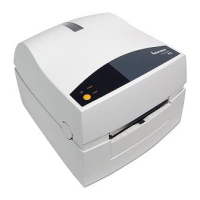
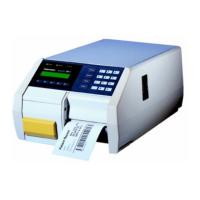
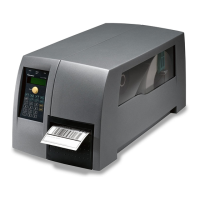
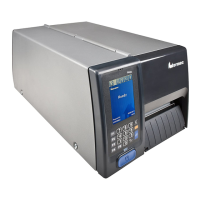
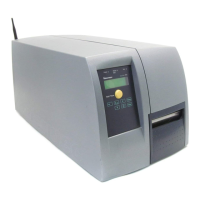
Intermec EasyCoder PM4i - User Manual

Intermec EasyCoder PM4i
186 pages
Print Icon
To Next Page IconTo Next Page
Loading...
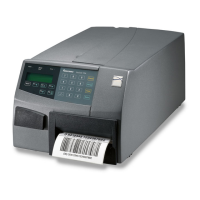
EasyCoder® PM4i
Bar Code Label Printer
(Fingerprint Version)
Users Guide

Table of Contents

Other manuals for Intermec EasyCoder PM4i

Questions and Answers

  • J
    James GoldenSep 12, 2025
    What causes dark lines along the media path in my Intermec Label Maker's printouts?
    • M
      Melissa RobertsSep 13, 2025
      Dark lines along the media path on your Intermec Label Maker's printouts are typically caused by foreign objects on the printhead. Cleaning the printhead should resolve this issue.
  • D
    Denise HansenAug 25, 2025
    What to do if Intermec Printer has missing printhead dots?
    • K
      Katherine MccoyAug 25, 2025
      If your Intermec printer has missing printhead dots, you should replace the printhead.
  • A
    Alicia SmallAug 25, 2025
    What to do if Intermec EasyCoder PM4i printhead is failing?
    • N
      ngallagherAug 26, 2025
      If the printhead on your Intermec printer is failing, replace it.
  • T
    timothyduncanSep 23, 2025
    What to do if a large part of dot line is missing on Intermec Label Maker?
    • K
      Karen BrockSep 23, 2025
      If a large part of the dot line is missing on your Intermec Label Maker, it could be due to a failing printhead or a failing strobe signal. Replace the printhead or check the CPU-board.
  • R
    Roy WelchSep 13, 2025
    What to do if a large part of a dot line is missing on Intermec Label Maker printouts?
    • U
      ugreenSep 13, 2025
      If a large part of a dot line is missing on your Intermec Label Maker printouts, it could be due to several reasons. The X-start or Width parameter might be wrong, so change the parameter. The printhead could be failing, requiring replacement. Alternatively, there might be a failing strobe signal, which requires checking the CPU-board.
  • M
    Michael RobertsSep 22, 2025
    What causes dark lines along media path on Intermec Label Maker printouts?
    • A
      Angela CarrollSep 22, 2025
      Dark lines along the media path on Intermec Label Maker printouts are caused by foreign objects on the printhead. Clean the printhead to resolve this issue.
  • O
    olsonheatherSep 6, 2025
    What to do if Intermec EasyCoder PM4i Printer has failing strobe signal?
    • J
      Jerry CarterSep 6, 2025
      If your Intermec printer has a failing strobe signal, check the CPU-board.
  • C
    Cheryl HernandezSep 7, 2025
    What to do if Intermec EasyCoder PM4i Printer has wrong X-start or Width parameter?
    • A
      Alexander VaughanSep 7, 2025
      If your Intermec printer has the wrong X-start or Width parameter, change the parameter.
  • A
    apierceSep 23, 2025
    Why Intermec Label Maker has no thermal transfer printout?
    • S
      Sharon ReeseSep 23, 2025
      If your Intermec Label Maker has no thermal transfer printout, it's likely because the ink-coated side of the ribbon does not face the media. Reload the ribbon so that the ink-coated side faces the media.
  • M
    Michael SteeleAug 31, 2025
    What to do if the Intermec Label Maker produces an overall dark print-out?
    • E
      elizabethlyonsAug 31, 2025
      If your Intermec Label Maker is producing an overall dark print-out, it could be due to several reasons: using the wrong media grade, having the contrast value set too high, the printhead pressure being too high, or incorrect printhead voltage. Consider changing the media parameter, adjusting the contrast, adjusting the printhead pressure, or replacing the CPU board.

Summary

Before You Begin

Safety Information

Provides essential safety warnings and precautions for operating Intermec equipment.

Safety Icons

Explains the meaning of various warning and caution icons used in the document.

Global Services and Support

Details warranty information and how to access web and telephone support.

Telephone Support

Lists services and contact options for technical support and product ordering.

Manual Readership and Resources

Identifies the target audience and lists how to download or order additional Intermec documentation.

1 Introduction

Printer Description and Features

Details the specifications, features, and capabilities of the EasyCoder PM4i printer.

Safety Summary and Product Identification

Summarizes critical safety warnings and how to identify the printer's model and serial number.

2 Installation

Printer Views and Components

Describes the components and features visible on the front panel of the printer.

Rear Panel Components and Connections

Details the connectors, switches, and slots located on the rear panel of the printer.

Media Handling Components

Explains the media compartment, supply roll post, and print mechanism for loading and printing.

Printer Connections

Explains how to connect the printer to power and a computer via various interfaces.

User Interface Controls

Introduces the printer's interface elements like indicator lamps, display, keyboard, and beeper.

3 Starting Up

Startup Configuration and Memory Cards

Explains startup files, memory card usage, and printer behavior on power-on.

Printer Power On Procedure

Provides a step-by-step guide on how to power on the printer and its initialization process.

4 Media Load

Media Loading Methods

Describes common media loading methods like Tear-Off, Peel-Off, and Cut-Off.

Alternative Media Supplies

Explains loading media using external supplies like fanfolds or rotating hubs.

5 Thermal Transfer Printing

Ribbon Loading Procedure

Guides the user on how to load the thermal transfer ribbon correctly for printing.

6 Setting Up the Printer

Setup Mode and Configuration Overview

Details how to enter and navigate Setup Mode, and configure parameters via Fingerprint/Direct Protocol.

Serial Communication Settings

Controls communication parameters for serial ports, including baud rate, parity, and flow control.

Feed and Media Setup

Configures media feed adjustments and media characteristics for optimal print quality.

Print Configuration Settings

Sets print speed, tests, and sensor adjustments for print quality.

Returning to Factory Default Setup

Provides methods to reset all printer setup parameters to their original factory defaults.

7 Setup Mode

Entering and Navigating Setup Mode

Explains how to enter and navigate the printer's Setup Mode using the keyboard and display.

8 Intermec Shell Startup Program

Intermec Shell Overview and Startup

Introduces Intermec Shell, how to start it, and select applications or facilities.

Line Analyzer Tool

Details the Line Analyzer program for diagnosing communication problems by capturing and printing data.

9 Options

Printer Options Overview

Describes how adding options enhances the printer's flexibility for various applications.

Media Handling Options

Details options like liner takeup, paper cutter, media hubs, sensors, and retainers for media management.

Connectivity and Expansion Options

Covers options for keyboards, RFID kits, printheads, and various interface boards.

10 Troubleshooting

Ready-to-Work Indicator and Error Messages

Explains the IRI status and lists error messages with their meanings for troubleshooting.

Print Quality Symptoms and Causes

Provides a guide to common print quality symptoms, their possible causes, and suggested remedies.

11 Maintenance

Printhead and Media Guide Maintenance

Details printhead cleaning and cleaning the media guides for optimal print quality and longevity.

External Cleaning and Media Jams

Explains safe external cleaning and procedures for clearing media jams.

Printhead Replacement Procedure

Provides instructions on how to safely replace the printer's printhead.

12 Adjustments

Media and Sensor Adjustments

Guides on adjusting for narrow media and aligning the Label Stop Sensor (LSS).

Printhead and Ribbon Adjustments

Explains how to adjust printhead pressure and ribbon break shaft for optimal performance.

LTS Sensor Adjustments

Explains how to adjust the sensitivity of the Label Taken Sensor (LTS).

A Technical Data

Printer Specifications

Lists technical data for printing, modes of operation, firmware, physical measures, and electronics.

Controls, Interfaces, and Options

Details printer controls, data interfaces, and available accessories and options.

B Media Specifications

Media Roll and Type Specifications

Provides specifications for media roll sizes and details for various media types like labels and tickets.

C Interfaces

Serial and USB Interface Details

Details the RS-232 interface protocol and pinout, and the printer's USB support.

Bar Code Wand and Optional Interfaces

Explains the bar code wand interface and lists optional interface boards for expanded connectivity.

D Intermec Supplies

Media and Ribbon Recommendations

Lists Intermec's direct thermal and thermal transfer media, and transfer ribbons for various applications.

Paper Type Settings and Bar Code Directions

Provides recommended paper type settings by region and explains bar code printing directions.

E Setup Mode Overviews

Serial Communication Setup Overviews

Provides detailed setup overviews for serial communication ports UART1 through UART5.

Network and RFID Setup Overviews

Details network communication setup for NET1 and RFID configuration options.

Intermec EasyCoder PM4i Specifications

General IconGeneral
Print technologyDirect thermal
Maximum resolution203 x 203 DPI
DisplayLCD
Product colorSilver
Standard interfacesRS-232, USB 2.0
Internal memory16 MB
Media thickness2.5/8.7 mm
Maximum label width114.3 mm
Maximum label length4 m
Maximum roll diameter213 mm
Maximum internal memory1 GB
Supported network protocolsTCP/IP, LPR/LPD, FTP, BOOTP, DHCP, HTTP, SNMPv3, SMTP, SNMP-MIB II
Power requirements90 - 265 VAC, 45 - 65Hz
Power consumption (standby)15 W
Power consumption (printing)125 W
Storage temperature (T-T)-20 - 70 °C
Operating temperature (T-T)40 - 104 °F
Operating relative humidity (H-H)20 - 80 %
Weight and Dimensions IconWeight and Dimensions
Depth543 mm
Width298 mm
Height261 mm
Weight13500 g

Related product manuals