ENGLISH
Chapter 3: Geng Started
34
DVR User’s Manual
3.4.2 Split Mode
You can customize the 16 channels to be displayed separately on a 4-window or 9-window display or show all 16
channels on the screen.
There are 3 split mode opons:
1 In the preview mode, right-click on the mouse to display the pop-up menu.
2 Select one of the following opons:
• View 4: Click this icon to view 4 channels at a me. Click again to view the next 4 channels and so on.
• View 9: Click this icon to view 9 channels at a me. Click again to view the next batch of channels.
• View 16: Click this icon to view all 16 channels at a me.
Note:
Opons to split windows may vary depending on the DVR model. Split Windows opon is not available when View
Setup is enabled (see “4.1 Seng the Display” on page 39).
3.4.3 Picture-in-Picture (PIP) Mode
With Picture-in-Picture (PIP) mode, you can watch two more channels to be simultaneously displayed on the rst
channel live preview.
1 In the preview mode, right-click on the mouse to display the Pop-up menu.
2 Select one of the following opons:
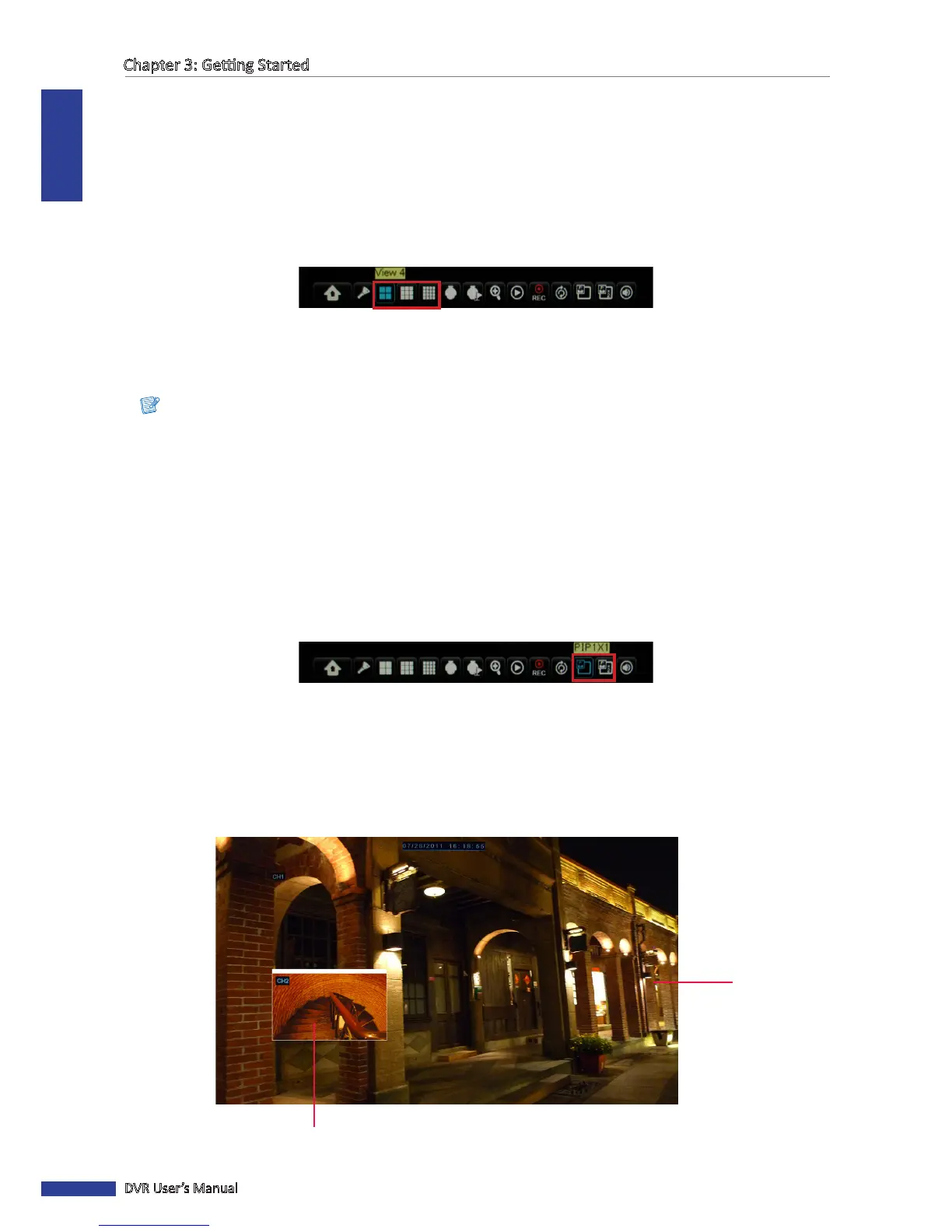
• PIP1X1: Click this icon to view another channel that will appear a mini-window frame on top of the main channel
display.
• PIP1X2: Click this icon to view two more channels that will appear on two mini-window frames on top of the
main channel display.
3 To move the mini-window around the main screen, click and drag it to a new posion.
Second channel
For example: PIP 1X1 mode
Main channel



 To Next Page