ENGLISH
Chapter 5: KGUARD Web Client
DVR User’s Manual
95
5.5.5 Seng the Device
Use the Device menu to view the hard disk informaon and setup PTZ.
HDD Setup
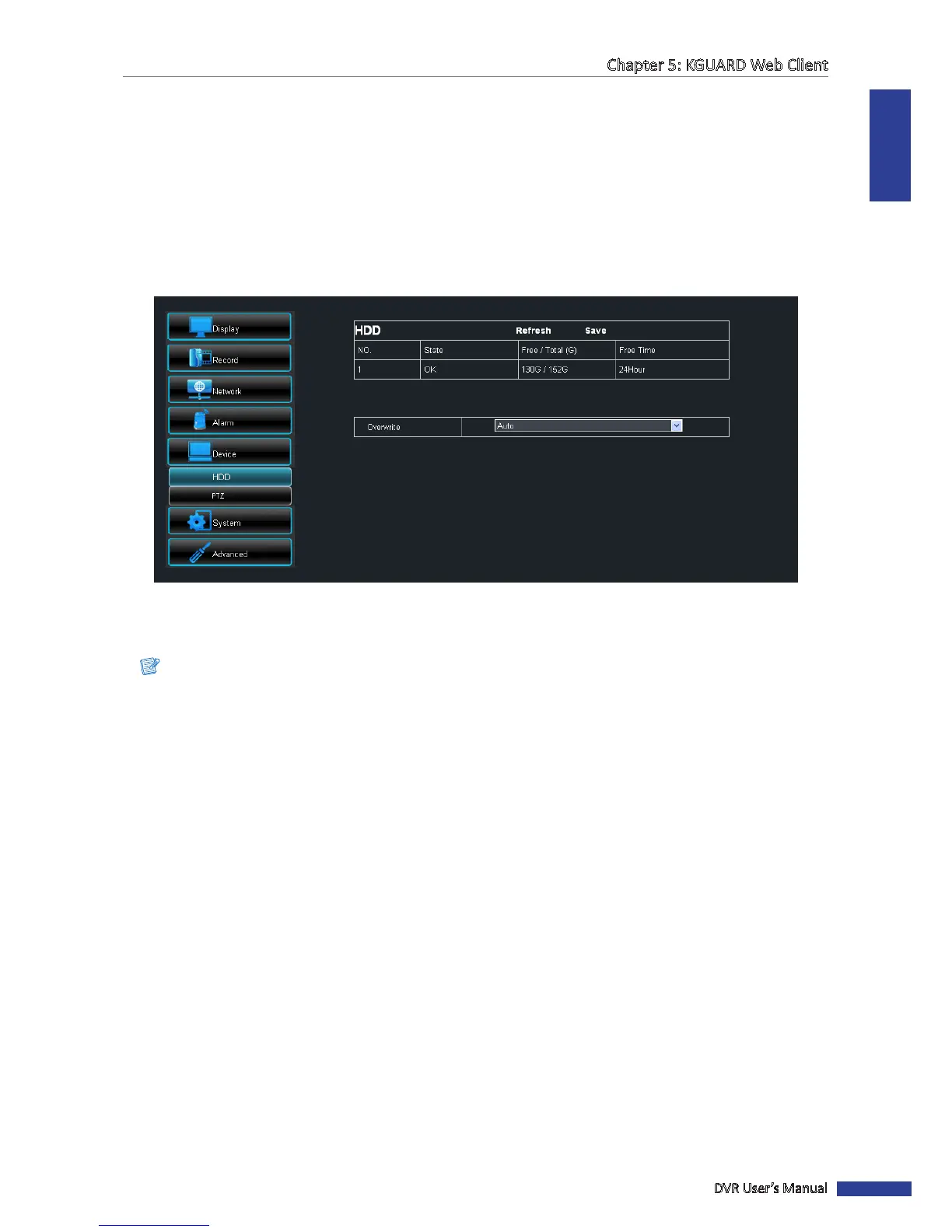
You can remotely view the hard disk informaon and select an overwrite opon. To do this, perform the following:
1 On the Main Menu, click Remote Seng.
2 On the le panel, click Device > HDD. The HDD screen appears. The informaon about the installed hard disk(s) on
the DVR are shown.
3 To select an overwrite opon, select the hard disk drive from the table (if more than one is installed).
4 On Overwrite, select an overwrite interval opon (Close/Auto/1 Hour/3 Hours/1 Day/7 Days/30 Days/90 Days).
Note:
If Overwrite is set to Close, the recording will stop once the hard disk drive is full.
5 Aer all sengs are complete, click Save.
« TIP »
To cancel any modicaons and retain the exisng sengs, click Refresh.
PTZ Setup
When a PTZ camera is installed, use the PTZ Setup menu to customize its sengs.
1 On the Main Menu, click Remote Seng.
2 On the le panel, click Device > PTZ. The PTZ screen appears.
3 On Channel, select the channel where the PTZ camera is installed.



 To Next Page