ENGLISH
Chapter 5: KGUARD Web Client
DVR User’s Manual
83
Seng the Recording Schedule
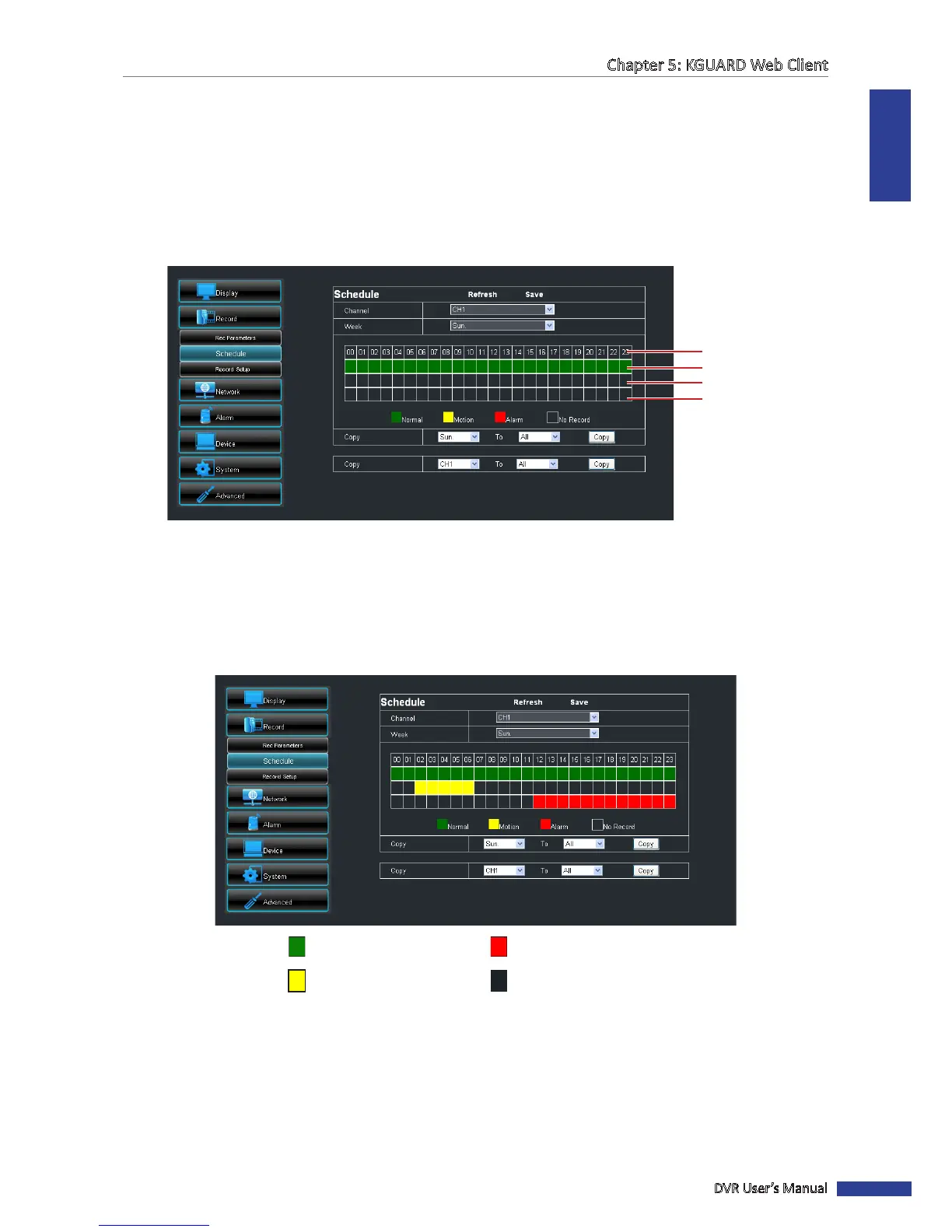
To automacally record a channel at a specied me, do the following:
1 On the Main Menu, click Remote Seng.
2 On the le panel, click Record > Schedule. The Schedule screen appears.
3 On Channel, select the channel.
4 On Week, select the day of the week.
Time
(24-hour format)
Slot for Normal recording
Slot for Moon recording
Slot for Alarm recording
(on 16-channel DVR only)
5 Click a space on the grid to mark the schedule. The space changes color depending on the selected record type.
Click as many spaces as desired.
• Normal: To record the video within the specied me.
• Moon: To record the video only when moon is detected.
• Alarm: To record the video only when the alarm is triggered within the specied me. If the alarm is not
triggered, the recording is not performed. See “5.5.4 Seng the Alarm” on page 92 for further details.
Normal recording is set Alarm recording is set
Moon recording is set No scheduled recording
« TIP »
To copy the same schedule from one day to another, select the source day on the Copy eld, then select the target
day on the To eld, then click Copy.
6 To save the schedule, click Save.
« TIP »
• To apply the same recording sengs to other channels, click Copy. See “Copying Sengs To Other Channels”
on page 80.
• To cancel any modicaons and retain the exisng sengs, click Refresh.



 To Next Page