ENGLISH
Chapter 4: Using the DVR
60
DVR User’s Manual
Formang USB drive
To format the USB disk drive, do the following:
1 Plug a USB device into the USB port of the DVR.
2 In preview mode, right-click on the mouse to display the Pop-up menu.
3 Select Main Menu > DEVICE.
4 Click Format USB.
5 An “All data will be deleted aer formaed” warning message appears on the screen. Click OK to proceed.
6 When the formang process is complete, click OK.
Note:
Do not remove the USB device while drive formang is in progress.
4.6.2 PTZ Setup
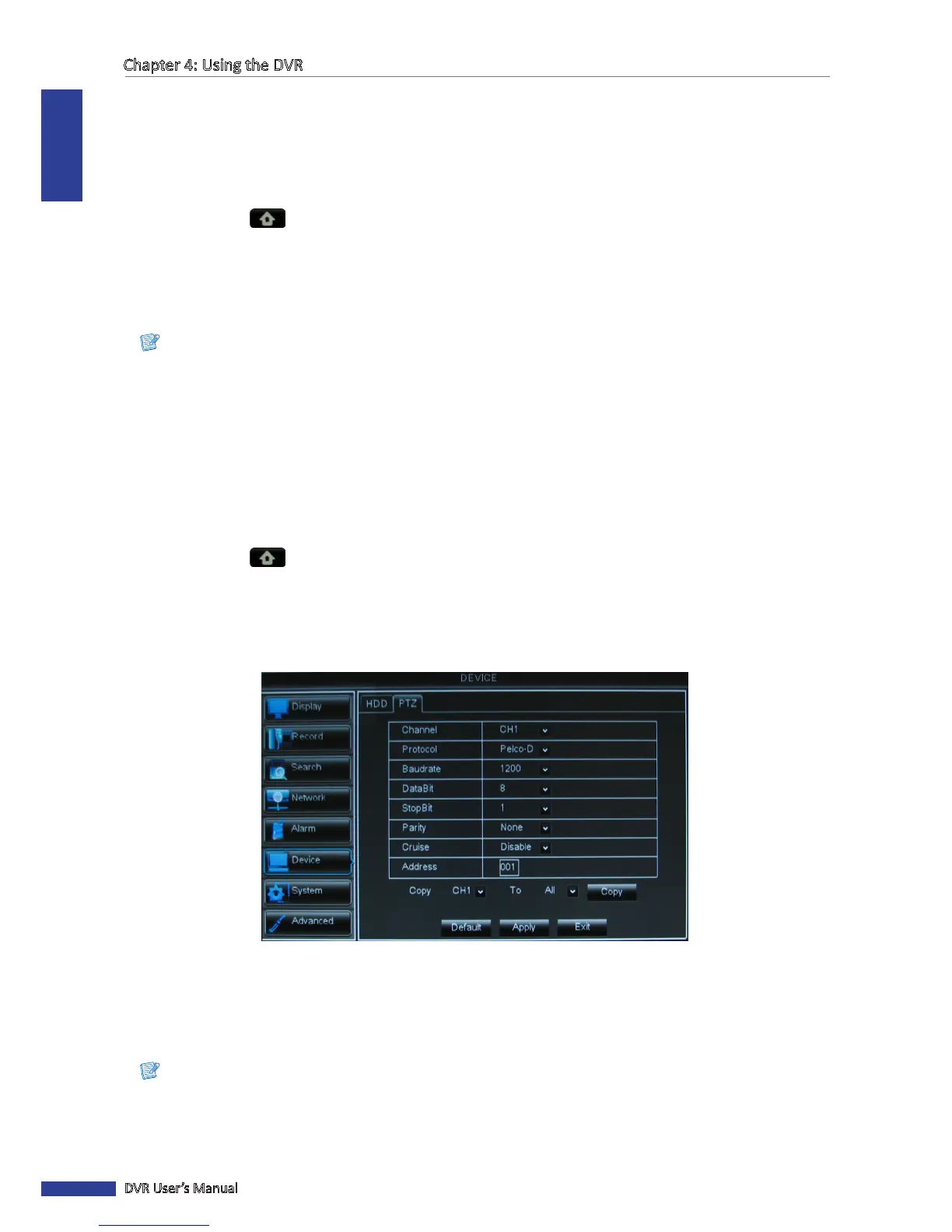
Aer the PTZ speed dome is properly installed via RS-485 connecon, you can customize its sengs using the PTZ
SETUP menu.
To set up the PTZ camera seng, do the following:
1 In preview mode, right-click on the mouse to display the Pop-up menu.
2 Select Main Menu > DEVICE, select the PTZ tab.
3 Select the channel which the PTZ camera is connected to.
4 Set the PTZ Protocol, Baudrate, Data BIT, Stop BIT, Parity, Address code.
5 Enable or disable Cruise mode.
6 Aer all sengs are complete, click Apply.
« TIP »
To copy the current sengs to other channels, select the channel(s) in Copy To and then click Copy.
7 When data saving is complete, click OK.
Note:
The PTZ camera can only be acvated when a connected channel with the PTZ camera is selected.



 To Next Page