ENGLISH
Chapter 5: KGUARD Web Client
DVR User’s Manual
79
5.5 Remote Sengs
Use the Remote Seng menu to remotely congure the DVR. However, some funcons are only accessible if you login
with an administrator account.
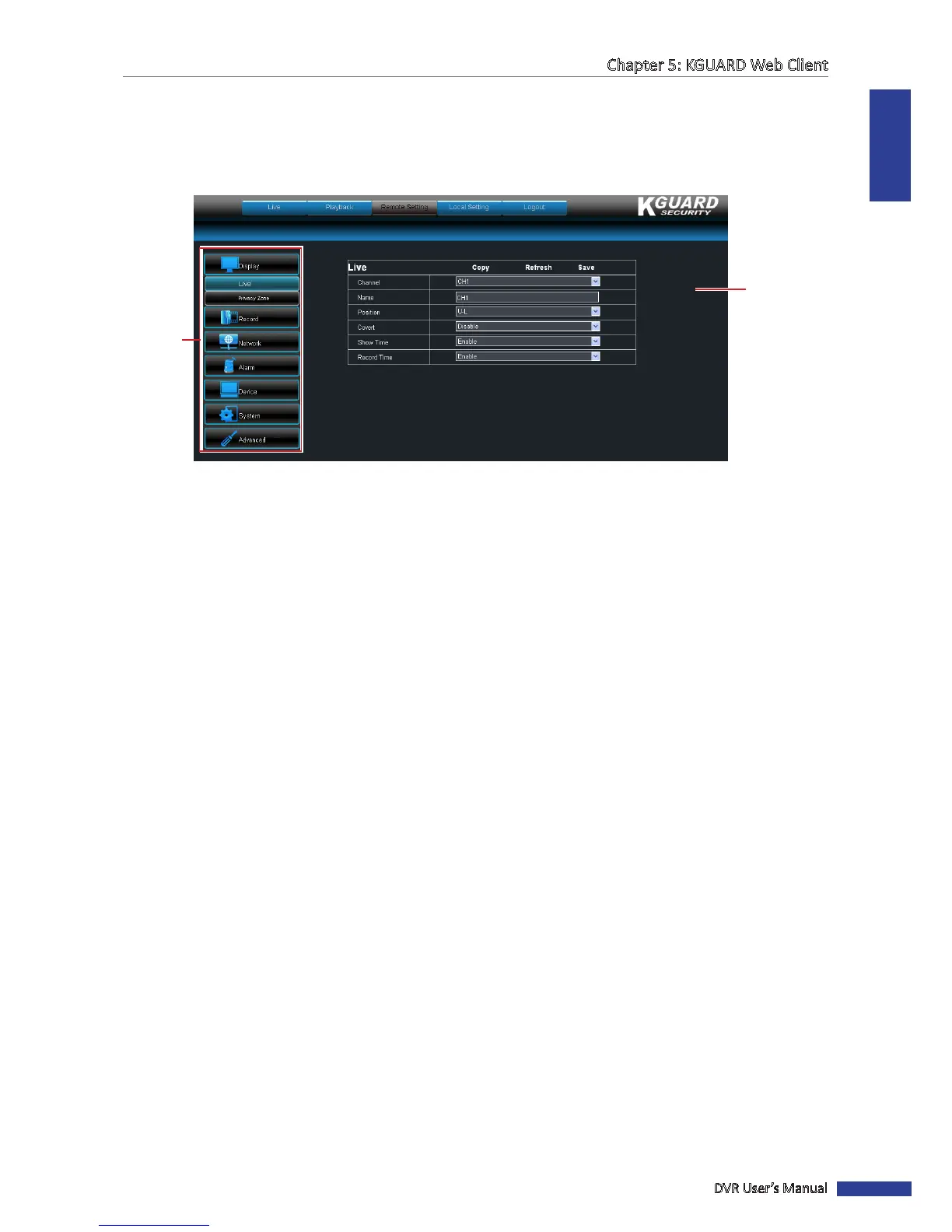
On the Main Menu, click Remote Seng to access the Remote Seng page.
Le panel
menu
Sengs screen
The Remote Seng menu is divided into seven submenu opons:
• Display: Allows you to customize how channels are displayed on the monitor screen. See “5.5.1 Seng the
Display” below.
• Record: Allows you to customize the recording sengs and schedule. See “5.5.2 Seng the Recording” on page
82.
• Network: Allows you to customize network sengs, including email setup. See “5.5.3 Seng the Network
Conguraon” on page 85.
• Alarm: Allows you to customize alarms and set when and how you want to be noed. See “5.5.4 Seng the
Alarm” on page 92.
• Device: Allows you to customize sengs for the hard disk drive, PTZ speed dome, mobile, and moon detecon.
See “5.5.5 Seng the Device” on page 95.
• System: Allows you to setup user accounts and password, set the system date and me, and view the device
informaon. See “5.5.6 Managing System Sengs” on page 96.
• Advanced: Allows you to upgrade the rmware, restore default sengs or congure events and maintenance
opons.
To access a submenu opon, click an item from the le panel. The tree expands to show more opons.
5.5.1 Seng the Display
Use the Display menu to remotely customize how you want the channels to be displayed on screen, enable live viewing
and set the window posion of a channel. You can also customize the channel name that is displayed on the screen.
1 On the Main Menu, click Remote Seng.
2 On the le panel, click Display.
3 Modify the necessary sengs.



 To Next Page