ENGLISH
Chapter 5: KGUARD Web Client
DVR User’s Manual
77
5.4 Searching and Playing Recorded Videos
You can remotely search, play, and download recorded videos.
5.4.1 Searching and Playing Videos
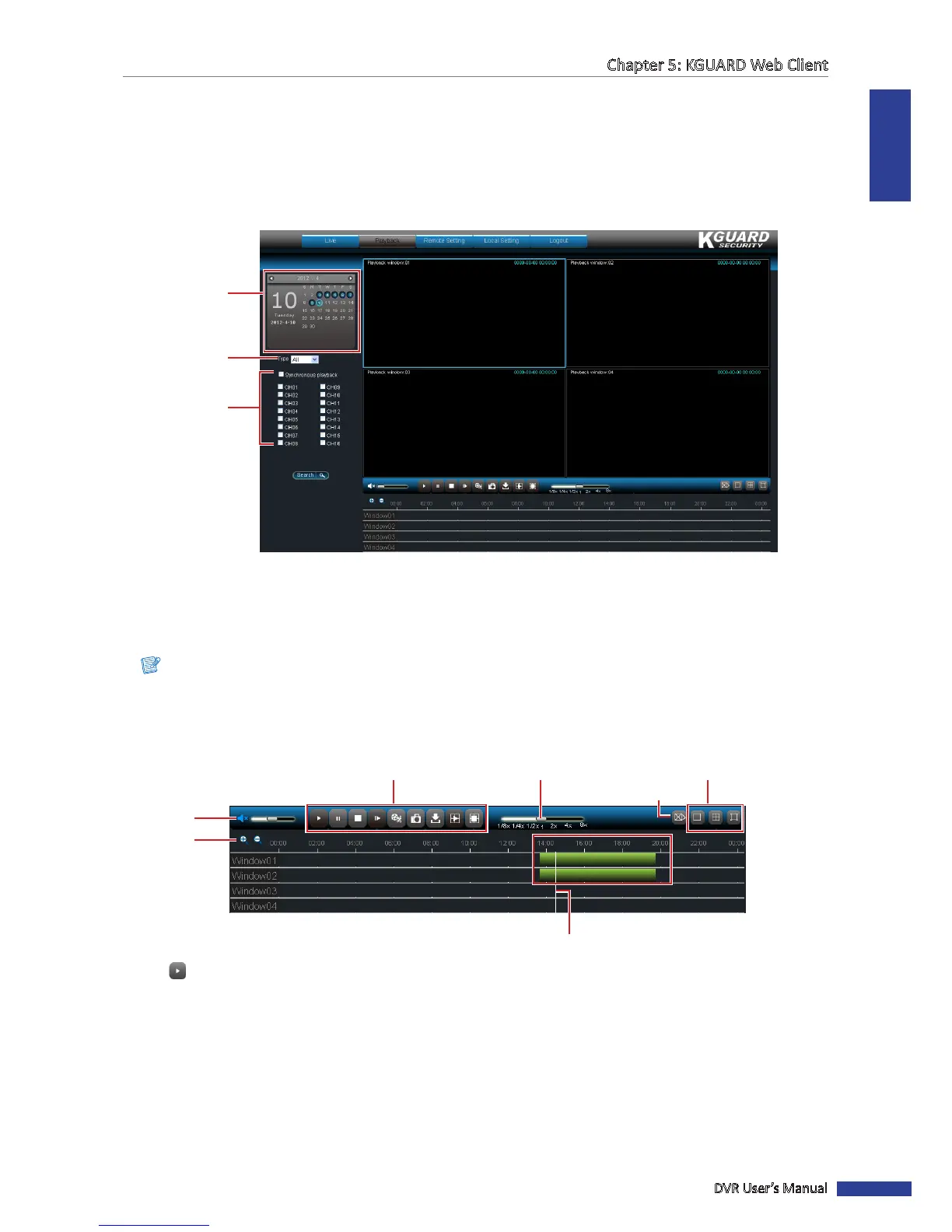
1 On the Main Menu, click Playback. The Playback screen appears.
1. Select date
2. Select video type
3. Select channel
2 Select a date from the calendar.
3 You can lter the search by recorded video type. Select the Type.
4 Check Synchronous playback to playback mulple channels at the same me.
Note:
You can only select up to 4 channels for simultaneous playback.
5 Select the channels that you want to search.
6 Click Search. Available recorded les are marked with green bars on the me line.
Zoom icons
Volume
SpeedPlayback Controls
Screen Mode
Drag to jump to a me line.
Stop All Controls
7 Click to play the recorded videos simultaneously.
8 Use the on-screen controls to manage the recorded videos.
« TIP »
• To jump to a me slot or fast-forward or rewind the playback, drag the white line across the green bars.
• Use the playback control buons to pause/play and stop the playback.
• Drag the volume slider to adjust the volume.
• Click the zoom icons to zoom in or zoom out the me line.
• Drag the speed slider to change the playback speed.



 To Next Page